
Library section
Longer reads about hardware and software
Take a closer look at the ideas that connect the entire library. These articles explain software layers, package structure, compatibility, release notes…
Take a closer look at the ideas that connect the entire library. These articles explain software layers, package structure, compatibility, release notes, and the choices behind standardized interfaces.
Understand the relationships
A device does not operate through one isolated file. Hardware, firmware, operating-system services, and application interfaces participate in a coordinated path. The articles explore those relationships with examples instead of treating a version number or category label as a complete answer. Each is written to stand on its own while linking to more focused reading.
Separate explanation from recommendation
Understanding a mechanism does not imply that a particular computer needs a change. Release channels, signatures, and compatibility declarations describe different properties. When an actual package or model-specific action is involved, use the reference source for that equipment. This section is intended to improve the way you read information, not to create a sense of urgency around routine device maintenance.
What a driver really is
A driver is the interpreter between general-purpose software and one particular piece of hardware. This article follows a single keypress and a single…

Why standard interfaces exist
Plug in almost any mouse and it simply works. That ordinary moment rests on decades of agreements about how classes of devices describe themselves, and…
How driver stacks are layered
Most devices are served not by one driver but by a small stack of them, each with a narrow job. Seeing the stack as layers explains why a single device can…
Anatomy of a driver package
A driver package is a bundle with a precise structure: an information file that describes it, binaries that do the work, and a catalog that vouches for…
How Windows ranks driver packages
When several packages could serve the same device, Windows does not pick at random. It scores candidates by how specifically they match, how they are signed…
Understanding version numbers
Driver versions look like precise measurements, yet each publisher uses its own numbering logic. Learning how these strings are built prevents false…
Choosing a driver update channel
Drivers reach a Windows computer through a few distinct routes: automatic Windows Update, the optional updates list, the device maker's site and the…
Firmware versus drivers
Firmware lives on the device and runs there; drivers live in the operating system and run on the computer's processor. Mixing up the two leads to confusing…
Reading driver release notes
Release notes are the most direct evidence of what changed between two driver versions. They are written for many audiences at once, so a little structure…
Compatible does not mean identical
A package listed as compatible with your device will load and run, but that does not mean it behaves exactly like another package for the same hardware…
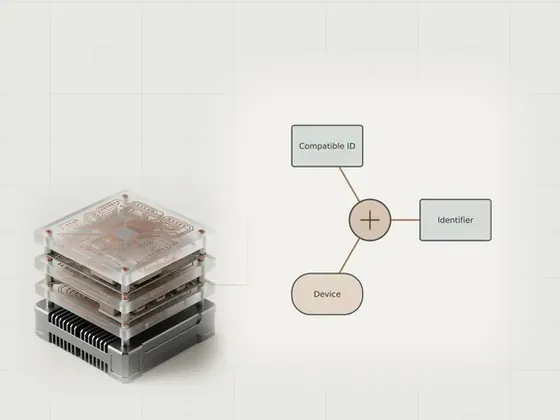
Reading hardware identifiers safely
Hardware IDs help Windows match a device with a driver package. They describe a device type or a more specific hardware configuration; they are not…
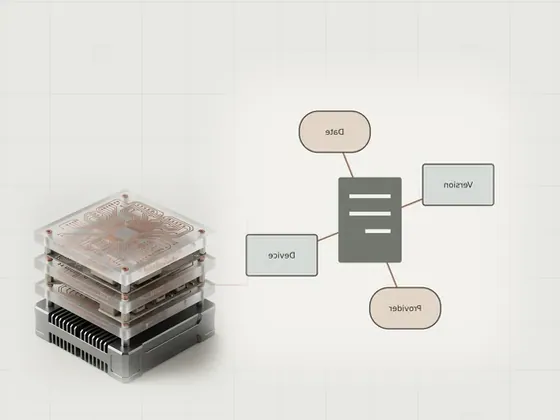
Understanding device properties
Device Manager lets you inspect the devices Windows has detected and the drivers associated with them. Its General, Driver and Details tabs answer different…
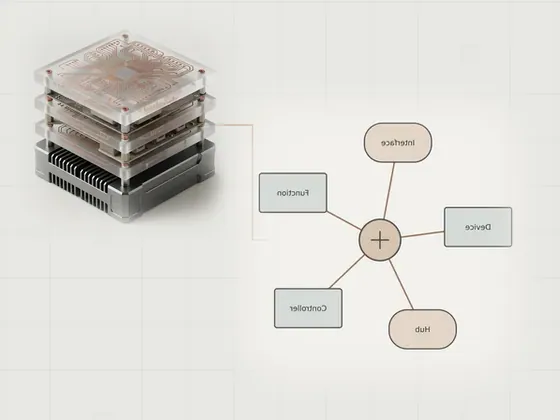
Mapping device connections
A computer can list one physical accessory in several places. A dock, for example, may contain a hub, an audio interface and a network adapter. Device…
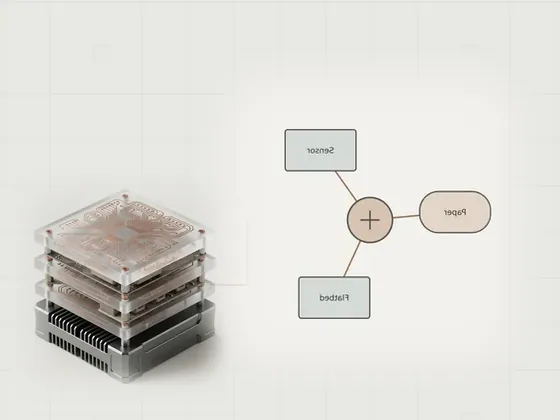
Reading scanner capabilities
A scanner’s advertised features and the options shown by an application are not always the same thing. A flatbed, a document feeder and an automatic…
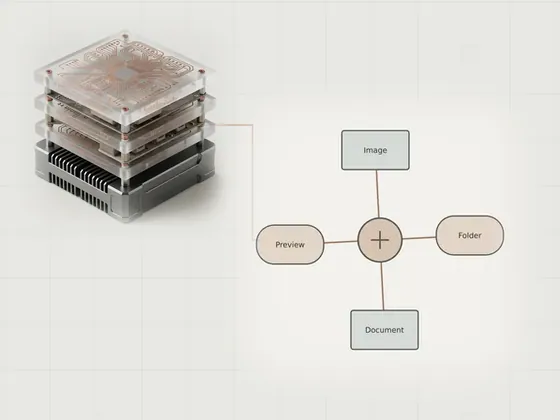
Preparing a readable document scan
A readable document scan starts with the paper, the scanner’s input method and a sensible destination for the resulting file. This article walks through…
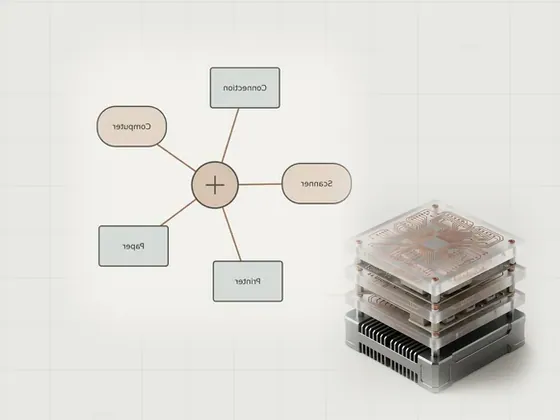
Understanding all-in-one devices
An all-in-one printer combines several functions in one enclosure, but Windows may represent those functions separately. Printing can work while scanning is…
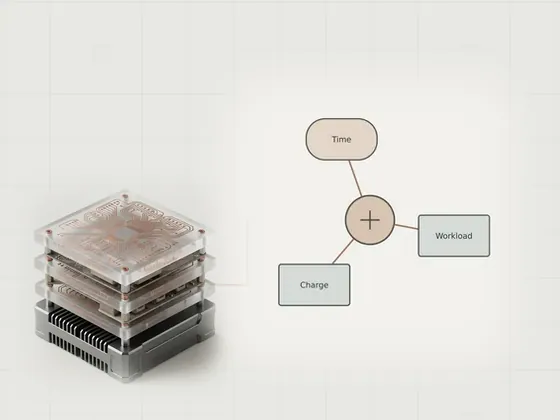
Reading laptop battery usage
The battery percentage on a laptop shows an estimate of its current charge. It does not, by itself, measure battery wear or explain how long your next…
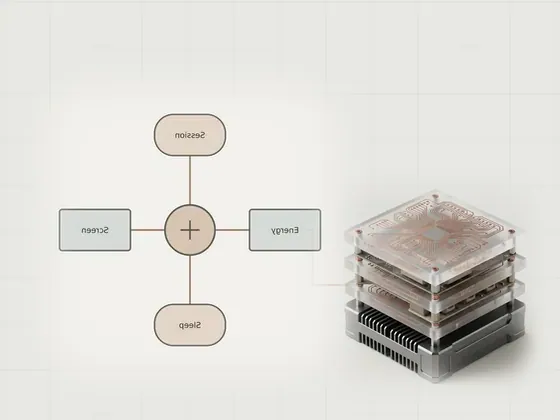
Choosing everyday power settings
Laptop power settings balance convenience, responsiveness and energy use. A longer screen timeout can be useful while reading, but it may leave the display…
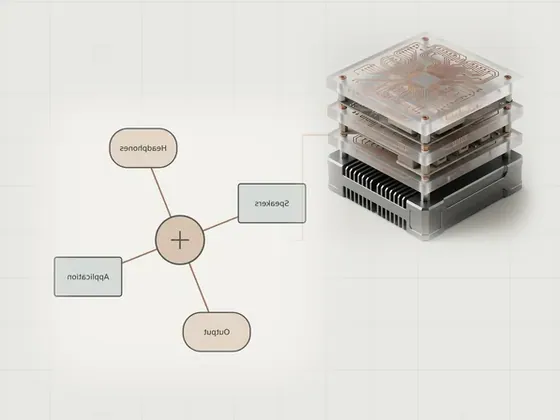
Choosing an audio output device
Windows may offer several audio outputs at once: laptop speakers, headphones, a USB interface or an audio connection through a display. Choosing an output…
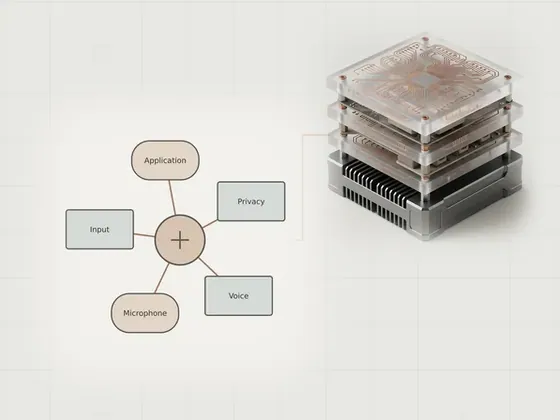
Checking microphone input settings
A microphone can be connected without delivering audible input to an application. The selected input, a physical mute control, the input level and privacy…
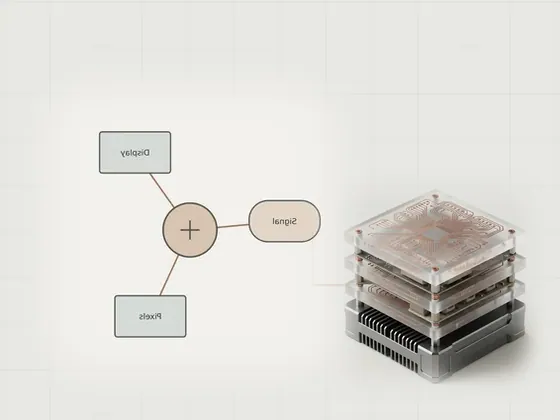
Reading display modes and refresh rates
A display mode combines resolution and refresh rate, but the numbers shown in different parts of Windows describe different stages of the output path…
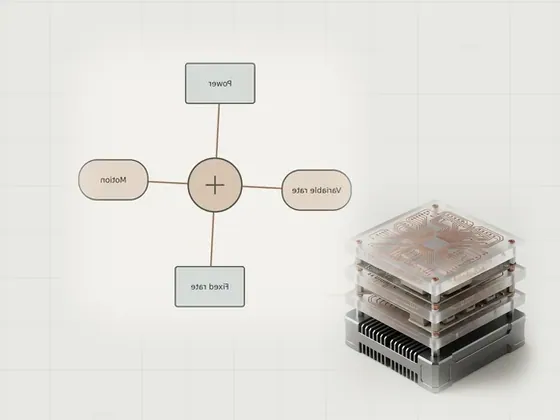
Comparing refresh rate options
Refresh rate describes how often a display can update its image. It is different from the frame rate an application produces. Windows may offer fixed…
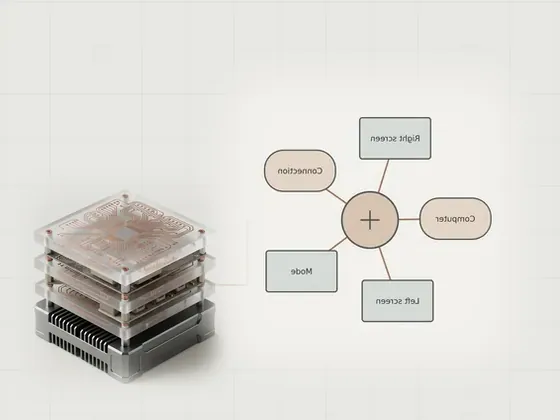
Identifying connected screens
With several screens connected, it is easy to read a setting for the wrong display. Windows uses numbers to distinguish screens within the current…
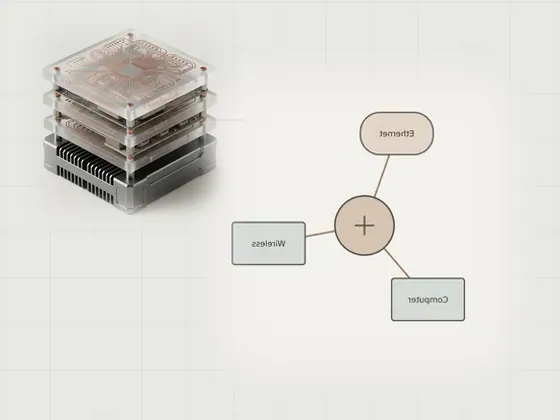
Identifying network adapters
The Network adapters category in Device Manager can contain more than the Wi-Fi and Ethernet hardware you recognize. Virtual networking components…
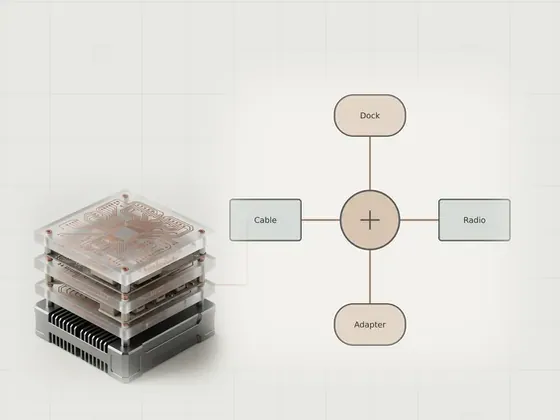
Comparing wired and wireless hardware
Ethernet and Wi-Fi provide different connection paths, but both depend on an adapter that Windows can recognize. A dock may add another adapter, and a…
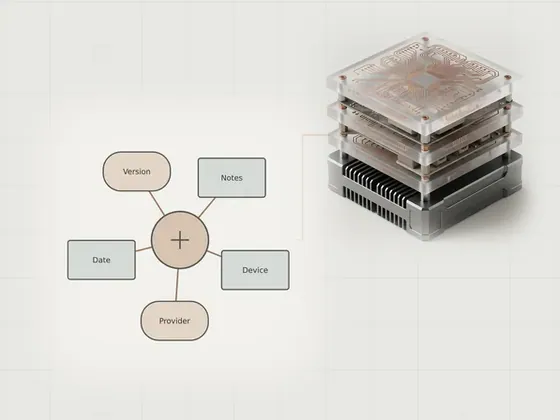
Reading network adapter driver details
A network adapter’s Driver tab records a provider, a date and a version number. Those fields describe the selected driver, not necessarily the company that…
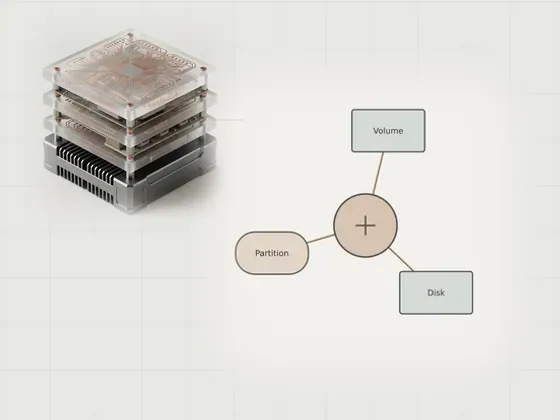
Reading a disk layout without changes
Disk Management shows physical disks, partitions and volumes in views that can look similar at first. Reading the wrong layer can lead to a mistaken…
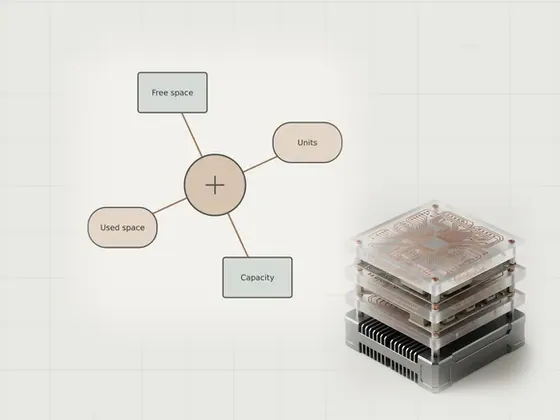
Understanding drive capacity readings
A drive’s advertised capacity and the number shown in Windows can differ without any storage being missing. Decimal and binary units explain part of the…
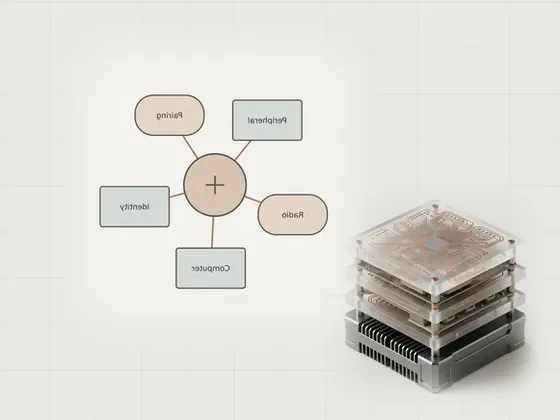
Pairing a wireless peripheral
Bluetooth pairing creates a remembered relationship between a computer and an accessory. It is separate from making the accessory discoverable, and a paired…
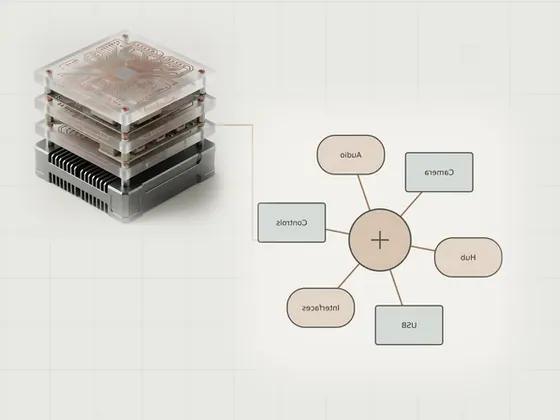
Identifying composite peripherals
One USB accessory can expose several functions, such as a camera, microphone and set of buttons. Windows may therefore show multiple entries even though…
Reading list
Know when a new article is added
One short email per new page, nothing else. You can also follow along on the sitemap.