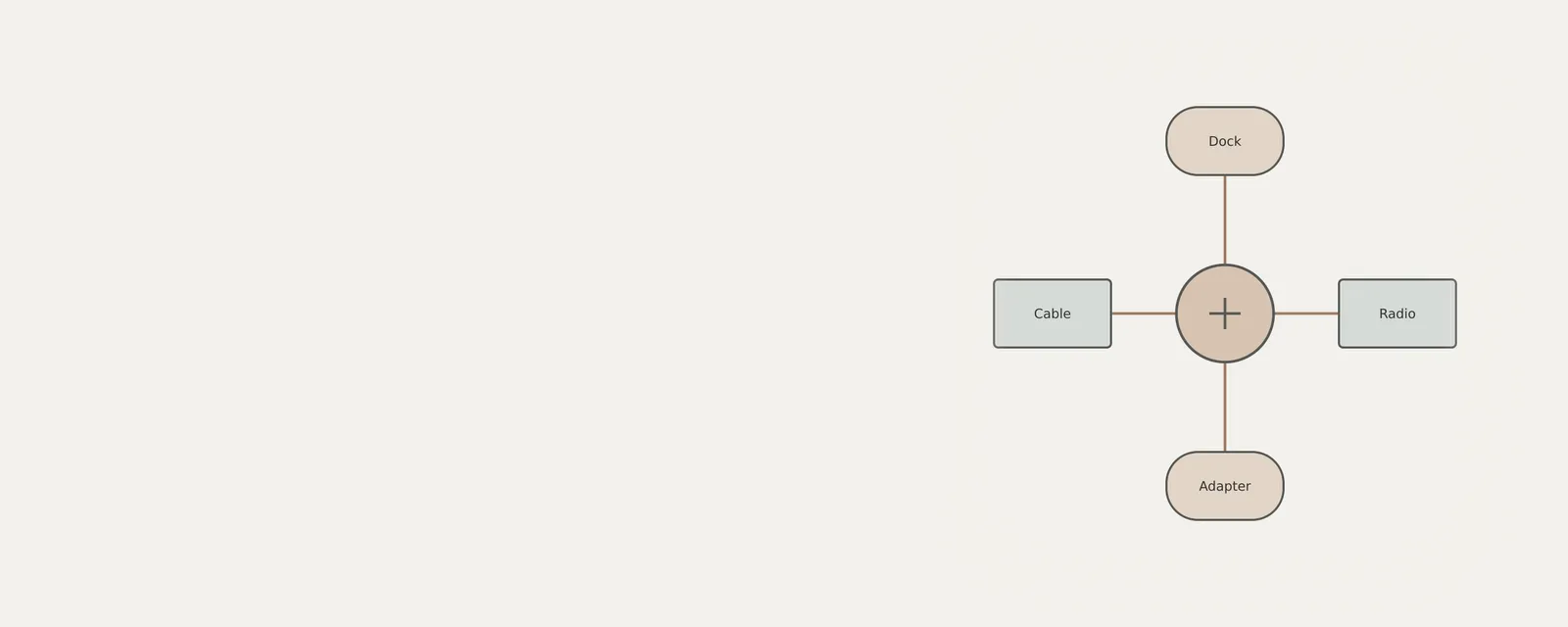
Ethernet and Wi-Fi provide different connection paths, but both depend on an adapter that Windows can recognize. A dock may add another adapter, and a computer may list virtual interfaces alongside its physical equipment. This article explains how to compare the reported identities without changing network settings. A hardware ID identifies device types and configurations for package matching, not unique physical units; it does not measure connection quality, authenticate a product or establish its current transfer speed. Read specifications and Windows observations as separate kinds of information, then record the distinctions that matter.
Understanding Hardware Identification Architecture
A hardware ID serves as a unique string provided by a device to the operating system, functioning as a primary bridge for compatibility. When a network adapter is connected to a computer, it presents this identification string to the Plug and Play (PnP) manager. This manager is the component responsible for detecting, configuring, and managing device arrival or removal. No action in the system is zero-risk or guarantees stability. The identifier itself acts as a reference point, indicating to the system which driver package is most suitable for operating the hardware effectively. Because a single physical network card—whether wired Ethernet or wireless Wi-Fi—may possess multiple potential drivers, these IDs are often organized in a priority-based list, ranging from the most specific matches to broader generic categories. Package ranking uses more than ID order, and provider or date alone do not conclusively distinguish a generic from a customized package.
The identification process follows a structured format, typically incorporating the vendor ID, device ID, and subsystem information. These strings are critical because they define the identity of the hardware at a level deeper than a simple name in a list. When identifying Ethernet or Wi-Fi components, the system must account for the bus to which they are connected, such as PCI (Peripheral Component Interconnect) or USB (Universal Serial Bus). The hardware ID string acts as a signature that reflects the silicon manufacturer, the specific device model, and sometimes the revision state of the firmware, ensuring that the operating system can load the correct logic to interface with the hardware’s capabilities.
Differentiating Adapters, Controllers, and OS Instances
It is common to conflate the physical device with its software representation. An adapter, such as a PCIe-based Wi-Fi card or a USB Ethernet dongle, is the tangible piece of circuitry. However, Windows 11 manages these through 'devnodes' or device nodes. A device node represents an instance of the hardware within the operating system's device tree. While the physical hardware is the source of the communication, the OS instance is the specific configuration record that includes status information, resources allocated, and the current driver association.
In the context of network interfaces, the physical controller is the chip that translates data between the computer's internal bus and the network medium. A docking station adds a layer of complexity by acting as an intermediary; a wired Ethernet port on a dock is logically a separate device from the built-in Ethernet port on a laptop motherboard. Each device maintains its own set of hardware IDs, regardless of how they are physically connected. Understanding this separation allows for accurate troubleshooting, as one must realize that a failure in a virtual instance within the device tree does not always imply a total failure of the underlying controller hardware.
Procedure for Inventorying Hardware IDs
The following steps allow for a precise inventory of the hardware IDs assigned to network adapters. This procedure accesses the standard Windows 11 interface to retrieve read-only properties directly from the OS enumeration data.
Expected observations include a window displaying the list of strings. These strings should appear in a priority sequence, starting with the most specific identifier. Interpretation of these strings requires identifying the components, such as 'VEN' (Vendor) and 'DEV' (Device). If you observe a 'yellow-bang' (a triangular warning icon), it suggests Windows has recorded a problem with the device, not necessarily a missing driver or communication failure.
- Open the Windows search bar and type 'Device Manager' to locate the primary interface for hardware control.
- Select and open the 'Device Manager' application from the search results list.
- Expand the 'Network adapters' category to view all installed Ethernet and Wi-Fi interfaces.
- Right-select the specific network device you wish to inspect and select the 'Properties' option.
- Locate and select the tab labeled 'Details' within the property window.
- Click the dropdown menu labeled 'Property' and choose 'Hardware Ids' to view the prioritized list of identification strings.
- Review the listed strings and note the vendor and device codes for your internal or external adapter.
Boundaries of Identification and Enumeration
While hardware IDs are essential for matching drivers, they possess clear boundaries. These IDs are fixed by the manufacturer and cannot be altered through standard Windows settings. A critical boundary involves the maximum length of these IDs; the system restricts the total number of characters in an ID string to ensure memory safety during the enumeration process. Furthermore, the total number of identifiers in a single device's property list is capped at 64 entries. Exceeding these limits in a design would cause the hardware to fail its identification handshake with the PnP manager.
It is also vital to distinguish between a device's hardware identity and its current link state. A hardware ID confirms that the device exists and is recognized by the OS, but it provides no information regarding the signal strength, physical link speed (such as 1 Gbps or 10 Gbps), or whether an IP address has been successfully negotiated. These are dynamic status metrics tracked by the network stack, distinct from the static, read-only identity strings contained within the hardware ID registry fields.
Analyzing Root Enumerated Devices
Root enumerated devices represent a special category of hardware that is not discovered through standard physical buses like PCIe. Instead, these are 'virtual' devices created directly by the kernel or specific APIs. When checking for these devices, users may see prefixes like 'ROOT' instead of 'PCI' or 'USB'. These identifiers are designed to prevent conflicts between different system components.
A common conflict arises if two different drivers attempt to create a device in the 'ROOT' namespace using identical names. This leads to configuration errors. To maintain system stability, these devices must use a specific naming convention that identifies both the company and the device model, ensuring that the namespace remains unique. Understanding this prevents confusion when auditing hardware lists, as root devices will naturally appear differently than hardware peripherals attached via standard physical slots.
Link Speed vs. Hardware Capability
A frequent misconception involves the difference between advertised hardware capability and the actual link speed. The hardware ID identifies the silicon capabilities of an Ethernet or Wi-Fi chip—for example, indicating that a controller supports Wi-Fi 6 or a 2.5 Gbps Ethernet standard. However, the hardware ID is static; it does not change based on the quality of the cable, the distance from an access point, or the current traffic load.
The current link speed is a real-time observation of the physical layer's performance. When a connection is established, the hardware negotiates the maximum mutually supported speed between the local controller and the remote network peer. While the hardware ID tells the OS 'I am capable of these standards,' the connection status provides the answer to 'How fast are we communicating right now?' These two data points must be evaluated separately to assess networking performance accurately.
Interpreting Identifier Strings
The structure of an ID, such as 'PCI\VEN_1000&DEV_0001&SUBSYS_00000000&REV_02', follows a rigid internal logic. The 'VEN' portion corresponds to the manufacturer. The 'DEV' portion represents the chip ID. The 'SUBSYS' field adds granularity, identifying the specific implementation used by the original equipment manufacturer (OEM), which may differ from the generic chip provided by the silicon designer.
The final segment, the 'REV' (revision) code, is essential for identifying firmware variations. A controller might look identical in hardware ID but function differently depending on its revision. When analyzing these strings, one should always check the entire sequence. The OS uses the most specific ID in the list first, then falls back to more generic IDs if a precise match for the driver package is not found. This priority mechanism ensures that devices remain functional even when a perfectly matching driver package for the exact hardware revision is not available, by allowing the use of a more general-purpose driver that supports the broader class of hardware.
Data Integrity and System Constraints
The identification data stored in Windows is read-only for standard operation. This data is derived from the hardware itself or from the driver's INF file during initial configuration. Because this information is immutable through standard interfaces, it provides a reliable inventory of the machine's capabilities. Attempting to modify these values would require altering the device's firmware or the system's core configuration files, which is outside the scope of routine system management.
Users should also consider that modern docking stations often contain multiple internal USB hubs and bridges. Consequently, a single Ethernet port on a dock might be nested behind several USB-to-PCIe bridges. Each of these components possesses its own set of hardware IDs. When documenting the system architecture, it is necessary to traverse these layers of enumeration to identify the actual controller responsible for the network interface, as the top-level identification might simply refer to the docking station itself rather than the individual network controller.
Network & Wi-Fi
Note these before you change anything
Useful facts to have to hand while reading about comparing wired and wireless hardware.
- Adapter name and driver version
- Whether other devices on the same network work
- IP configuration shown in the system's network details
- Power-saving settings on the adapter
Network & Wi-Fi: Sending data (simplified; replies return the same way)
- Applicationopens a connection
- Network stackTCP/IP and name lookup
- Adapter driverWi-Fi or Ethernet
- Network adapterradio or port
- Routerand the wider network
Frequently asked questions
Is the socket itself the Ethernet adapter?
The socket is the physical connection point. The adapter includes the hardware and associated interface that Windows uses to communicate through that connection. A dock can place those components outside the computer, so the reported adapter and the socket’s enclosure need not have the same manufacturer name.
Does a hardware ID tell me the current connection speed?
No. It is matching information, not a live throughput measurement. Product specifications describe capabilities, while a reported link rate describes another aspect of the current connection. Neither alone guarantees the speed of a file transfer or an internet service.
Can Wi-Fi and Ethernet both appear at the same time?
Yes. Windows can recognize several network interfaces at once, including virtual ones. Their presence does not mean that every application is using all of them. This inventory compares identities and does not change routing, disable an adapter or interrupt an existing connection.
Does a newer wireless label guarantee a faster connection?
No. The complete connection involves the access point, client capabilities, radio conditions and configuration. An advertised maximum is not an observed transfer rate. Keep the specification separate from your inventory notes, and do not infer actual performance from a device name or generation label alone.