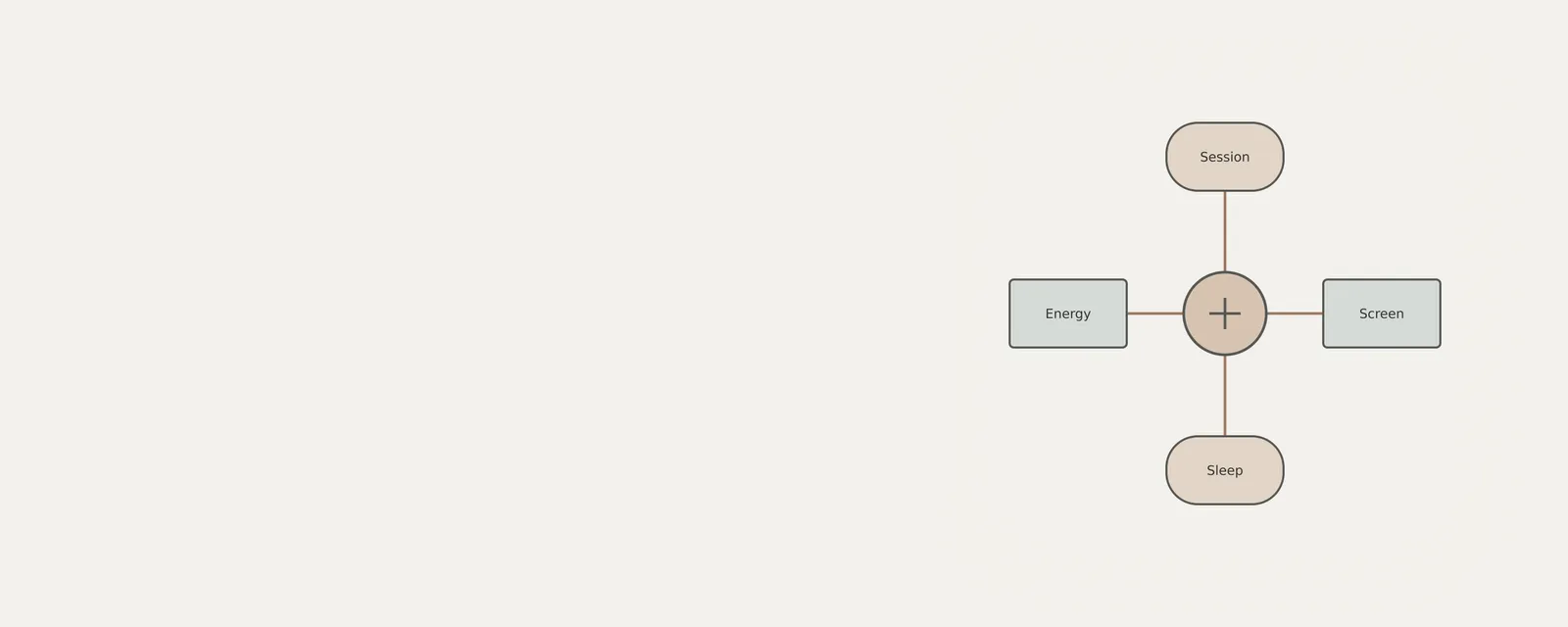
Laptop power settings balance convenience, responsiveness and energy use. A longer screen timeout can be useful while reading, but it may leave the display on when you step away. A lower brightness setting may save energy yet be uncomfortable in a bright room. This article explains how to inspect and adjust the built-in choices that Windows makes available on your computer. Note the original value before each change and alter one setting at a time, so you can return to a configuration that suits your work.
Understanding Energy Recommendations and Monitoring
Windows 11 includes a dedicated section labeled Energy recommendations, which aggregates various settings known to impact power consumption. This central hub is an efficient way to evaluate which aspects of your configuration may be consuming power in excess of typical needs. The system may suggest adjustments to screen brightness, timeout thresholds, or specific background processes to optimize performance. For instance, if your display timeout is set to 30 minutes, the system might flag this as a high-drain configuration because the panel remains active long after a user has likely walked away from the workstation.
- Select the Start icon and navigate to Settings.
- Open the System category from the left-hand menu.
- Select the Power & battery option to view current power-related settings.
- Select Energy recommendations to see a list of system-suggested power-saving configurations.
- Review the list and apply individual changes or use the Apply all button to implement the suggested optimizations immediately.
Managing Energy Saver and Performance Profiles
Energy saver is a powerful feature that adjusts how Windows manages system processes to conserve power when the battery level drops. When active, it often limits background tasks such as email synchronization, calendar updates, and the activity of background applications that are not currently in use. You can configure this feature to trigger automatically at a set percentage, ensuring that as you approach a low-battery state, the system shifts to a more conservative operational posture. By shifting to this mode, the OS may throttle background CPU cycles that would otherwise wake the processor unnecessarily.
Beyond automated saving, the system power mode allows for manual control over how your hardware prioritizes tasks. These modes range from options favoring absolute performance to those maximizing battery longevity. The availability of these modes is contingent upon your specific hardware and manufacturer design, meaning the exact terminology and functionality might vary slightly across different device models. For example, a workstation-class laptop might offer an Extreme Performance mode that keeps the cooling fan running constantly, while a thin-and-light laptop might focus exclusively on Balanced or Battery Saver modes to prevent thermal throttling and extend the time away from a wall outlet.
- Navigate to Settings, then System, then Power & battery.
- Expand the Energy saver menu to adjust trigger thresholds.
- Set the 'Turn energy saver on when battery level is at' to a preferred percentage, such as 20% or 30%.
- Enable 'Always use energy saver' if you prefer consistent, low-power operation throughout the entire charge cycle.
- Access the Power mode drop-down menu if available to select between Best power efficiency and Best performance settings based on your current workload.
Procedure: Adjusting Display and Sleep Configurations
The display is frequently the single largest consumer of power on a laptop. Reducing the screen's workload is therefore one of the most effective ways to preserve battery life. Below are the steps to optimize your display and sleep parameters for a standard Windows 11 installation. Note that UI labels may differ based on your specific system build.
These adjustments influence the system's idle behavior. By reducing the time before the screen turns off or the system enters sleep mode, you ensure that the device does not consume power unnecessarily when it is not being actively used. For instance, setting a sleep timer of 2 minutes instead of 10 minutes can preserve several percentage points of battery over the course of a day if you frequently step away from your device.
- Select the Start icon and navigate to Settings.
- Open the System category from the left-hand menu.
- Select the Power & battery option to view current power-related settings.
- Locate the Screen and sleep subsection and click to expand it if necessary.
- Adjust the duration in the drop-down menu labeled 'On battery power, turn off my screen after' to a shorter timeframe, such as 5 minutes.
- Adjust the duration in the drop-down menu labeled 'On battery power, put my device to sleep after' to a preferred duration.
- Observe the immediate change in system responsiveness when you leave the computer idle, noting that the screen will now dim or shut off sooner than previous values.
- Verify your changes by allowing the system to remain idle to ensure the display behavior aligns with your new configuration.
Refining Visual and Graphical Settings
For specific applications, you can also force the use of power-saving graphics settings. By navigating to the Graphics section within System settings, you can override the system-wide graphics policy for individual programs, ensuring that power-heavy applications use less intensive hardware resources while on battery power. This is particularly useful for design software or web browsers that may otherwise default to high-performance dedicated graphics cards, draining your battery within minutes.
- Open Settings, select System, and then Display.
- Select Advanced display to modify the refresh rate using the drop-down menu if supported by your hardware.
- Navigate back to the main Display menu and select Graphics to view a list of installed applications.
- Click on a specific app and select Options.
- Choose the Power saving option to restrict the app to using only integrated power-efficient graphical resources.
Managing Background Activity and Sync Cycles
Background processes act as silent consumers of battery energy. Applications that frequently sync data, such as email clients or cloud storage services, maintain an active connection and keep the processor working even when the user is not directly interacting with them. Modifying the synchronization intervals is an essential step in refining battery longevity. Frequent, real-time polling of mail servers keeps the Wi-Fi or cellular radio and the CPU active, preventing the machine from entering its lowest-power idle state.
You can manage these cycles by accessing the Accounts section of your system settings. By increasing the intervals between mail fetches or disabling the synchronization of calendars and contacts for accounts that are rarely used, you effectively decrease the amount of work the system performs in the background. This practice is particularly beneficial for users who have multiple active accounts configured on a single device, as each active sync adds to the total energy overhead. For example, increasing a mail sync interval from 'As items arrive' to 'Every 2 hours' can result in a measurable increase in standby battery life.
- Open Settings, then go to Accounts.
- Select Email & accounts.
- Choose the account you want to manage and select Manage.
- Select Change mailbox sync settings.
- Adjust the 'Download new email' frequency to a less frequent interval, or disable the synchronization of Calendar or Contacts if you do not actively use those features on the mobile device.
Hardware-Centric Power Management
Beyond software settings, your physical interaction with the device impacts its energy consumption. The way a laptop handles the closing of its lid—whether it sleeps, hibernates, or continues to run—can be adjusted in the Control Panel under Power Options. This allows you to ensure that the device enters a low-power state automatically whenever you finish a task and close the machine. Using hibernate, in particular, completely powers down the system state to the storage drive, resulting in zero battery drain while the device is in your bag.
Additionally, hardware buttons such as the power button can be configured to trigger specific power states. By consistently utilizing these manual controls and adopting habits like keeping the device plugged in until it achieves a full charge, you maximize the efficiency of your battery. Furthermore, engaging Airplane mode when you do not require wireless connectivity completely disables the radio hardware for Wi-Fi and Bluetooth, which are consistent, moderate consumers of power. This is highly effective during flight or when working in locations with poor signal, as the device will otherwise consume extra power constantly searching for a connection.
- Open the Control Panel and navigate to Power Options.
- Select 'Choose what closing the lid does' from the menu on the left.
- Set the 'When I close the lid' option to Hibernate or Sleep for both 'On battery' and 'Plugged in' states.
- Click 'Choose what the power buttons do' to configure the physical power button to trigger a specific power state.
- Select Save changes to apply these hardware-level behaviors to your system.
Interpretation and Boundaries of Power Settings
Software power controls work within the computer's available capabilities. Settings can vary with the Windows version, organizational policy, power configuration and hardware. If an option is absent, do not assume a specific component is defective or attempt to expose it through undocumented changes. Compare only the controls visible on this computer and consult its documentation for their intended behavior.
When assessing the impact of these changes, consider the trade-offs between longevity and utility. Aggressive sleep settings and reduced brightness may extend battery life to the maximum, but they can also interrupt workflows or hinder visibility in bright environments. The most effective approach is to perform these adjustments in small increments, testing your device in your typical usage environment to find the optimal balance for your personal workflow. A helpful method is to perform a test cycle: document the remaining battery percentage after one hour of typical work, then apply one change—such as reducing brightness—and compare the discharge rate over the following hour.
Worked Examples of Configuration Strategy
Conversely, if a user is presenting a slideshow, they might prioritize performance by turning off Energy saver, setting the display never to sleep, and keeping the device connected to power. These two examples illustrate the extremes of power management: on one end, minimizing all active services to preserve charge, and on the other, allowing full resource availability to ensure high performance. Mastery of these settings allows you to transition between these states with ease, ensuring the device serves your current environment rather than fighting against fixed, inefficient defaults.
Laptops
Note these before you change anything
Useful facts to have to hand while reading about choosing everyday power settings.
- Exact model and variant code from the underside label
- Firmware version
- The maker's driver package versions
- Which functions fail: hotkeys, touchpad gestures, sleep
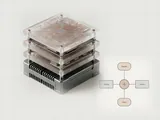
Laptops: Selected laptop-specific layers
- Operating systempower and input
- Platform drivershotkeys, sensors, power
- Embedded controllerbattery and fans
- Integrated devicestouchpad, camera, keyboard
- Docks and portsUSB-C and similar
Frequently asked questions
Why are some power settings missing?
Available controls vary with the computer, Windows version, current configuration and organizational policy. An absent option does not prove a defective component. Use the documented choices actually offered on this computer rather than trying to expose hidden controls or force another model’s settings.
Does turning the screen off put the computer to sleep?
Not necessarily. Screen-off and sleep controls describe different behavior. A computer can keep working with its display off. Read the labels for each setting, including separate battery and plugged-in choices, before changing a timeout or assuming that a task will continue during sleep.
How can I compare a change fairly?
Record the previous value, change one control and use the computer normally under reasonably similar conditions. Note any inconvenience as well as the energy-related observation. Several simultaneous changes make it harder to understand which choice mattered, and one session cannot establish a universal saving.
Can I return to my previous settings?
For the ordinary controls described here, keep a note of the original values and reselect them in the same settings pages. Do not assume a preset called balanced recreates every earlier choice. On a managed computer, policy may determine which values can be changed.