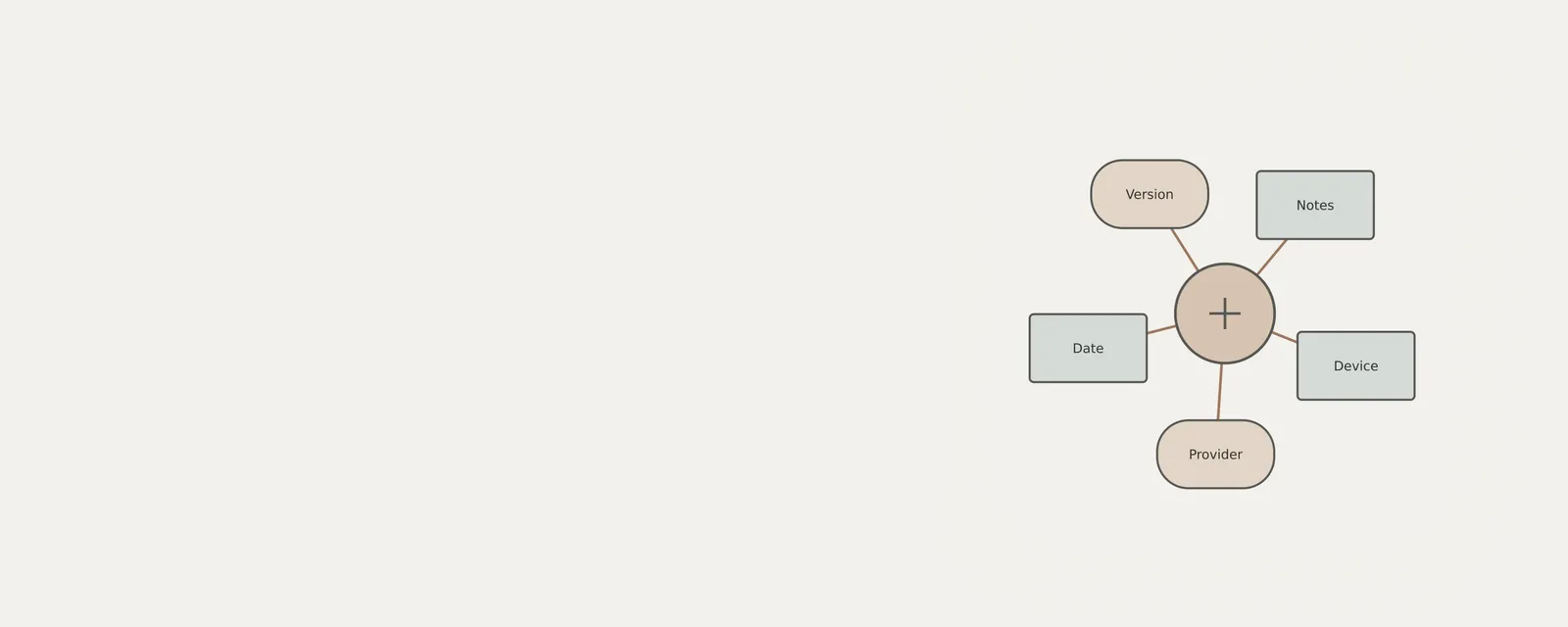
A network adapter’s Driver tab records a provider, a date and a version number. Those fields describe the selected driver, not necessarily the company that assembled the computer or the date you connected the adapter. This article shows how to collect that information and relate it to the adapter’s hardware identifiers. It also explains what the record cannot prove, including product authenticity and current connection quality. The steps are limited to viewing properties and comparing documentation; they do not remove, replace or roll back a driver.
Understanding Windows Driver Architecture
A device driver serves as a specialized, interpretative software layer allowing the Windows kernel to communicate effectively with hardware components. Without these specific instructions, the operating system would lack the protocol required to transmit network data packets or render visual information on a monitor. Manufacturers create these drivers to align physical silicon capabilities with software demands. Windows 11 maintains an extensive registry of these drivers, which is presented comprehensively via the Device Manager interface.
Distinguishing between the hardware manufacturer and the driver software provider is essential for accurate system inventory. The hardware manufacturer, or Original Equipment Manufacturer (OEM), creates the physical circuit boards, whereas the driver provider is the entity responsible for the software package, which may be the chip maker or a third-party distributor. Device Manager catalogs these distinctions, allowing users to verify that the installed software aligns with factory-issued documentation. By consistently monitoring version numbers and compilation dates, users can establish a historical baseline of their software environment without initiating active changes.
The complexity of these drivers often spans multiple layers of the OS architecture. A typical driver package involves an INF file, which acts as a text-based setup instruction, and binary files that execute at the kernel level. Device Manager acts as the visualization layer for these binary entities. Understanding that these drivers are not merely static files but dynamic interfaces helps clarify why version mismatches might appear during system audits, especially when newer hardware is installed alongside legacy components.
Navigating to the Device Manager Interface
To perform a comprehensive, read-only inventory of installed system components, users must access the Device Manager. Windows 11 offers multiple paths to this utility to accommodate different administrative workflows. The search functionality integrated into the Start menu represents the most direct and efficient approach for most users.
Alternatively, individuals may utilize system management tools integrated into File Explorer. By right-clicking the 'This PC' icon and selecting 'Manage,' a user opens the Computer Management console, which contains a collection of system tools, including the Device Manager. Upon initialization, the application displays a hierarchical tree structure representing all recognized components. This view can be filtered or expanded to reveal hidden devices—components not currently active, disconnected, or legacy items that remain registered in the system database; however, show hidden devices does not reveal every possible device or background process. This capability is vital for auditing external hardware that may have been connected to the system intermittently.
Furthermore, users can access the interface by executing specific commands. By pressing the 'Windows Key + X' and selecting 'Device Manager' from the power user menu, one bypasses the graphical start menu search entirely. Regardless of the entry point, the read-only nature of the tool ensures that the act of navigation remains passive and non-intrusive to the OS environment.
Procedural Inspection of Hardware Metadata
The following procedure allows for the verification of specific details concerning a network adapter without modifying system settings. While label positions may fluctuate based on display scaling or system language settings, the workflow remains consistent across all standard Windows 11 environments.
Before beginning, ensure basic navigation proficiency within standard dialog windows. The objective here is strictly observational.
- Launch the Start menu, input 'Device Manager' into the search field, and press Enter to initiate the utility.
- Locate the category designated as 'Network adapters' and click the small triangle icon to the left of the text to reveal the sub-list of components.
- Perform a right-click on the specific network adapter entry, such as a Wireless or Ethernet controller, and select 'Properties' from the resulting context menu.
- Navigate to the 'Driver' tab located at the top of the dialog box to identify the Provider, Driver Date, and Version.
- Access the 'Details' tab to open a comprehensive dropdown menu containing various property categories.
- Select 'Hardware Ids' from the dropdown list to view the identifiers assigned to the device type or configuration, which do not identify unique physical units.
- Review the alphanumeric values presented in the 'Value' box; these strings represent the manufacturer-specific silicon IDs.
- Conclude the inspection by clicking the 'OK' or 'Cancel' button to exit the dialog, ensuring that no modifications were applied to the system registry or adapter settings.
Interpreting Hardware Identifiers and Status
Hardware IDs are cryptographic-style strings used by the Windows Plug and Play framework to match hardware components with the most compatible driver. When selecting 'Hardware Ids' in the Details tab, users will frequently encounter codes labeled 'VEN' (Vendor) and 'DEV' (Device). The vendor code identifies the silicon manufacturer, while the device code denotes the specific hardware model. These identifiers are static, baked into the hardware logic, and remain consistent unless the physical hardware is replaced.
Comparing a hardware ID with manufacturer documentation can clarify the device's reported identity, but it does not prove that a component is factory-original or authenticate a complete computer. Keep this exercise to viewing properties. If Windows shows a warning symbol, read the Device status text for context without inferring a particular fault. Identifiers and driver dates are evidence about the reported configuration, not a diagnosis or a guarantee of condition.
The 'General' tab serves as an essential secondary resource in this interpretive process. It displays the 'Device Status' field, which summarizes if the device is currently 'working properly.' If it is not, a specific error code will be listed here. These codes serve as a direct link to Windows documentation, allowing users to cross-reference common failures like 'Code 10' or 'Code 43' without needing to decrypt complex kernel logs.
Analyzing Driver Metadata Boundaries
The Driver tab within the Properties dialog contains information specifically authored by the software vendor. The 'Driver Date' identifies when the package was compiled, and the 'Driver Version' is an alphanumeric string defined by the creator. Users should note that these dates rarely match the purchase date of the hardware, as software is frequently updated to align with internal development cycles and security mandates.
The primary limitation of this inspection is that Device Manager displays the currently loaded driver metadata, not necessarily the latest software version available from the manufacturer. Furthermore, devices critical for the initial system boot—such as disk controllers or central processors—may not appear as removable items within the list. Troubleshooting these core components requires specialized kernel-level debugging tools rather than the standard Device Manager tabs.
Users should also consider the digital signature status of the driver, which is usually found on this same tab. A signed driver signifies that the code has undergone testing to meet certain Windows requirements. Recognizing the difference between a signed and unsigned driver can be a critical step in identifying why certain hardware might trigger initialization errors at startup, as the system may prevent unauthorized or unverified code from interacting with the kernel for security reasons.
Worked Examples of Information Analysis
Consider a scenario where a user observes a 'Driver Date' of 01/15/2022 for a wireless adapter. This date indicates the software build was finalized in early 2022. By cross-referencing this against the laptop manufacturer's documentation, the user can verify if this aligns with the machine's factory release schedule. This information is purely descriptive and does not indicate whether the driver is 'optimal'; it merely provides an accurate snapshot of the current state of the system.
Another example involves evaluating the 'Device Instance Path.' Located within the Details tab, this path reveals how the hardware is physically connected to the internal system bus. A string formatted as 'PCI\VEN_8086&DEV_...' confirms the hardware is recognized as a PCI-based component. This technical confirmation is highly useful when verifying that a component has been correctly identified by the motherboard firmware and the Windows OS. This remains a purely passive observation providing architectural context.
Finally, when analyzing the 'Events' tab, a user might see timestamps of when the driver successfully loaded or when a power-state transition occurred. For instance, if a network adapter shows an event entry stating 'Device started,' it confirms that the OS power management successfully initialized the component after a sleep cycle. This log is a passive, historical record that provides clear evidence of component behavior without the need for interactive diagnostic commands.
Common Interpretation Pitfalls
Users frequently mistake the presence of multiple entries in the network adapter list as a sign of redundancy or error. However, modern systems often include virtual adapters for bridge connections, VPN tunnels, or containerization software. Observing several active components is standard behavior and does not inherently reflect a malfunction. Misinterpreting these virtualized interfaces as physical hardware failures is a common analytical error that can lead to unnecessary concern regarding the state of your machine.
Another pitfall involves assuming that the 'Driver Provider' field is always the hardware manufacturer. While often accurate, many components utilize generic drivers supplied by the OS or a third-party chipset designer. If you see a provider name that differs from the brand of your computer, this is typically a normal configuration choice by the developer. Focusing on the technical compatibility of the driver version rather than its specific brand name is a more reliable metric.
Safe Observation Principles
Maintaining a non-intrusive approach is critical when investigating system states. Navigate Device Manager only for reading existing registry values and hardware identifiers. Avoid interacting with buttons labeled 'Uninstall' or 'Disable' unless you are performing a specific, intentional troubleshooting task. Simply viewing tabs like 'Details' or 'Events' ensures that the underlying system logic remains undisturbed, preserving the operational integrity of the drivers and the communication pathways between hardware components and the kernel.
Prioritize observing the status reports provided in the 'General' tab during system audits. These reports are generated by the OS kernel to summarize hardware health without requiring user input. If you discover an error code, note the specific digits, as these are standardized labels that provide context for potential conflicts. Viewing this data provides a comprehensive baseline of your system environment while ensuring that no actual parameters or software configurations are inadvertently changed during your review.
Network & Wi-Fi
Note these before you change anything
Useful facts to have to hand while reading about reading network adapter driver details.
- Adapter name and driver version
- Whether other devices on the same network work
- IP configuration shown in the system's network details
- Power-saving settings on the adapter
Network & Wi-Fi: Sending data (simplified; replies return the same way)
- Applicationopens a connection
- Network stackTCP/IP and name lookup
- Adapter driverWi-Fi or Ethernet
- Network adapterradio or port
- Routerand the wider network
Frequently asked questions
Is the driver date the installation date?
Not necessarily. The date shown on the Driver tab is package metadata and can be much older than the computer. Record it with the provider and version number. It is not enough on its own to establish when a package was installed or whether it should be changed.
Does a Microsoft provider mean the computer lacks customization?
No. The selected driver can coexist with other components or manufacturer configuration. Provider and date fields alone cannot describe the complete package arrangement. Compare relevant documentation for the exact computer rather than using one label as a verdict about customization.
Can matching identifiers prove a component is factory-original?
No. They help relate the reported device to a type or configuration, but they are not a complete authenticity or ownership record. A replacement may report the same identifiers. Treat them as technical matching information, not proof of a computer’s manufacturing history.
Do I need to replace a driver to document it?
No. Open the relevant properties, record the visible fields and close the window. The inspection does not require an update, rollback, removal or restart. Leave state-changing controls alone, especially when the adapter currently provides a connection you need for ongoing work.