Start with this article
Reading scanner capabilities
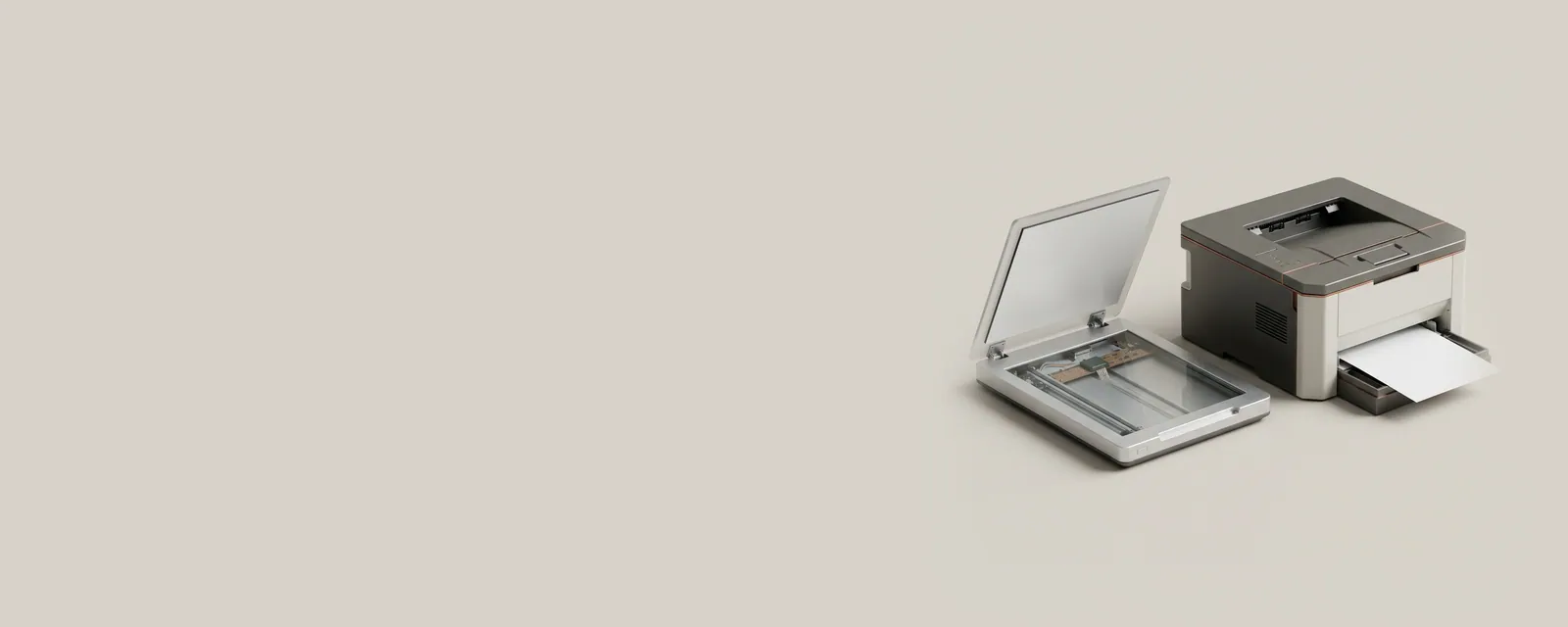
A scanner’s advertised features and the options shown by an application are not always the same thing. A flatbed, a document feeder and an automatic…
Read the articleWhat this section covers
Printing and scanning move information in opposite directions, but both rely on agreed descriptions of documents, capabilities, and transport. Learn how an application, the operating system, and an imaging device divide the work.
Understanding this family
A print command is not a direct electrical instruction to move ink or toner. The document passes through a rendering and queuing process before reaching a device. Settings such as paper size and duplex mode have to be represented in a form that both the application and the receiving equipment understand.
Scanning begins with acquisition instead: an imaging mechanism creates digital samples, and software negotiates options such as resolution, color mode, and source. A multifunction enclosure can therefore have separate printing and scanning interfaces, even when both functions share a cable or network address.
A useful place to begin
Explore the print-path topics to understand queues and document languages. The scanning topics explain acquisition interfaces and the difference between capture and text recognition. Package compatibility depends on the exact model and operating-system release. Use the device maker's reference source or Windows Update whenever actual device software is needed.
Field notes
Printers & Scanners at a glance
Printers & Scanners: One common printing path (scanning runs the other way)
- Applicationsends a print job
- Print systemqueues and renders
- Printer driverbuilt-in class or vendor
- ConnectionUSB or network
- Printerproduces the page
Write these down first
- Printer queue name and the port it uses
- Driver name: a built-in class driver or the maker's
- Whether the printer is reached by USB, IP address or name
- Default paper size and tray
Clues, not a diagnosis
Might involve the driver: Garbled output, or options like duplex or tray choice missing after a driver change.
Check these too: Paper jams, empty cartridges, the printer asleep or on another network, a changed IP address, a stuck queue, or a cable fault. A self-test page printed from the printer itself helps separate these.
Where updates usually come from
Many printers work with a built-in class driver, though coverage varies by model; the maker's driver may add model-specific features and scanning.
Practical articles
Topic
From a document to a printed page
The print path converts application content into work a printer can carry out. Rendering, queue management, capability negotiation, and transmission are…
Topic
Scanning interfaces and image capture
A scan combines a physical sampling process with software that requests, receives, and interprets image data. Resolution, acquisition interfaces, and…
Prefer a walkthrough
Step-by-step guides use the tools already on your computer
Each guide is tied to manufacturer documentation and keeps every change reversible.
Browse the guides