What this section covers
A network driver connects the operating system with a wired or wireless adapter. A connected adapter, a local network link and usable internet access are different states. Drops or missing networks may involve radio conditions, a router, a cable, device settings or a software change. Inspect the path before replacing a package. This guide covers observations in Windows 11 and macOS, and points out changes that can interrupt the connection you are using.
How this driver type works
A network adapter sends and receives data under control of operating-system networking components. A wired adapter and a wireless radio may have different device entries and package requirements, even in the same computer. A dock can add another adapter rather than replacing the internal one.
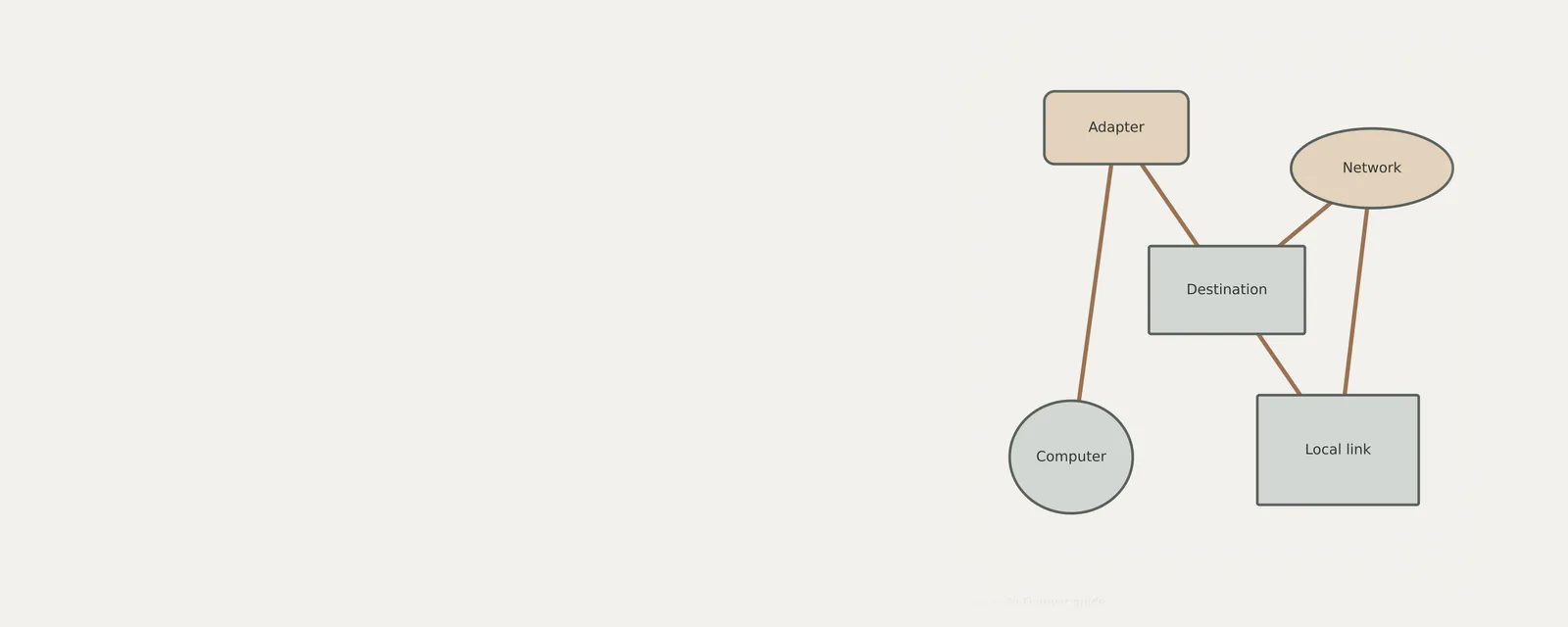
A local link is only part of the route. The router, address configuration, name resolution and upstream service can affect internet access independently of the driver. A wireless network being visible does not guarantee successful authentication or internet connectivity.
Wireless behavior depends on signal, interference, band and network policies as well as the adapter. A remembered network profile is not a driver package. Changing or forgetting a profile can require credentials to reconnect, so keep that action separate from inspecting driver details.
Checking the current configuration in Windows 11
For network & wi-fi, these steps inspect the current configuration. Information and setting names can differ by build, connection and manufacturer. A missing control is not permission to choose a destructive action.
- Open Settings, then Network & internet, and identify the active connection type.
- Read the current connection status without resetting settings.
- Open Device Manager and expand Network adapters.
- Inspect Properties, Driver for the relevant wired or wireless adapter.
- Record whether a dock or USB adapter is part of the connection, then close Properties.
Checking the current configuration in macOS
For network & wi-fi on a Mac, use the controls actually offered for the device. macOS does not provide a Windows-style Device Manager or one universal list of every driver version. Separate accessory software can have different requirements.
- Open System Settings and choose Network.
- Identify the wired or wireless service in use and read its status.
- Use the Wi-Fi settings separately when investigating wireless network selection.
- Open System Information for additional hardware observations, without treating it as a universal list of network-driver versions.
Considering an update safely
Network & Wi-Fi components built into the operating system and separate accessory applications have different update paths. A working configuration may need no immediate package change. Relevant security advisories, compatibility requirements or administrator policies can justify one; do not force obsolete extensions or disable protections to make a package load.
- Record the exact device, operating-system version and the reason for considering a change.
- Check the operating-system update settings for applicable changes; optional packages may be separate from ordinary updates.
- If the manufacturer requires separate software, verify the model, system version and package requirements on its documentation site.
- Prepare backups and a relevant recovery option before changing a package; a restore point is not a personal-file backup and may be unavailable.
- Apply only the documented change, then compare the same function and settings. Stop rather than force a package that does not match.
Common problem: Wireless networks are not visible
Radio state, distance, access-point configuration and adapter availability can affect the list. A missing network is not proof of a damaged driver.
If wireless networks are not visible remains unexplained, read the documentation for the exact model and operating-system version before attempting changes with wider effects.
- Check whether Wi-Fi is enabled and airplane mode is relevant on this device.
- Compare whether another device can see the expected network from the same location.
- Read the adapter and network requirements if the expected band or network remains unavailable.
Common problem: Wireless disconnects repeatedly
Signal conditions, power behavior, an access point and recent software changes can all contribute. Timing patterns are more useful than changing every setting.
If wireless disconnects repeatedly remains unexplained, read the documentation for the exact model and operating-system version before attempting changes with wider effects.
- Record when the drop occurs and whether the local connection or only internet access disappears.
- Compare another device on the same network without exposing passwords or network reports publicly.
- If practical, compare this computer on another trusted network; do not join an unfamiliar open network as a diagnostic shortcut.
Common problem: A wired connection has no local link
The cable, port, dock and connected equipment can prevent a link before internet routing is involved. A router indicator alone does not establish the computer’s driver state.
If a wired connection has no local link remains unexplained, read the documentation for the exact model and operating-system version before attempting changes with wider effects.
- Check accessible cable seating and any link indicators described by the equipment documentation.
- Try a known-good compatible cable if available.
- Inspect the corresponding adapter entry and stop if the connector or equipment appears damaged.
Common problem: The link exists but internet access fails
A local link does not establish that upstream routing or name resolution works. Broad network resets can erase useful configuration and interrupt access.
If the link exists but internet access fails remains unexplained, read the documentation for the exact model and operating-system version before attempting changes with wider effects.
- Compare internet access on another device using the same network.
- Check whether the problem is limited to one application or destination.
- Follow network-owner guidance if shared access is affected; do not replace an adapter package merely because the router or upstream service is unavailable.
Network & Wi-Fi
Check the simple causes too
Windows Update offers many adapter drivers; the laptop or motherboard maker's page lists the version tested for that model.
- Router or provider outages, a wrong password, airplane mode or a hardware wireless switch, distance and interference, a faulty cable, or VPN and security software settings.
Network & Wi-Fi: Sending data (simplified; replies return the same way)
- Applicationopens a connection
- Network stackTCP/IP and name lookup
- Adapter driverWi-Fi or Ethernet
- Network adapterradio or port
- Routerand the wider network
Field notes
Network & Wi-Fi driver guide: field notes
Network & Wi-Fi: Sending data (simplified; replies return the same way)
- Applicationopens a connection
- Network stackTCP/IP and name lookup
- Adapter driverWi-Fi or Ethernet
- Network adapterradio or port
- Routerand the wider network
Write these down first
- Adapter name and driver version
- Whether other devices on the same network work
- IP configuration shown in the system's network details
- Power-saving settings on the adapter
Clues, not a diagnosis
Might involve the driver: The adapter missing or showing an error code, drops that start after sleep, or one computer failing where others connect.
Check these too: Router or provider outages, a wrong password, airplane mode or a hardware wireless switch, distance and interference, a faulty cable, or VPN and security software settings.
Where updates usually come from
Windows Update offers many adapter drivers; the laptop or motherboard maker's page lists the version tested for that model.
Frequently asked questions
Does Connected mean the internet is working?
Not necessarily. A device can have a local wired or wireless connection while routing, name resolution or an upstream service is unavailable. Compare the exact symptom and another device where practical. The connection label is evidence about one part of the path, not its entirety.
Is a dock adapter the same as the internal adapter?
Usually it is a separate device with its own entry and requirements. Determine which connection carries your traffic before inspecting a package. A dock’s network feature, display feature and USB hub can expose separate functions, so do not treat the dock as one universal driver.
Should I reset networking before checking a driver?
No. A reset can remove profiles or other settings and may require credentials or administrator action to recover. Begin with status, connection and comparison checks. Use a reset only under a relevant documented procedure with the consequences and recovery needs understood.
Can an update interrupt the connection I need?
Yes. Changing an adapter package can temporarily or persistently affect connectivity. Before proceeding, prepare the correct package and a practical alternative route or recovery plan. Do not assume that the same network will remain usable to obtain a replacement after removing its device.
Does a recent package date identify the best choice?
No. Dates are metadata, not a universal quality or compatibility ranking. Match hardware, operating-system requirements and a relevant purpose for the change. A newer-looking package for a different adapter or computer configuration is not a suitable replacement simply because its date is later.
Keep reading