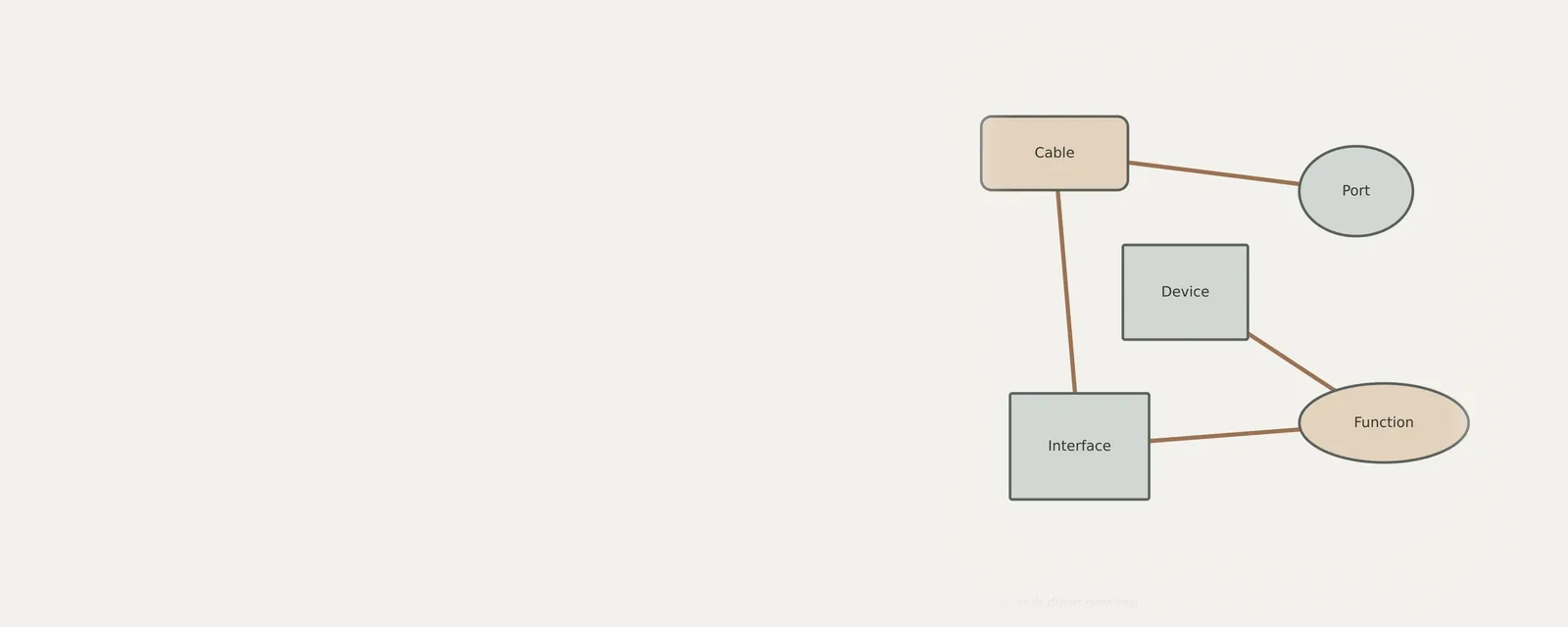
A concise reading overview: the essentials of this driver type on one page. The full setup, troubleshooting and update guides apply here too.
What this section covers
Ports, interfaces and peripheral functions. This concise reading overview identifies the layers to examine and links to relevant inspection guides. It does not replace model-specific instructions or establish which package your own device requires.
What to distinguish in usb & peripherals
USB describes a connection and protocol family, not a promise that every peripheral works without additional software. A composite device can expose separate audio, camera or control interfaces. A charging connection may not carry data. Hubs, docks and cables affect the path, so examine the connection before assuming a package is missing.
Before changing usb & peripherals configuration
For usb & peripherals, start with the connected hardware and its current operating-system version. Inspect the relevant built-in device information, then write down the actual symptom and any recent change. A warning symbol, an unfamiliar package name or an older-looking date is not enough to choose a replacement. The linked reading explains checks you can make without treating a visible label as a diagnosis.
Any usb & peripherals update or removal can affect functions you are using. Read the applicable manufacturer procedure and recovery requirements before making that change. On a managed system, ask the administrator about policy instead of forcing an unavailable setting.
USB & Peripherals
Check the simple causes too
Built-in class drivers handle many standard devices, but not every one; vendor software usually adds remapping and lighting rather than basic function.
- A damaged cable, an unpowered hub, a front-panel port with a loose connection, flat batteries in a wireless device, or a receiver out of range.
USB & Peripherals: Input from a device (output devices run the other way)
- Devicekeyboard, mouse or pad
- Port or hubphysical connection
- Host controllermanages the bus
- Class driverfor example HID
- Applicationreceives the input
Field notes
USB & Peripherals driver overview: field notes
USB & Peripherals: Input from a device (output devices run the other way)
- Devicekeyboard, mouse or pad
- Port or hubphysical connection
- Host controllermanages the bus
- Class driverfor example HID
- Applicationreceives the input
Write these down first
- Which port the device was in, and whether a hub is involved
- The device's name and status in Device Manager
- Power management settings on USB root hubs
- Any companion software the device relies on
Clues, not a diagnosis
Might involve the driver: The device listed with an error, or recognised but not working on one computer only.
Check these too: A damaged cable, an unpowered hub, a front-panel port with a loose connection, flat batteries in a wireless device, or a receiver out of range.
Where updates usually come from
Built-in class drivers handle many standard devices, but not every one; vendor software usually adds remapping and lighting rather than basic function.
Keep reading