
Library section
Guides to built-in Windows tools
Learn to read device information with tools already included in Windows. Each walkthrough distinguishes observation from changes and links to the reference…
Learn to read device information with tools already included in Windows. Each walkthrough distinguishes observation from changes and links to the reference documentation behind the procedure.
Read before changing
Most of these walkthroughs are read-only. Opening a properties tab or noting an identifier does not require choosing a command that changes a package. The rollback and optional-update guides identify where a procedure can change the system and what its limits are. On a managed device, follow your organization's rules instead of attempting to bypass its restrictions.
Keep context with the result
Record which device entry and which field you inspected. A version, a release date, an installation event, and a hardware identifier answer different questions. Menu wording can vary by Windows release and language, so compare the linked reference instructions when your screen differs. Share only the minimum device information needed, leaving serial values and unrelated personal details out of public messages.
Finding a device's hardware IDs
A hardware ID is the identifying string a device reports to Windows. Learning where Device Manager shows it lets you describe a part precisely, even when…
Checking a driver's version
The version number attached to a driver tells you which release of a package is currently serving a device. Finding it takes a minute and gives you a fixed…
Reading a driver's date
The driver date in Device Manager looks simple, yet it often surprises people with a year far in the past. Here is where to find it and how to interpret…
Viewing driver file details
Behind each device sits one or more files that make up its driver. The Driver Details window lists them, letting you see which components are loaded and who…
Rolling back a driver
Roll Back Driver returns a device to the package it used before the most recent driver change. Understanding when the option appears, and what it can and…
Browsing Windows optional updates
Windows 11 groups some driver packages under optional updates instead of installing them automatically. Knowing where that list lives and how to read it…
Reading a device's event history
The Events tab keeps a short history of what happened to a device: when it was configured, when a driver was installed and when something needed attention…
Finding a device's compatible IDs
Compatible IDs are broader identifiers a device reports alongside its hardware IDs. They explain why Windows can often run a part with a generic driver even…
Inspecting a device's status
Device Manager summarises each component's health in a short status message. Reading that sentence carefully, along with any icon beside the device, tells…
Showing hidden devices
Device Manager hides several entries by default, including devices that were once connected but are now absent. Revealing them is a single menu choice and…
Reading a device's location
Device Manager records where each device is attached: which bus, port or controller connects it to the system. The location field explains duplicates and…
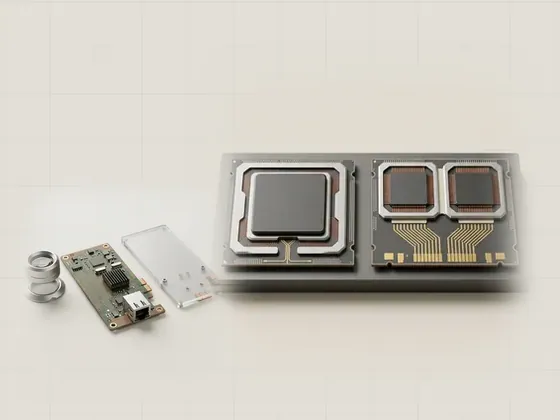
Checking your system architecture
Before reading any compatibility table, it helps to know whether your Windows installation is 64-bit or 32-bit, and on which processor family it runs. The…
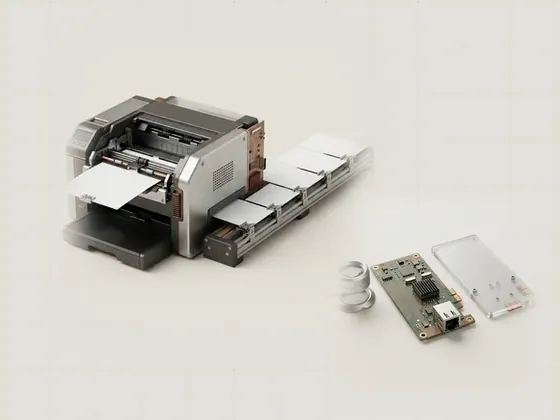
Viewing a printer's print queue
The print queue shows documents waiting to reach a printer, in order, with their status. Opening it is the gentlest first look when a page has not appeared…
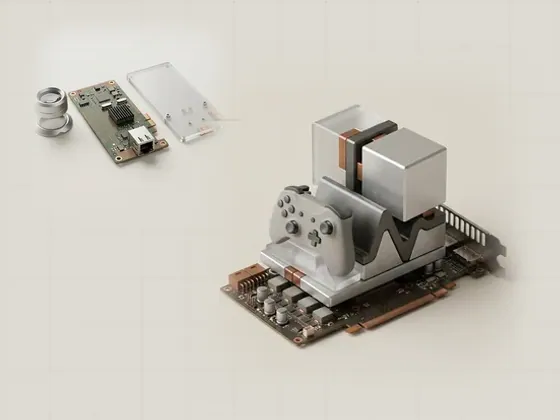
Checking your DirectX version
DirectX is the collection of Windows graphics and multimedia interfaces that games and creative tools rely on. The built-in diagnostic tool reports which…
Reading list
Know when a new guide is added
One short email per new page, nothing else. You can also follow along on the sitemap.