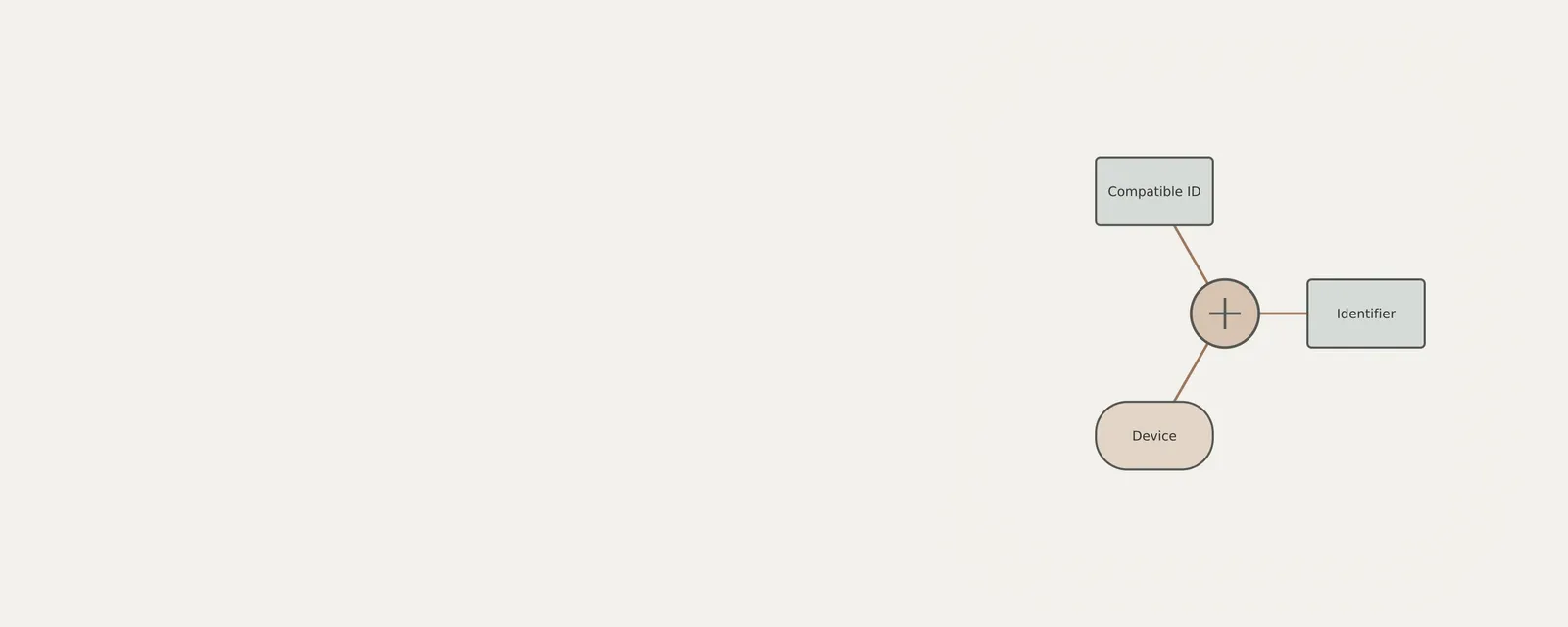
Hardware IDs help Windows match a device with a driver package. They describe a device type or a more specific hardware configuration; they are not generally unique serial numbers for individual units. This article shows where to read those identifiers in Device Manager, how to distinguish hardware IDs from compatible IDs, and what the values can tell you. You will only view information. Device Manager contains state-changing controls. Viewing properties is read-only, but the tool as a whole is not; no action is zero-risk or guarantees stability.
Understanding the Role of Hardware Identifiers
A hardware ID is critical for the Plug and Play (PnP) manager in Windows to detect and configure components. When hardware announces its ID, the PnP manager queries its records to locate a driver package. A device typically holds a list of multiple IDs; package ranking uses more than just ID order to match capabilities.
The hierarchy of these identifiers is structured with precision. The list is organized from the most granular level—capturing exact model numbers, specific manufacturer details, and precise firmware revisions—down to more general compatible IDs that describe broader device classes. This tiered approach is a fundamental design principle that enables the system to prioritize the most tailored driver match available, while providing reliable fallbacks to ensure basic functionality if a perfectly matching driver package is not present in the current installation.
By segmenting IDs in this way, the system achieves a balance between performance and compatibility. If a device has highly specific manufacturer software, the system will favor that identification for full feature sets. If that specific software is missing, the system utilizes the general ID to ensure the peripheral remains operational. This ensures that the user experience remains consistent even when hardware requirements are complex or when specific driver packages are temporarily omitted from the system configuration.
The Structure and Constraints of Identification Strings
Hardware IDs are governed by strict naming conventions established by the device's enumerator—the specialized software component responsible for detecting the device and reporting its presence to the system. Most identifiers follow a structure that includes the enumerator, such as USB or PCI, followed by a unique device ID string. This format ensures that the operating system can trace the device's connection path, which is essential for managing resource allocation across various hardware buses.
Hardware IDs describe compatibility, not a unique identity for every physical unit. Some older devices use an asterisk-prefixed identifier, and other device classes use naming rules defined for their own bus. Read the complete value rather than relying on one prefix. Preserve separators when taking a private note, since changing a character can change the meaning of the identifier. The device documentation is the right place to interpret a format that you do not recognize.
Consider a scenario where a device is designed for multiple buses. The system must account for every possible enumerator pathway to ensure the device is identified correctly regardless of its physical connection. The rigidity of these character limits is a safety mechanism, preventing the overflow of buffers that could otherwise destabilize the kernel's device management stack. Because these identifiers are stored in the registry, their length is capped, necessitating an efficient and concise naming standard that remains compatible with all versions of the Windows architecture.
Distinguishing Hardware IDs and Compatible IDs
It is essential to differentiate between a hardware ID and a compatible ID, even though both are presented within the same management utilities. A hardware ID offers the most detailed metadata about a specific device, identifying it by its exact manufacturer, vendor, and functional attributes. This is the primary key used to locate the specific driver that unlocks every feature of the hardware, providing the optimal experience intended by the component creator.
A compatible ID, by contrast, serves as a wider classification tag. These IDs are assigned when a device shares common operational characteristics with a standard class of components. For example, various types of generic cameras or pointing devices might share a single compatible ID, permitting the system to employ a universal driver when a proprietary one is unavailable. While hardware IDs provide the granular depth required for precision, compatible IDs act as a safety net, ensuring the device remains functional, if only at a baseline level, rather than failing entirely.
When you analyze a device’s properties, you may notice that the list contains both. This dual-layer approach allows the system to search for the best driver first, moving toward more general drivers only as a secondary measure. Both types of identifiers are retrieved through the same process, and both are equally vital for maintaining a healthy and functional hardware environment without needing to modify, edit, or delete any of the underlying registry entries that define them.
Procedure: Retrieving Hardware Identification Data
Device Manager remains the primary Windows utility for inspecting details regarding hardware connected to your system. The following procedure enables a safe, read-only inspection of these identifiers. This process is observational, but Device Manager includes state-changing controls. No action is zero-risk or guarantees stability; proceed with care.
Note that although interface labels might shift slightly across various builds of Windows 11, the core navigation path remains consistent.
Perform these steps to access identification strings for any detected device:
- Right-click the Start button or use the keyboard shortcut Windows key + X to open the Quick Link menu.
- Select Device Manager from the list to initiate the management utility window.
- Locate the category containing your target device and click the small arrow to expand the tree structure.
- Right-click on the specific device name and select Properties from the context menu.
- Click the Details tab located at the top of the Properties dialog window.
- Utilize the Property drop-down menu and scroll until you locate and select either Hardware Ids or Compatible Ids.
- Observe the resulting text strings populated in the Value field box located directly below the menu.
- Verify the strings match the expected pattern, such as PCI, USB, or ROOT, confirming successful data retrieval.
Interpretation and System Boundary Conditions
Once you have retrieved the data, you will see a list of alphanumeric identifiers. For a PCI-based component, you might observe a string structured as 'PCI\VEN_XXXX&DEV_XXXX&SUBSYS_XXXX&REV_XX'. Here, 'VEN' denotes the Vendor ID, while 'DEV' identifies the specific device, providing a clear map of the hardware source and model version. An empty list does not signify a failure; some virtual components or software-defined devices do not report traditional PnP IDs in the same manner as physical components.
The system enforces a hard limit of 64 individual identifiers for any single device. This constraint ensures the PnP manager maintains high performance during the device enumeration phase, as it prevents the system from having to parse excessively large lists during system boot or hardware connection events. Furthermore, the length of each string must strictly adhere to system registry limits, protecting the integrity of the device database.
A common point of concern arises with 'ROOT' enumerated devices. These are logical components created by software services rather than physical hardware. If multiple software components attempt to claim the same generic 'ROOT' namespace, a conflict may occur, often visualized in the interface as a yellow-bang warning icon. This icon informs you that the PnP manager cannot uniquely identify the device. This is a deliberate design boundary, ensuring that device declarations remain unique and preventing overlapping identifiers from causing operational issues within the kernel.
Worked Example: Analyzing a Generic Identifier
Consider the example identifier 'ROOT\*PNP0F08'. This is a classic instance of a root-enumerated ID. The 'ROOT' prefix indicates that the kernel manages this device directly, bypassing physical buses like USB or PCI. The inclusion of an asterisk ('*') signifies that the identifier is generic, meaning it describes a standard hardware class recognized by multiple system enumerators, such as the BIOS or system firmware. Recognizing these components helps you distinguish between external peripherals and internal foundational elements.
When inspecting this entry in Device Manager, you can identify it as a core system component rather than a modular peripheral. By comparing this string against other IDs present on your machine, you can develop a clear understanding of how the system prioritizes high-speed bus devices versus foundational components. This practice reveals how the operating system manages its hardware stack internally, offering insight into the organization of your system's resources without requiring specialized tools or external configuration files.
This level of analysis is purely educational and safe, providing a window into how the kernel maintains its hardware registry. By observing how these IDs are structured, you gain awareness of the distinction between hardware classes and the pathways through which they are integrated into the OS. This methodical review enables you to map the internal device hierarchy while confirming that all components are correctly associated with their designated management pathways, ensuring long-term system stability.
Computer & System
Note these before you change anything
Useful facts to have to hand while reading about reading hardware identifiers safely.
- Motherboard or computer model and firmware version
- Chipset driver package version
- Any firmware settings changed from defaults
- Unknown devices listed in Device Manager
Computer & System: One selected path: a device on a chipset bus
- Operating systemmanages devices
- Chipset driversidentify buses and power features
- ChipsetPCIe, USB and SATA links
- Firmware (UEFI)initialises hardware at start-up
- Attached deviceson those links
Frequently asked questions
Is a hardware ID a serial number?
Usually not. A hardware ID describes a device type or configuration for driver matching. Several physical units can report the same value. A device instance ID serves a different purpose within Windows, and neither field should automatically be treated as a public product serial number.
Why does one device have several hardware IDs?
A device can report several identifiers, from more specific descriptions to broader matches. Windows considers these when evaluating packages, alongside other selection criteria. Reading the list helps explain matching; it does not reveal the complete ranking decision or prove that a particular package should replace another.
Can I change an ID in the Details tab?
The displayed identifiers are information to read, not values to edit in that tab. You can copy a value for your private notes. Leave the update, removal and other state-changing controls alone; this article does not require altering how Windows identifies the device.
What does a warning symbol tell me?
It means Windows has recorded a problem for that device. Open the General tab and read Device status for more context. The symbol alone cannot distinguish a hardware problem from a configuration or driver issue, so do not use it as a diagnosis.