
Topic hub
Driver types
Choose a hardware role before choosing a procedure. Display, sound, networking and peripherals each have different paths between software and a physical…
What this section covers
Choose a hardware role before choosing a procedure. Display, sound, networking and peripherals each have different paths between software and a physical device. These eight overviews explain what belongs to each category and which checks are useful before an update.
Driver types differ less in how they are installed than in what goes wrong. Graphics problems tend to show on screen, network problems as dropped connections, and storage problems as missing drives, which is why reading by type is a useful shortcut.
Where updates come from also differs. Some types are commonly delivered through the operating system's update tool; others are best taken from the computer or motherboard maker for the exact model.
Eight driver types
Choose a driver type
Four types have full pages; the others are concise reading overviews.
Graphics & Display
Graphics and display drivers connect rendering work with the hardware that produces a picture. Resolution, refresh rate and game frame rate describe…
Audio & Sound
Audio drivers connect applications with input and output hardware. Missing sound can involve the selected output, application settings, a connection or a…
Network & Wi-Fi
A network driver connects the operating system with a wired or wireless adapter. A connected adapter, a local network link and usable internet access are…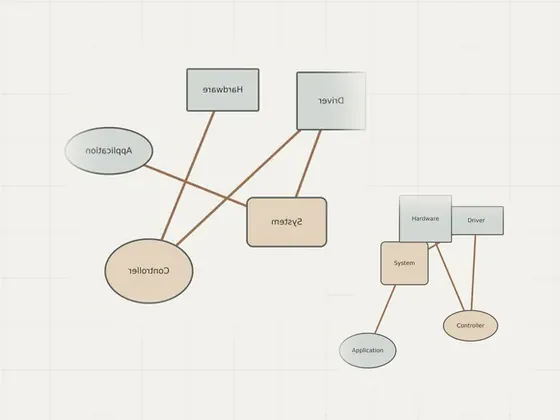
Chipset & Motherboard
Controllers, buses and platform functions. This concise reading overview identifies the layers to examine and links to relevant inspection guides. It does…Concise overview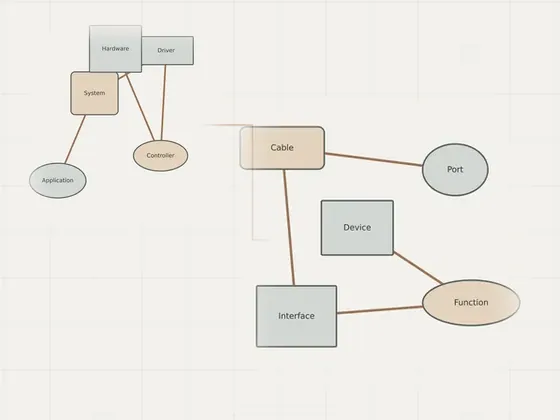
USB & Peripherals
Ports, interfaces and peripheral functions. This concise reading overview identifies the layers to examine and links to relevant inspection guides. It does…Concise overview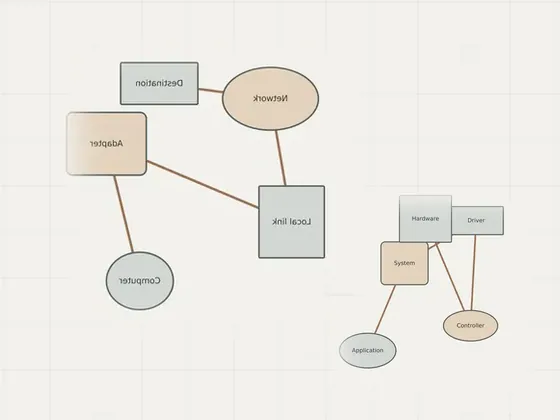
Bluetooth
Pairing, connection and device profiles. This concise reading overview identifies the layers to examine and links to relevant inspection guides. It does not…Concise overview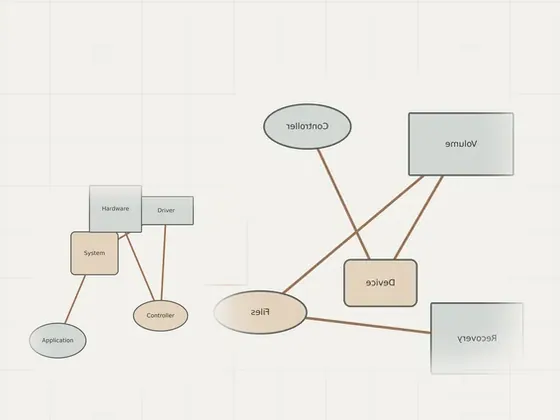
Storage & Disk
Storage controllers, disks and volumes. This concise reading overview identifies the layers to examine and links to relevant inspection guides. It does not…Concise overview
Printer & Scanner
Printing and scanning are separate functions, even when one enclosure provides both. A print queue, a scanner application, the network connection and…
Driver types compared
| Driver type | What it controls | Where updates come from | Common problems |
|---|---|---|---|
| Graphics & Display | An application prepares drawing work through operating-system graphics interfaces. | Graphics & Display components built into the operating system and separate accessory applications have different update paths. | Unexpected resolution; Flicker or intermittent blanking; An external screen is not detected |
| Audio & Sound | An audio application works through operating-system interfaces to send or receive samples. | Audio & Sound components built into the operating system and separate accessory applications have different update paths. | Playback is silent; A microphone is listed but records nothing; An external interface is missing |
| Network & Wi-Fi | A network adapter sends and receives data under control of operating-system networking components. | Network & Wi-Fi components built into the operating system and separate accessory applications have different update paths. | Wireless networks are not visible; Wireless disconnects repeatedly; A wired connection has no local link |
| Chipset & Motherboard | Controllers, buses and platform functions. | Device-maker documentation or the operating system's own update tool | See the overview page |
| USB & Peripherals | Ports, interfaces and peripheral functions. | Device-maker documentation or the operating system's own update tool | See the overview page |
| Bluetooth | Pairing, connection and device profiles. | Device-maker documentation or the operating system's own update tool | See the overview page |
| Storage & Disk | Storage controllers, disks and volumes. | Device-maker documentation or the operating system's own update tool | See the overview page |
| Printer & Scanner | An application sends a print job through the operating system’s printing path. | Printer & Scanner components built into the operating system and separate accessory applications have different update paths. | The printer is shown as offline; A job remains in the queue; Output uses unexpected layout or features |
Reading list
Know when a page is added here
One short email per new page, nothing else. You can also follow along on the sitemap.