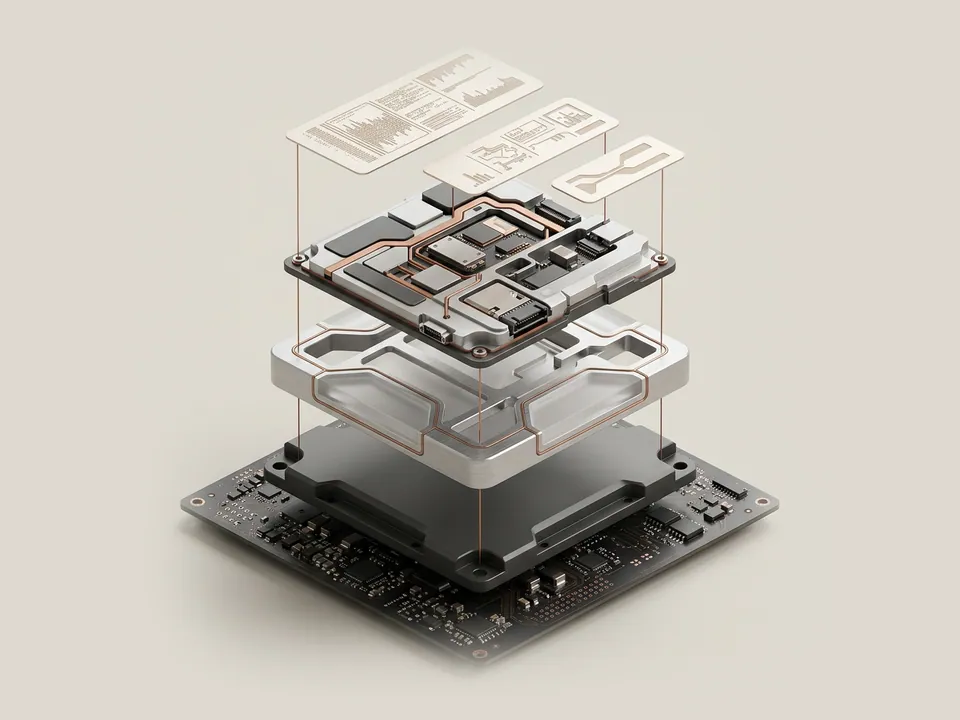
A hardware ID is the identifying string a device reports to Windows. Learning where Device Manager shows it lets you describe a part precisely, even when its name on screen is vague.
Why this string matters
Device names in Windows are friendly labels chosen by whichever driver package is installed. When no suitable package exists, the same component may appear only as an unknown device. The hardware ID does not change with the label: it is built from information the device itself provides, typically a bus prefix followed by vendor and product codes, sometimes with revision details appended.
Because Windows matches driver packages against these strings, knowing them helps you read a manufacturer's information page with confidence, or confirm that two similarly named parts are actually different models.
Steps in Device Manager
The whole procedure is read-only. You do not need to press Update, Uninstall or Disable at any point.
- Open the Start menu, type Device Manager and select it from the results.
- Expand the category that contains the device, such as Display adapters or Other devices.
- Right-click the device and choose Properties.
- Open the Details tab and choose Hardware Ids from the Property list.
- Read the list from the top: the first entry is the most specific, later ones are broader.
- Close the window with Cancel so nothing is changed.
Reading the list sensibly
The topmost line usually includes the most detail, such as a subsystem or revision code. Lines further down drop pieces of that detail. Microsoft's documentation describes this ordering as most specific first, and Windows prefers packages that match earlier lines.
Treat the vendor and product codes as identifiers, not as a promise of any brand name. Some computer makers ship parts built by another company, so the code may point to a chip designer rather than the name printed on the case.
- Copy a value by selecting it and pressing Ctrl+C.
- Hardware IDs are generally safe to share; serial numbers and device instance paths that contain them are better kept private.
- If the Details tab is missing, you may be viewing a category heading rather than a device.
Good to know
Hardware IDs also appear in many reference compatibility lists and in the INF file of each driver package. If a maker's information page lists compatible device IDs, comparing the first lines from your Details tab with that list is a far more dependable check than comparing product names.
Before you start
Have these ready
A guide goes more smoothly with the basics written down.
- The device or computer model
- The current driver version, if the guide involves one
- What changed most recently on the system
- Whether a restore point or backup is available on your system