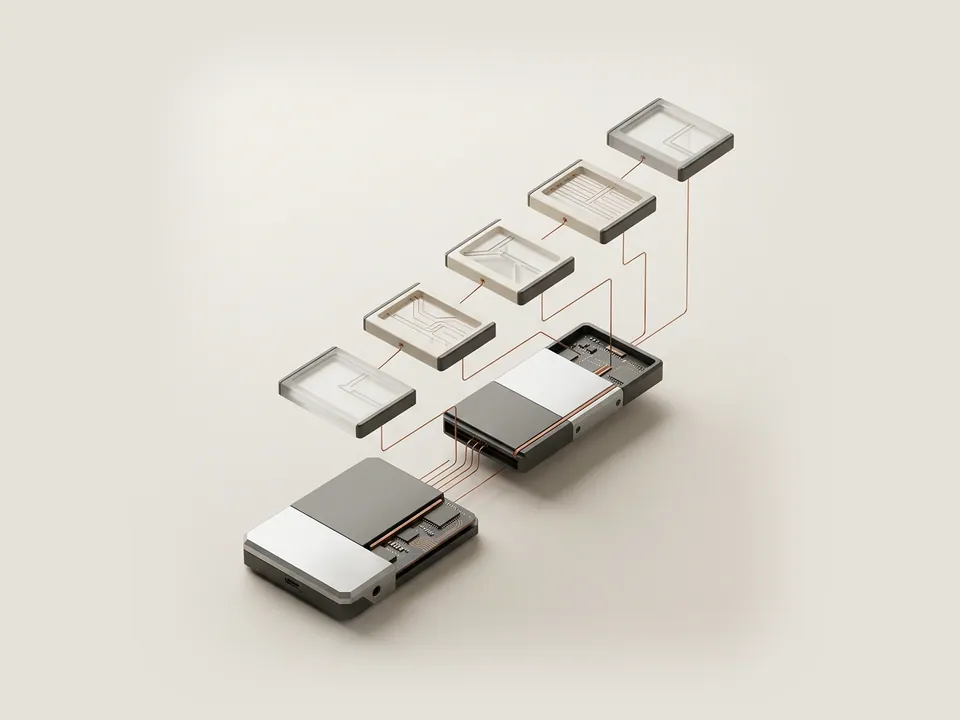
Behind each device sits one or more files that make up its driver. The Driver Details window lists them, letting you see which components are loaded and who published each one without touching anything.
Why a device has several files
A driver is frequently a set of cooperating pieces: a core file running in the operating system kernel, perhaps a filter supplied by another party, and helper libraries used by applications. The Driver Details window collects these into one list for the selected device.
Seeing the list is useful when you want to understand a layered arrangement, for example a sound device where a generic class driver works alongside a maker-specific component.
Steps
Opening this window is safe; it has no options that change the device.
- Open Device Manager and double-click the device you are curious about.
- Choose the Driver tab.
- Select Driver Details.
- Click each file in the list to see its provider, file version and copyright text below.
- Select OK, then Cancel on the properties window.
Making sense of the list
File paths usually point to the system's drivers folder or to the driver store, the protected location where Windows keeps staged packages. Different files can show different versions because they are built and maintained separately.
If a file's provider differs from the device maker, that may simply be a shared component such as a class driver. The list helps you name things accurately when reading documentation or forum discussions, but it is not a checklist of items to remove.
- A missing Driver Details button usually means no driver is installed.
- File versions can differ from the package version shown on the Driver tab.
Good to know
The window shows only files currently associated with the device, not every file the publisher installed. Settings applications, background services and user-mode components belonging to the same product may live elsewhere. For a complete picture of what a package contained, the maker's release notes are the better reference.
When you are comparing two computers, opening this window on both and listing the file names side by side can reveal whether one has an extra filter or helper component. That comparison is purely descriptive and a good basis for a precise question to a maker.
Before you start
Have these ready
A guide goes more smoothly with the basics written down.
- The device or computer model
- The current driver version, if the guide involves one
- What changed most recently on the system
- Whether a restore point or backup is available on your system