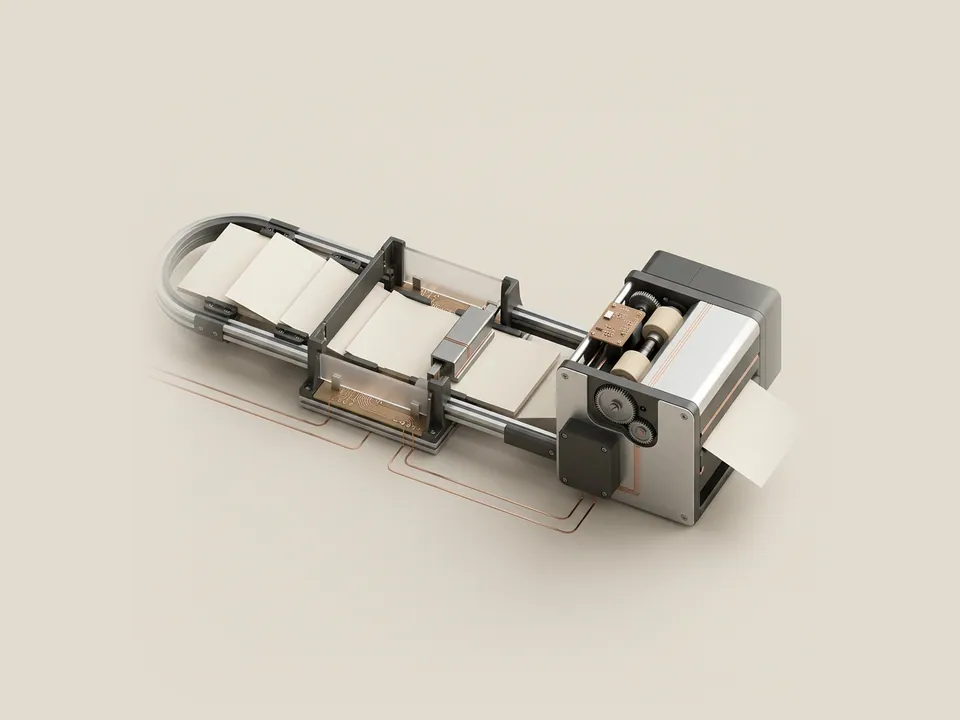
The print queue shows documents waiting to reach a printer, in order, with their status. Opening it is the gentlest first look when a page has not appeared, because it reveals where in the process the job is waiting.
What the queue represents
When you print, an application hands the job to Windows, where the print spooler holds it and feeds it to the printer driver and then the device. The queue is the visible list of those held jobs. Microsoft documents how to open it from the Printers and scanners settings.
A job that stays at the top with a status such as error or paused tells you the delay is between Windows and the printer, not inside the application.
Steps
Viewing the queue is read-only until you choose an action from its menus.
- Open Settings and select Bluetooth & devices.
- Choose Printers & scanners.
- Select the printer you are interested in.
- Select Open print queue.
- Read the document names, status, owner and page counts.
Interpreting statuses
Printing means data is being sent. Spooling means the job is still being prepared. Paused can apply either to a single document or the whole printer, shown in the window title. Offline usually reflects the connection between computer and printer.
Document names can reveal private information, so take care when sharing a picture of the queue. Cancelling jobs is available from the same window, but the aim of this guide is understanding the state before taking any action.
Good to know
The queue window can also be opened from the printer icon that appears in the notification area while a job is in progress. Both routes show the same list.
If the list is empty but nothing printed, the job may have already passed to the printer, which has its own memory and display. In that case the printer's own panel or the maker's reference documentation describes what its messages mean, since Windows has finished its part of the process.
Noting the exact status text and the time of the job is helpful if you later compare it with the printer's own log.
Before you start
Have these ready
A guide goes more smoothly with the basics written down.
- The device or computer model
- The current driver version, if the guide involves one
- What changed most recently on the system
- Whether a restore point or backup is available on your system