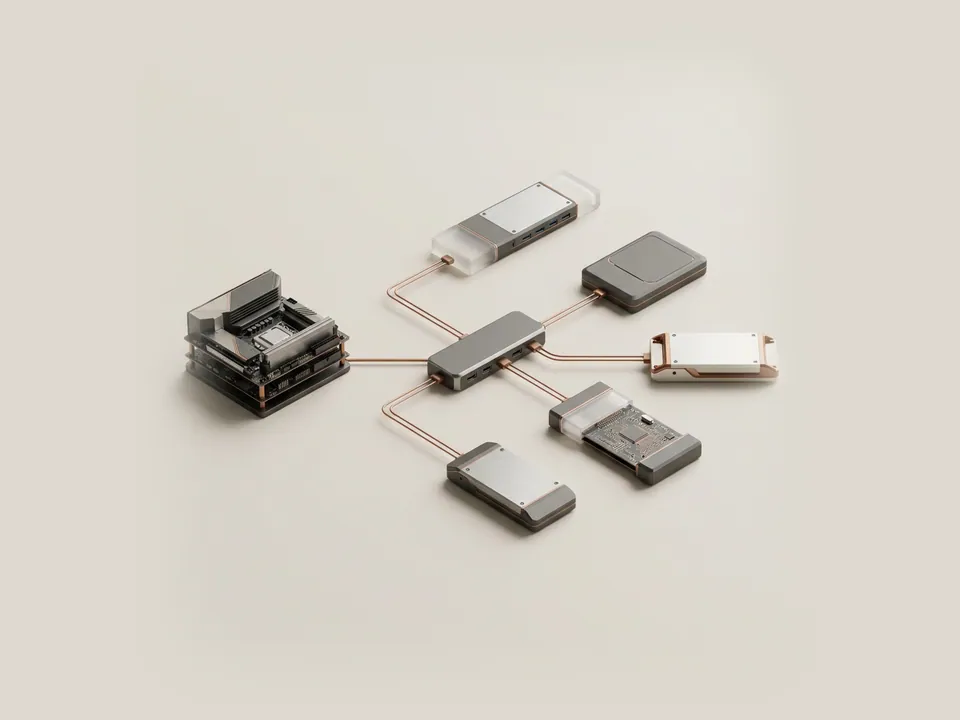
Device Manager records where each device is attached: which bus, port or controller connects it to the system. The location field explains duplicates and helps you link an entry to a physical socket.
Why location is recorded
Windows identifies devices partly by where they sit. Two identical cameras plugged into different ports are two separate device instances, and the location value is what keeps them apart. It is also how you can tell which of two similar entries belongs to the front panel and which to the back.
The location string varies by bus. USB devices may show a port and hub number, while internal components may show a PCI bus, device and function number.
Steps
This is information only; no settings need changing.
- Open Device Manager and double-click the device.
- On the General tab, read the Location line.
- For more detail, open the Details tab.
- Choose Location information or Location paths from the Property list.
- Close with Cancel.
Using the information
To connect a USB entry to a socket, note its location, move the device to another port, and see the location change. For internal components, the bus numbers match what technical documentation from the computer maker may describe.
The View menu option Devices by connection presents the same relationship as a tree, showing which controller each device hangs from.
Good to know
On desktop computers, ports on the back panel usually connect directly to the motherboard's controllers, while front-panel ports may pass through an internal hub, which often shows up as an extra level in the location path.
Location values for internal components remain stable across restarts, while USB locations change when you move a device to another port. That stability is why Windows can remember settings for internal parts reliably, and why moving an external device can make it appear new.
If two entries look identical in every other respect, the location line is usually the quickest way to tell them apart and to note which physical socket each belongs to.
Before you start
Have these ready
A guide goes more smoothly with the basics written down.
- The device or computer model
- The current driver version, if the guide involves one
- What changed most recently on the system
- Whether a restore point or backup is available on your system