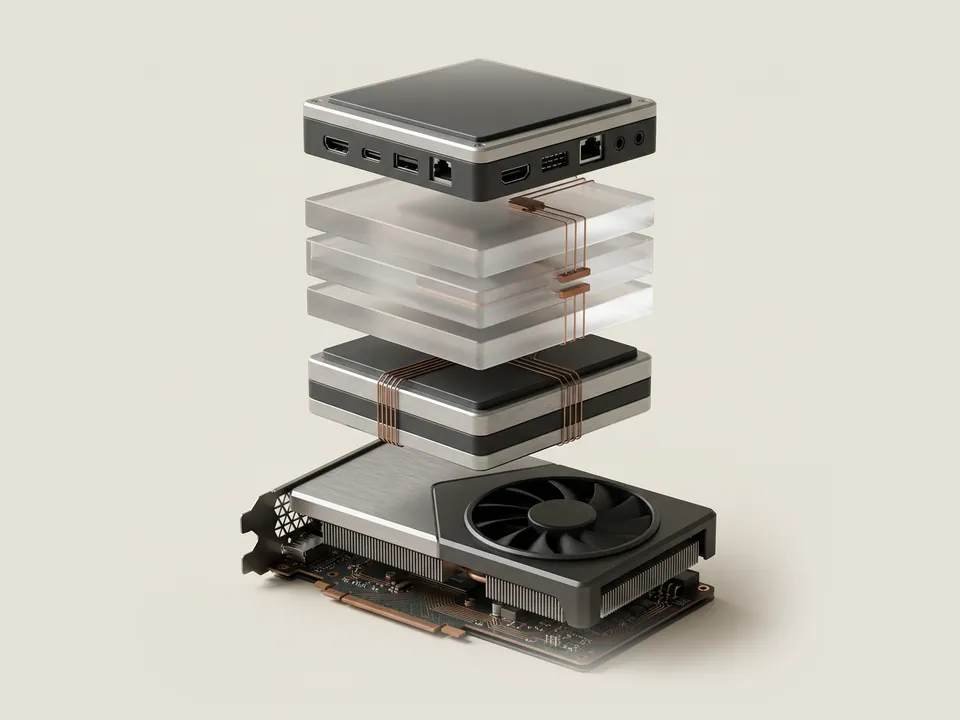
DirectX is the collection of Windows graphics and multimedia interfaces that games and creative tools rely on. The built-in diagnostic tool reports which version is present and summarises the display driver in use.
How DirectX relates to drivers
Applications speak to DirectX, and DirectX speaks to the display driver, which in turn speaks to the graphics hardware. The DirectX version tells you which interfaces Windows offers; the driver and hardware determine which features of that version are actually supported.
Microsoft notes that DirectX is part of Windows and is serviced through Windows Update rather than downloaded separately on current versions.
Steps
The diagnostic tool only reads information. You can close it at any point.
- Open the Start menu and type dxdiag.
- Select dxdiag from the results; allow the check if it asks about signing.
- On the System tab, read the DirectX Version line.
- Open the Display tab to see the device name and driver version.
- Select Exit when finished.
Reading the output
The Display tab lists feature levels the driver reports. These are a more useful guide to what a game can use than the overall version, because two systems with the same DirectX version can utilize different feature levels.
The Save All Information option writes a text report containing your computer's name and hardware detail. It can help in conversations with a device maker, but review it before sharing it anywhere public.
Good to know
The Sound and Input tabs list audio and input devices with their driver details as well, making the tool a convenient single overview. Any notes in the Notes box at the bottom of each tab report problems the tool detected; an entry reading no problems found is the usual outcome.
Laptops with two graphics processors may show two Display tabs or a Render tab. Each reflects a different adapter, and their driver versions can differ because they come from different packages.
Before you start
Have these ready
A guide goes more smoothly with the basics written down.
- The device or computer model
- The current driver version, if the guide involves one
- What changed most recently on the system
- Whether a restore point or backup is available on your system