Manual installation is appropriate only when you can identify a documented package for the exact device and current operating system. A filename or a newer version number is not enough. This guide explains the checks before choosing a manufacturer installer or a local package folder, the differences between those routes, and the recovery questions to answer before either changes the system. Do not force an unrelated package, weaken security checks or assume that selecting a folder proves what became active.
Verifying Hardware and Architecture Compatibility
Before selecting any driver, identifying the precise hardware model and its specific revision is essential. Manufacturer packages are often hardware-specific, meaning a driver meant for one internal component will fail if applied to a slightly different revision of the same device. Relying on vague model numbers leads to installation errors or unstable device behavior.
Equally important is matching the package to the operating system architecture. Modern environments utilize 64-bit frameworks, but legacy components or specific embedded systems may still rely on older variations. Incorrectly applying an incompatible architecture package usually causes a complete failure of the device to initialize, as the instruction sets will not communicate effectively with the kernel layer.
- Open the hardware information panel to identify the exact device model string.
- Check the current operating system architecture type in the system properties window.
- Visit the manufacturer portal to filter available packages by the exact hardware model name.
- Confirm the release date of the package aligns with the hardware manufacturing period.
- Cross-reference the listed supported operating systems to ensure they match your local environment.
Differentiating Bundled Installers from INF Packages
Distinguishing between bundled executable installers and raw INF packages is a critical decision during preparation. Bundled installers are typically designed for ease of use, often including configuration utilities that manage the device settings automatically. However, these bundles can introduce unnecessary background processes that consume system resources or conflict with existing software configurations.
An INF is a configuration file used in Windows installation procedures; a package can also contain binaries, catalogs and other components described in its documentation. A documented local-package procedure can be appropriate for a matching device; it is not inherently cleaner or safer than the maker’s installer. Read what the package contains and which features its installer provides; selecting an INF does not prove that every additional component will be omitted.
Inspecting Documentation for Installation Dependencies
Every manufacturer provides specific documentation that should be inspected before running any executable. These documents often detail mandatory prerequisites, such as specific service packs or secondary software components that must be present for the driver to function. Neglecting these details often results in incomplete installations where the device remains recognized but fails to perform its primary tasks.
Documentation also highlights known limitations or conflicts with existing software. By reading these notes, you can identify if a specific package requires the prior removal of older software versions. Avoiding this step can lead to state corruption, where previous configuration data conflicts with the new driver logic, causing unexpected behavior during peripheral use.
Implementing Local Repository Installation
When preparing to apply a driver, using the local browse feature is the most controlled method for targeting a specific directory. This method forces the OS to look at a folder you have explicitly defined, rather than searching broad repositories. It reduces the risk of installing a generic or outdated driver that might be suggested by secondary automated lookups.
By pointing the device installation process to a specific directory containing the extracted INF files, you maintain full visibility over what is being added to the system. Selecting a folder supplies a local search location; it does not prove which package becomes active or that no additional component changes.
Managing Recovery and State Changes
Any driver modification changes the current system state, necessitating a recovery plan in case of issues. Before applying new packages, verify that you have a functional recovery state available to revert changes. This precaution is vital because drivers interact deeply with the system; if the installation fails, the peripheral may become inaccessible or cause system instability.
After the installation, monitor the device performance for signs of conflict. If the device exhibits degraded behavior, rolling back to the previous state is often the first step in restoration. An installation changes configuration; do not assume every effect can be reversed or attributed to one file.
Printers & Scanners
Note these before you change anything
Useful facts to have to hand while reading about preparing a manufacturer driver package.
- Printer queue name and the port it uses
- Driver name: a built-in class driver or the maker's
- Whether the printer is reached by USB, IP address or name
- Default paper size and tray
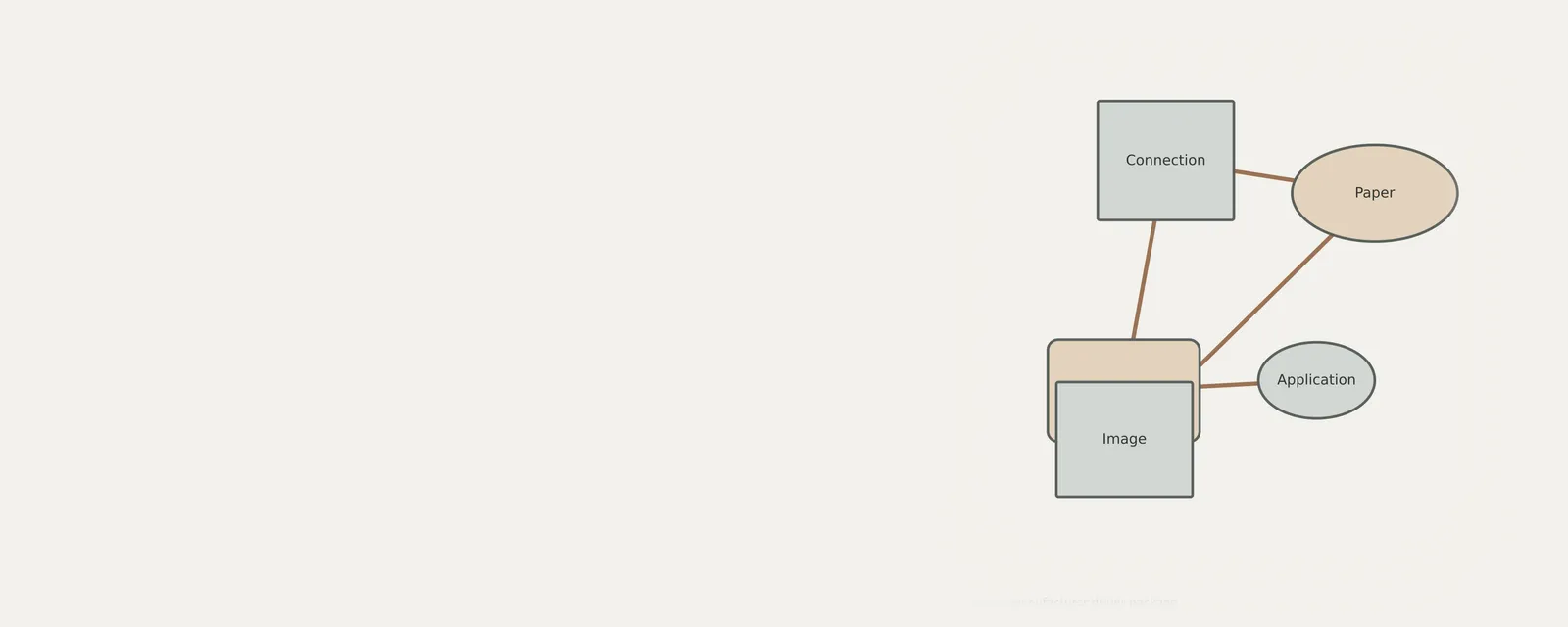
Printers & Scanners: One common printing path (scanning runs the other way)
- Applicationsends a print job
- Print systemqueues and renders
- Printer driverbuilt-in class or vendor
- ConnectionUSB or network
- Printerproduces the page
Frequently asked questions
Why is it important to match driver packages to the exact hardware revision?
Hardware revisions often feature different internal controllers or chipsets despite sharing the same brand model number. Using a driver package not intended for your specific revision can lead to communication errors between the hardware and the operating system, potentially causing the device to malfunction or refuse to initialize entirely.
What is the primary benefit of selecting an INF package over an executable bundle?
Selecting a raw INF package allows you to install only the necessary driver files. Executable bundles often include additional management software and background services that you may not require, which can lead to system clutter or unintended conflicts with other applications running on your machine.
How do I ensure that a driver installation will not cause permanent system issues?
Always maintain a known good system state before modifying drivers. Because drivers operate at a fundamental level, they can influence stability. A restore point can be useful where available, but may not exist, may fail and does not replace a personal-file backup.
Does browsing my local computer for drivers always guarantee success?
No. While browsing your local computer for specific driver files gives you control over the installation, it does not guarantee that the driver itself is compatible or functional. You must still verify that the package matches your specific OS architecture and hardware version before performing the installation.