Operating-system updates and accessory software do not all follow the same path. Windows distinguishes recommended updates from optional packages; macOS delivers built-in component changes with system updates; ChromeOS normally integrates driver changes into its operating-system releases. A separate accessory application may need a separate review. Start by recording your current version and planning for any restart, then inspect the applicable update controls. Availability, policy and compatibility requirements can limit what is offered, and an update is not a promised remedy.
Managing Windows Update Package Selection
In the primary configuration panel, users often overlook the distinction between critical OS integrity modifications and secondary hardware-specific components. The main update mechanism prioritizes core stability, while optional packages reside in a separate sub-menu specifically designed for peripheral components that do not require immediate intervention for system boot. By manually checking this secondary category, you can target specific hardware issues such as input latency or display output discrepancies without modifying core OS files.
Choosing to ignore or delay these non-critical packages is a valid strategy if your current hardware configuration remains stable. Recommended and optional updates can both change behavior; compare their purpose and relevant requirements rather than assuming one category cannot cause a regression. Regularly reviewing the pending list allows you to distinguish between packages that address security and those that simply adjust minor telemetry or cosmetic behavior for connected input devices.
- Open the main system settings menu from the start interface
- In Windows 11, open Settings > Windows Update; use Advanced options > Optional updates to inspect optional driver entries separately.
- Select the advanced options link to reveal granular settings
- Click on the optional updates category to view hardware lists
- Expand individual component sections to inspect specific hardware versions
- Choose only the relevant hardware components for deployment
Planning Restarts and Policy Pauses
System modifications frequently require a full reboot to move files from temporary buffers into active memory locations. If you are mid-project, sudden environment changes can lead to unexpected state transitions or data loss. Using the pause feature effectively allows you to delay these mandatory cycles for several days, giving you time to complete current work before the background processes finalize their integration during the next scheduled downtime.
Configuration policies also permit you to set active hours, which informs the operating system when to avoid performing heavy background processing. Active hours primarily affect automatic restart scheduling; they do not stop all background update activity or disk writes. This planning minimizes the chance of encountering a forced logout or reboot that could interrupt your focus or interfere with ongoing background rendering tasks.
- Open the update configuration dashboard in system settings
- Locate the pause updates toggle to defer installations for seven days
- Access active hours settings to set specific usage time blocks
- Enable the notify to restart option for manual control
- Schedule specific restart times that align with your lunch breaks
- Review the update history to verify which installations finished
Executing Component Rollbacks for Stability
When an installed component does not function as intended, you can often revert the change by rolling back to the previous version held in the local cache. This operation is particularly useful if a display or sound module suddenly exhibits artifacts or crackling after an integration event. By reversing the most recent change, you return the device to its known working state while preventing the system from automatically reapplying the problematic version immediately.
It is important to remember that not every component supports an in-place rollback. If the previous version files have been overwritten or deleted during a cleanup cycle, you may need to rely on alternative methods such as manually searching for the version you require. Always verify the state of your peripheral after a rollback by performing a short test session to confirm that the previous performance levels have been successfully restored.
- Right click the start button and select the device manager
- Find the problematic component in the expanded hardware tree
- Open the properties window with a secondary click on the device
- Switch to the driver tab to reveal the management controls
- Select the option to roll back the device version if enabled
- Reboot the workstation to complete the reversion process
Using macOS Software Update Logic
Software Update in macOS delivers applicable operating-system updates for the current Mac. It is a useful place to check built-in component changes, but it does not update every accessory application or guarantee that a hardware symptom will disappear. For a peripheral with separate software, read the model and system-version requirements published by its developer.
Observing the update panel reveals that accessory packages are handled separately from major system versions. You might notice that specific peripheral patches only appear if the hardware is currently connected. An optional-update list can include packages for known devices; review each entry rather than assuming everything listed is currently connected or necessary. Keeping this panel accessible allows for quick verification of current environmental status.
- Open the main system settings application from the dock
- Navigate to the general tab to locate software update
- Allow the system to query the network for current package versions
- Review the details provided to see what components are changing
- Confirm your identity if prompted to begin the installation cycle
- Wait for the progression bar to complete during the final stage
Interpreting ChromeOS Lifecycle Information
Maintaining a consistent environment on simplified browsing platforms involves checking the version lifecycle status rather than individual hardware components. The internal settings page provides a clear indicator of when the device will stop receiving internal modifications. Since the OS manages all hardware communication through a unified kernel, individual component patching is rarely exposed to the user, making the overall version number the primary metric for ensuring continued security and feature availability.
When you inspect the status menu, you will observe that the system keeps itself current based on a rolling release schedule. This design philosophy removes the complexity of managing individual drivers but implies that you have less control over specific hardware versions. If a peripheral is not behaving correctly, you should check for hardware-specific compatibility notes rather than attempting to adjust internal system files, as these are locked to prevent inadvertent environment destabilization.
- Select the time area in the bottom corner of the interface
- Click the settings icon to open the configuration panel
- Choose the about chromeos section from the left side menu
- Select the check for updates button to trigger a refresh
- Observe the current version string displayed on the screen
- Verify that the status indicates the machine is up to date
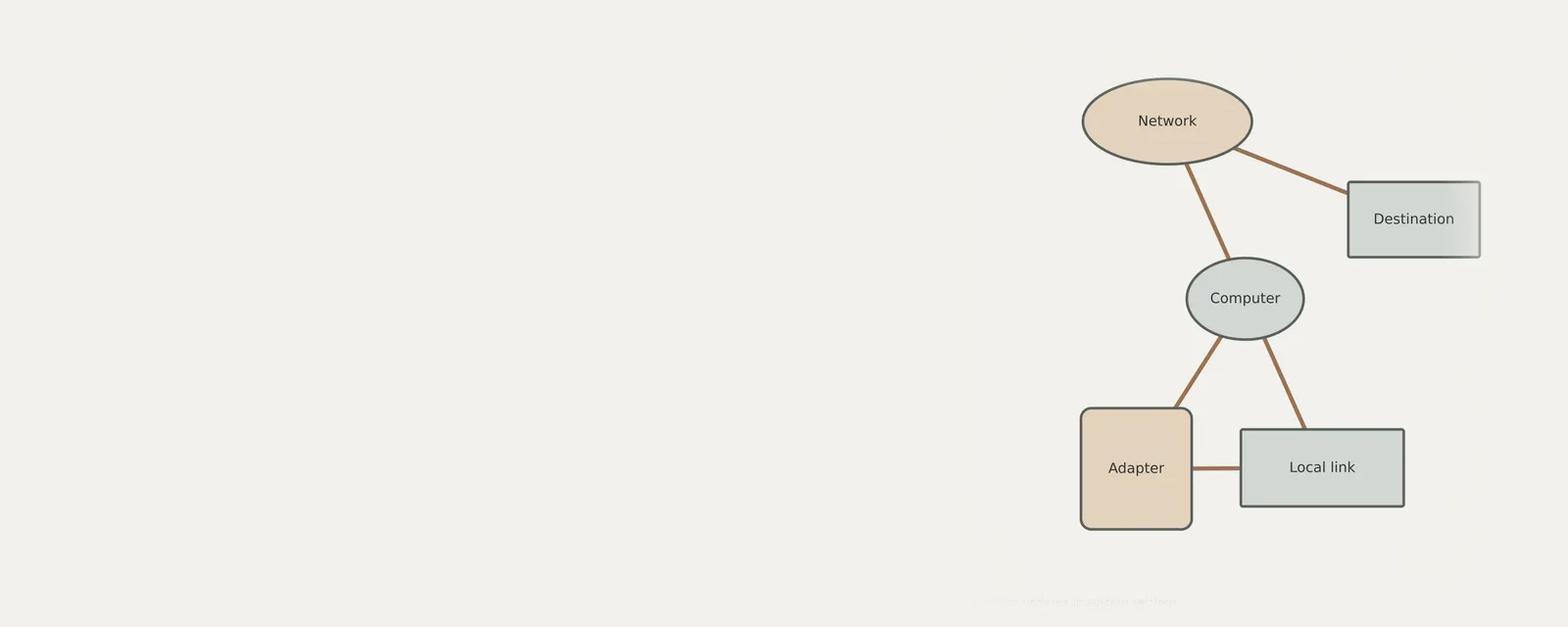
Network & Wi-Fi
Note these before you change anything
Useful facts to have to hand while reading about finding driver updates in system settings.
- Adapter name and driver version
- Whether other devices on the same network work
- IP configuration shown in the system's network details
- Power-saving settings on the adapter
Network & Wi-Fi: Sending data (simplified; replies return the same way)
- Applicationopens a connection
- Network stackTCP/IP and name lookup
- Adapter driverWi-Fi or Ethernet
- Network adapterradio or port
- Routerand the wider network
Frequently asked questions
Can I prevent all background hardware changes on my machine?
You can use the pause functionality in update settings to delay these processes for several days. However, completely disabling all background integration is not recommended as it leaves your system without necessary performance improvements and compatibility adjustments that keep your hardware functioning correctly over time.
Why does my peripheral stop working after an update?
Sometimes a new version may conflict with existing peripheral settings or require a specific configuration change that did not transition smoothly. If this happens, you can attempt to roll back to a previous version through the device settings or verify that the hardware is correctly connected and powered.
Does checking for updates always provide the latest hardware software?
Not necessarily. Updates prioritize critical system stability and common hardware components. Some specialized or older peripherals may not have packages delivered through the main system update mechanism, requiring you to monitor the manufacturer status for specific version information if the hardware is not functioning as expected.
How do I know if an optional update is necessary?
Optional updates are typically meant for non-critical performance adjustments or specific peripheral features. If your system is currently running well and all connected devices are performing tasks without error, you generally do not need to install optional packages unless they specifically address a known issue you are experiencing.