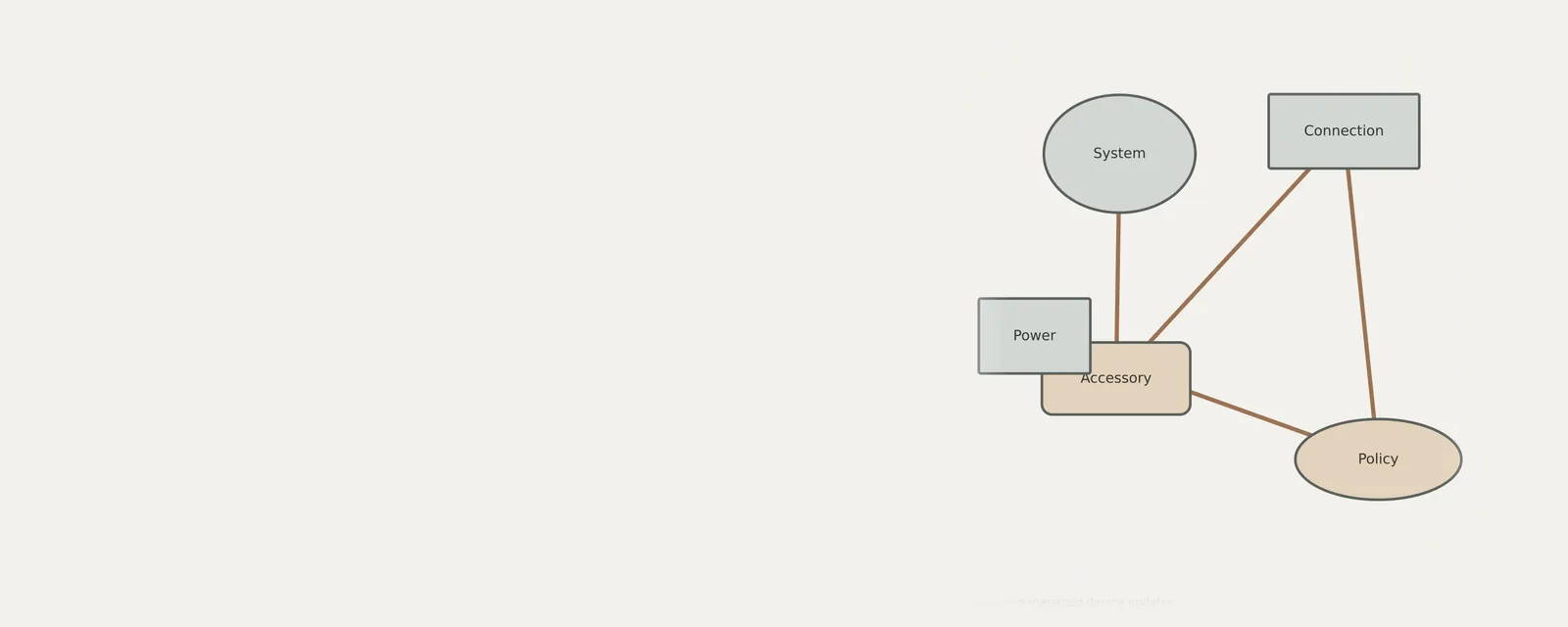
Managed computing environments rely on centralized control to maintain consistency across fleets of machines. Administrators establish specific policies that dictate how operating systems and software packages receive improvements or patches. Understanding these frameworks is vital for users to anticipate behavior changes and maintain workflow continuity. By recognizing how administrative directives supersede manual adjustments, individuals can align their expectations with the governing infrastructure. Managed settings govern permitted changes; they do not guarantee uniform behavior or freedom from security problems.
Why Administrative Policies Override Manual Settings
Administrators implement managed policies to ensure that software remains compatible with internal network infrastructure and security protocols. When a device is joined to a managed domain, specific configuration profiles are pushed from the central controller to enforce uniform settings. These policies prevent individual modifications to avoid fragmented configurations that could lead to intermittent performance issues or conflicts with standardized deployment tools.
Observations often show that manual options become greyed out or inaccessible once a management profile is active. This design choice prevents unintentional changes that might compromise the integrity of the computing environment. While users might desire higher flexibility, these restrictions are intentional, focusing on long-term stability and ensuring that every machine functions predictably within the broader ecosystem of company-owned assets.
- Open the primary settings menu on the device.
- Locate the section detailing organizational or management profiles.
- Review the listed restrictions to see which features are controlled by an administrator.
- Check for flags or indicators that signify policy-level overrides on specific settings.
- Identify the last sync timestamp to verify if the machine has recently communicated with the management server.
How Update Schedules Differ Between Environments
Update cycles for managed devices are dictated by predetermined schedules rather than individual user prompts. In environments utilizing central management, administrators may choose to defer major releases to allow for internal compatibility verification. An administrator may test a release against local requirements, but that does not exclude every regression.
Individuals may notice that their devices remain on an older version longer than consumer-grade hardware. This delay is an active decision to prioritize uptime over immediate feature parity. Deployment schedules can differ by device, group and availability; a fleet need not change versions simultaneously.
- View the version information panel in the device settings.
- Confirm if the update status indicates that management is handling the current release cycle.
- Consult internal communication regarding upcoming maintenance windows.
- Avoid attempting to force updates via external installers if a managed policy is active.
- Monitor the device restart requirements issued by the administrative profile.
Managing Hardware Compatibility Under Strict Policies
Hardware interaction in a managed ecosystem is tightly integrated with the operating system build. Because the administrative layer controls which software packages are permissible, manually adding drivers or external hardware components can occasionally conflict with existing restrictions. The system evaluates every installed piece of software against a whitelist to preserve the integrity of the managed state.
A managed device can fail for hardware, connection, configuration or software reasons. Administrative policy determines which changes are permitted; it does not guarantee that approved equipment works in every situation. Record the observed symptom and read the device’s policy notices before trying an installation. Ask the administrator about a blocked requirement rather than treating it as proof of a physical defect or bypassing it.
- Verify if the peripheral device is listed in the approved hardware inventory.
- Disconnect the device and re-insert it after a full system power cycle.
- Read any policy notice about package installation without attempting to bypass the restriction.
- Read the organization’s connection requirements and compare the permitted dock or accessory path; a docking station alone is not evidence of a security requirement.
- Review the event logs to identify if a policy restriction prevented the device from initializing.
Recognizing the Limits of Automated Configuration
Automated systems are designed to propagate settings efficiently, yet they have inherent limitations. They function best when devices follow a standard naming convention and remain connected to the internal network. If a machine remains offline for an extended period, it may fail to receive updated instructions, leading to a state where the local policy becomes stagnant and potentially misaligned with the current organizational goals.
It is common for users to encounter minor synchronization gaps during transitional periods. These moments occur when the device is attempting to reconcile its local state with the server after a change in administrative policy. Understanding that these processes are automated allows users to recognize when to wait for the system to conclude its reconciliation rather than attempting unnecessary manual interventions.
- Confirm that the network connection is active and stable.
- Navigate to the account or work profile section of the settings menu.
- Trigger a manual sync if the user interface provides such an option.
- Monitor the device for any notifications regarding policy changes.
- Verify that the device name corresponds with the assigned inventory designation.
Addressing Inconsistencies Without Bypassing Controls
When a conflict arises between desired user settings and managed constraints, attempting to bypass these controls often causes deeper instability. Many automated tools are programmed to reset local changes back to the administrator's original baseline upon every boot or sync interval. These resets are necessary to maintain the integrity of the machine's configuration and are a standard part of the enforcement cycle.
Instead of seeking workarounds, document the specific feature limitation and its impact on your productivity. This feedback is valuable for administrative review, as it highlights scenarios where the current policy might be hindering workflow. By providing detailed context to those in charge of the infrastructure, you contribute to a more optimized and functional managed environment for everyone involved.
- Document the specific setting that remains inaccessible or restricted.
- Capture a screenshot showing the restriction message if applicable.
- Communicate the identified limitation to the administrative staff.
- Request clarification on whether a policy change can accommodate the need.
- Follow the guidance provided regarding approved workarounds for the limitation.
Laptops
Note these before you change anything
Useful facts to have to hand while reading about understanding managed device updates.
- Exact model and variant code from the underside label
- Firmware version
- The maker's driver package versions
- Which functions fail: hotkeys, touchpad gestures, sleep
Frequently asked questions
Can I manually install drivers if my computer is managed?
It depends on the policy and permissions for that device. Some managed computers permit specific user changes, while others require administrator action. A missing or blocked control is not a reason to force installation. Ask the administrator which procedure applies before changing a working configuration.
How do I know if my device is receiving the latest updates?
You can verify this by checking the version information in your settings menu and looking for the last sync time. Managed devices follow a schedule determined by administrators, so the version might not always be the newest release available to the general public, but rather the most compatible one.
What happens if I try to change a managed setting manually?
Manual changes to managed settings are usually discarded when the device syncs with the central server. An attempted change may be blocked, retained or later replaced according to policy; do not try to force a particular outcome. Repeated attempts to override these restrictions do not change the underlying policy and may trigger alerts in the management console.