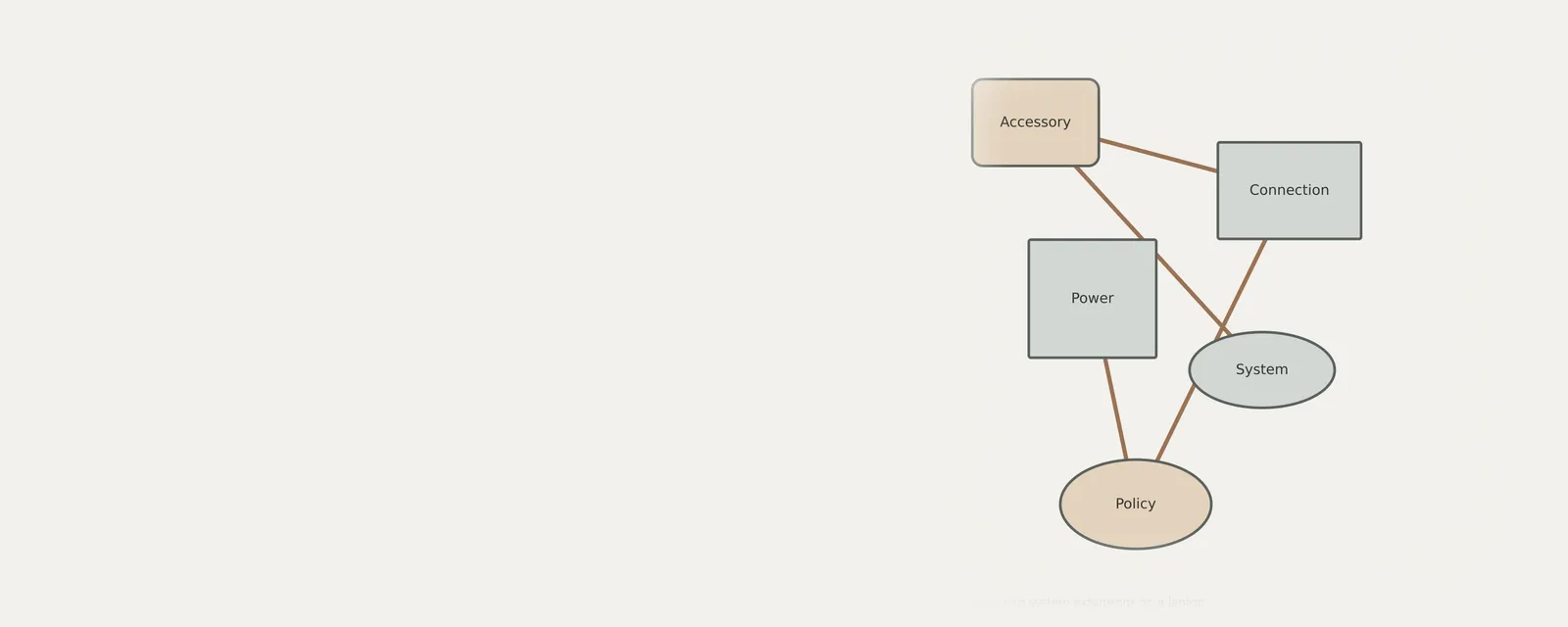
An accessory application on a Mac may use a system extension to provide a hardware function. Modern system extensions and older kernel extensions have different requirements, and the relevant controls can change with macOS versions. Identify the associated application and developer before interpreting a permission request or attempting removal. An approval is not a quality guarantee, and an OS update does not update every accessory application. This guide explains the distinctions without asking you to lower protections or delete unfamiliar system components.
Differentiating modern extensions from legacy frameworks
Modern systems rely on DriverKit and system extensions to manage hardware interactions outside of the core kernel space. This architectural shift separates the hardware logic from the main OS memory, significantly reducing the risk of system-wide instability when a peripheral driver encounters an error. Older implementations often utilized kernel extensions that functioned directly within the core of the system, creating a single point of failure that could halt the entire computer if a conflict occurred.
Choosing to implement these newer standards reflects a priority on stability and isolation. By observing how these modern extensions load into user space, users can confirm that the operating system remains responsive even if a specific driver component fails or hangs. User-mode isolation limits direct access; an extension or its failure can still affect an accessory or a wider workflow.
- Open the system settings panel on your device.
- Navigate to the general tab within the menu.
- Select the option for login items or extensions.
- Inspect the list of active system components displayed.
- Verify the developer status for each identified extension.
Identifying the application associated with an extension
Extensions can be bundled with an accessory application. Identify the application and developer using the information actually shown by the system or the package documentation. A filename alone may not tell you which hardware function it handles. Do not remove an unfamiliar extension merely to shorten a list, and do not assume that installing a container application grants every permission it requests.
Observing the relationship between an application and its associated extensions helps clarify why certain hardware might stop functioning after an app is removed. Many users find that uninstalling a primary application leaves behind dormant extension fragments that no longer serve a purpose. Monitoring these associations allows for a cleaner system state, ensuring that the hardware-software handshake remains relevant and that only the necessary code resides on the system storage during daily operations.
- Open the primary application that manages your hardware.
- Access the configuration or preferences menu within the app.
- Review the listed components for specific hardware modules.
- Confirm the path of the extension if explicitly provided.
- Match the extension signature to the installed software version.
Validating compatibility across different software versions
Version compatibility is a critical factor when managing extensions, as newer operating systems frequently tighten security requirements and API access. If a software suite providing the extension has not been updated to match the current OS version, the system may block the extension from loading entirely. This behavior is intentional, designed to prevent outdated or potentially insecure code from hooking into newer protected processes that handle modern hardware communication and data transfer tasks.
Check whether the developer lists your macOS version and device model before installing accessory software. An older package can be incompatible or lack a feature you need. A package being present does not establish that its extension loaded or that every feature is usable. Read release requirements, approval instructions and any removal procedure rather than inferring compatibility from a file’s presence.
- Check the system about section for the current version.
- Navigate to the software vendor site for compatibility charts.
- Compare the required OS version with your current setup.
- Read the developer’s current release information for the extension and operating-system version.
- Determine if the application requires an OS feature update.
Managing privacy and security approval settings
Modern systems require explicit user approval before an extension can gain the necessary permissions to interface with the hardware. These security hurdles are designed to keep the environment locked down against unauthorized modifications. When a new extension is detected, the system will prompt for validation, usually located within the privacy and security settings. An approval prompt grants access; it cannot determine whether the user understood the request or whether the software is appropriate.
Approving an extension grants permissions; it does not establish that the code is harmless, appropriate for this device or free of bugs. Review the identified developer and the purpose of the requested access. Removing an approval or an associated application can affect the accessory. Use the relevant developer instructions, and do not weaken system security to make obsolete software load.
- Read the application’s version-specific approval instructions. On versions where the control is in Privacy & Security, open that area in System Settings; newer versions can place extension controls elsewhere.
- Locate the section specifically for system extensions.
- Observe the list of blocked or pending software items.
- Click the allow button if the developer is recognized.
- Approve only the identified application through the system’s own applicable control if its requirements and purpose are clear. Stop if the procedure requires weaker security; never send a password to this website.
Differentiating OS updates from accessory application updates
Users frequently conflate the update processes for the core operating system and those for accessory applications that manage hardware. System updates focus on the stability and security of the kernel and core frameworks, while application updates primarily target the logic within the extensions themselves. Updating the OS does not always trigger a renewal of an extension, and conversely, updating a hardware accessory app may not change the underlying OS framework, leading to a need for separate management for each layer.
Successfully maintaining a machine involves monitoring these two channels separately. Accessory apps may require periodic patches to remain compatible with the latest OS version, even if the OS itself seems to be functioning perfectly. If a hardware device experiences intermittent connection issues, checking the application repository for an update is often more effective than waiting for a general system update, as the former specifically addresses the driver logic used for that unique piece of hardware.
- Launch the software store to check for application updates.
- Identify updates specifically related to hardware drivers.
- Run the system update module for base software improvements.
- Restart the machine to apply changes to the core system.
- Re-verify the hardware connection status after rebooting.
Laptops
Note these before you change anything
Useful facts to have to hand while reading about understanding system extensions on a laptop.
- Exact model and variant code from the underside label
- Firmware version
- The maker's driver package versions
- Which functions fail: hotkeys, touchpad gestures, sleep
Laptops: Selected laptop-specific layers
- Operating systempower and input
- Platform drivershotkeys, sensors, power
- Embedded controllerbattery and fans
- Integrated devicestouchpad, camera, keyboard
- Docks and portsUSB-C and similar
Frequently asked questions
Why do some hardware devices require specific security approval?
Protection rules govern access under the current system policy; do not treat permission as a guarantee of compatibility or harmless behavior. This prevents unauthorized applications from capturing sensitive data or interfering with system stability. Requiring manual approval keeps you in control of what code is allowed to bridge the gap between software and hardware components.
Can I remove an extension if my hardware stops working?
Removing a non-functional extension can resolve conflicts, though it may also disable the associated hardware device until the correct software is reinstalled. If your peripheral fails, verify the extension status first. Use the system configuration tools to properly uninstall or reset the components rather than manually deleting files from the disk.
Where can I view all active extensions on my computer?
You can find your active system extensions within the primary privacy and security or general settings panel. These menus provide a centralized view of all third-party modules that have been granted permission to interact with system hardware, allowing you to easily identify, review, or revoke access for any specific application or driver.