Automated software tools that claim to manage drivers across all hardware often introduce significant instability. These programs frequently rely on broad matching databases that prioritize general compatibility over specific hardware branches defined by original equipment makers. By bypassing standard OS mechanisms, these applications can trigger false positives or overwrite tailored configurations. Maintaining system integrity requires shifting away from generic automation toward targeted, reasoned changes that respect the distinct requirements of each individual component installed on your computing machine.
Why Broad Matching Databases Cause False Positives
Generic management tools often employ massive repositories that link a wide range of hardware IDs to single package versions. This approach frequently misidentifies components because it overlooks subtle revision differences between identical-looking hardware units. When a tool suggests a package that is not specifically qualified for your exact device branch, the system may adopt settings intended for a different hardware iteration, leading to erratic performance or hardware recognition failures.
Relying on these automated engines masks the necessity for precise component matching. Because these programs operate on probability, they often flag functional items as outdated simply because a newer build exists for a similar, but not identical, device model. This leads users to apply changes that degrade current functionality, creating a cycle of unnecessary configuration shifts that serve no practical purpose for the local hardware environment.
How to Perform Individual Hardware Changes
Managing specific hardware states effectively involves identifying exactly what is currently installed before initiating any modification. By utilizing the built-in system interface for component oversight, you gain the ability to inspect current version details without external interference. A documented reason and matching requirements are better evidence for an individual change than a broad replacement recommendation.
Proceeding one component at a time prevents the widespread system state changes associated with bulk operations. This methodical strategy allows you to isolate the impact of every action taken. If a specific adjustment does not produce the expected improvement, the clear separation of tasks makes it significantly easier to revert the change to the previous state using standard system controls.
- Right click the start button to open the hardware management interface
- Expand the category listing to find your specific device entry
- Inspect the properties tab to view the current version date and provider
- Check the settings page for internal mechanisms that manage component versioning
- Record the intended device and current package. Do not remove a working entry just to follow a broad replacement recommendation; any documented reinstallation needs its own recovery plan.
Risks of Bundled Privacy and Elevated Access
Many automated tools require high-level administrative permissions to function, giving them deep access to system files and core directories. This elevated status is often excessive for simple tasks like reviewing component status. Granting such broad access increases the attack surface of your machine, as these tools may contain hidden modules or background processes that collect telemetry data beyond what is required for basic system operations.
Privacy concerns arise when these tools monitor your hardware configuration to track usage habits or offer additional services. This data collection often happens in the background without explicit confirmation for each action. By restricting your workflow to native tools, you limit the exposure of your private hardware profile to external entities that prioritize data harvesting over simple performance maintenance.
Interpreting False Outdated Warnings
Generic tools are designed to encourage interaction, and frequent warnings about outdated components are a primary method used to maintain engagement. These notifications often ignore the fact that older builds are sometimes more stable or better suited to a specific machine architecture than the newest releases. A warning does not necessarily indicate a problem, but rather that a newer file identifier exists in their database.
Users frequently mistake these notifications for urgent health alerts. However, most hardware functions are not dependent on having the absolute latest iteration of a package. When you encounter a notification claiming your system is behind, cross-reference that claim with the machine manufacturer documentation rather than acting on the prompt within the third-party tool itself.
Prioritizing Native Instructions and Manufacturer Resources
The most reliable source for your hardware configuration is the machine builder or the component maker. They provide packages specifically optimized for their hardware branches, which have been tested for stability within the constraints of your machine architecture. A manufacturer source still needs the correct model and package branch; it does not establish universal suitability for every implementation.
Using manufacturer documentation takes more deliberate work than accepting a broad replacement recommendation. That comparison can reduce the risk of selecting an unsuitable package, but it does not eliminate update or recovery risks. Check the exact hardware and system requirements and prepare a recovery route before replacing a component. A documented source is a starting point for a decision, not a guarantee of its result.
Network & Wi-Fi
Note these before you change anything
Useful facts to have to hand while reading about why broad updater tools create extra risk.
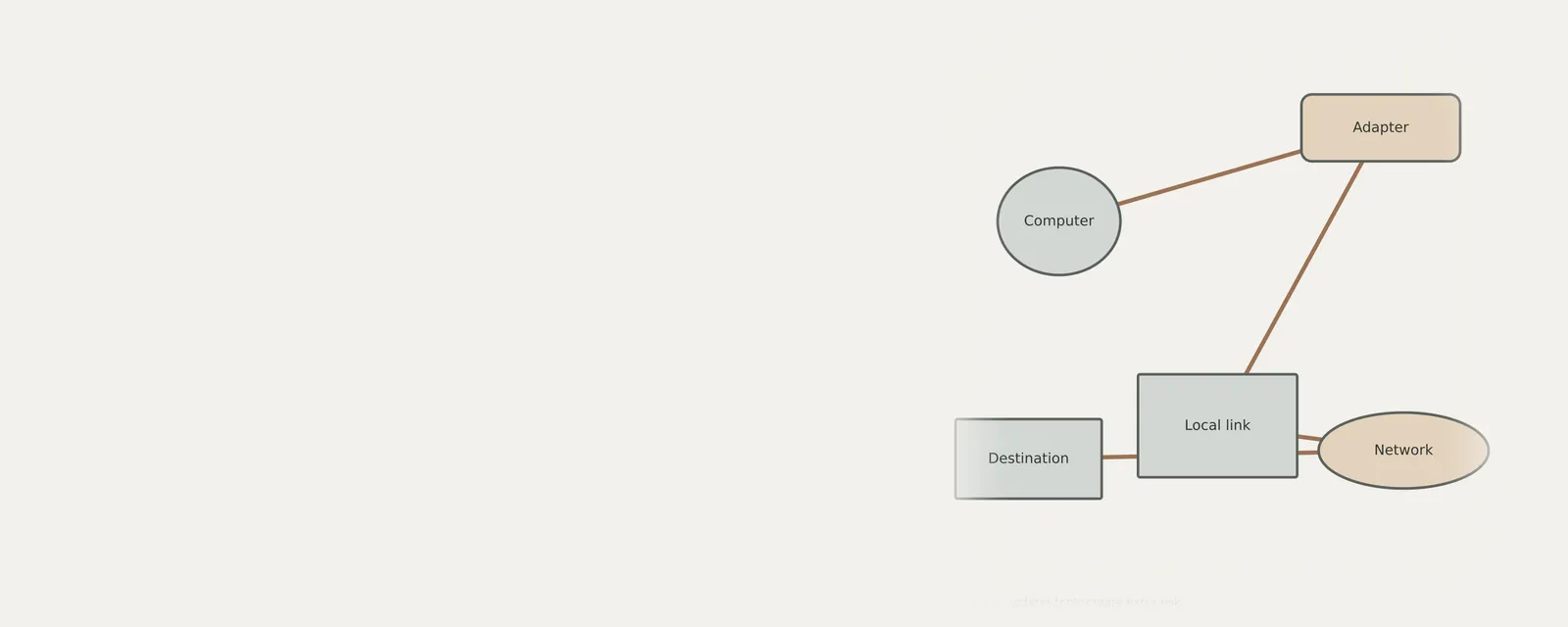
- Adapter name and driver version
- Whether other devices on the same network work
- IP configuration shown in the system's network details
- Power-saving settings on the adapter
Frequently asked questions
Are automatic tools safer if they claim to be secure?
Claims of security in automated tools do not change the fundamental risk of granting high-level access to your system. These tools can still perform unwanted actions or introduce instability by applying mismatched files. It is safer to rely on manual, verified changes to maintain the specific integrity of your local configuration.
What should I do when I see an urgent update notification?
Do not treat urgent notifications from third-party tools as valid health requirements. Instead, verify the need for a change by checking the component version currently in use and visiting the manufacturer site to confirm if a specific improvement applies to your hardware model and addresses an existing problem.
How can I revert changes made by a third-party tool?
You can use the built-in system management interface to roll back or remove problematic packages. Locate the component in the management console, access its properties, and use the rollback option if available. If issues persist, you may need to remove the package entirely and install the correct version from the manufacturer.
Why does my hardware function fine despite update alerts?
Most hardware components remain functional for years without requiring version modifications. Alerts are often generated by broad algorithms that simply scan for new file version numbers rather than testing for functional necessity. If your hardware is operating correctly, there is no technical reason to modify its current configuration based on alerts.