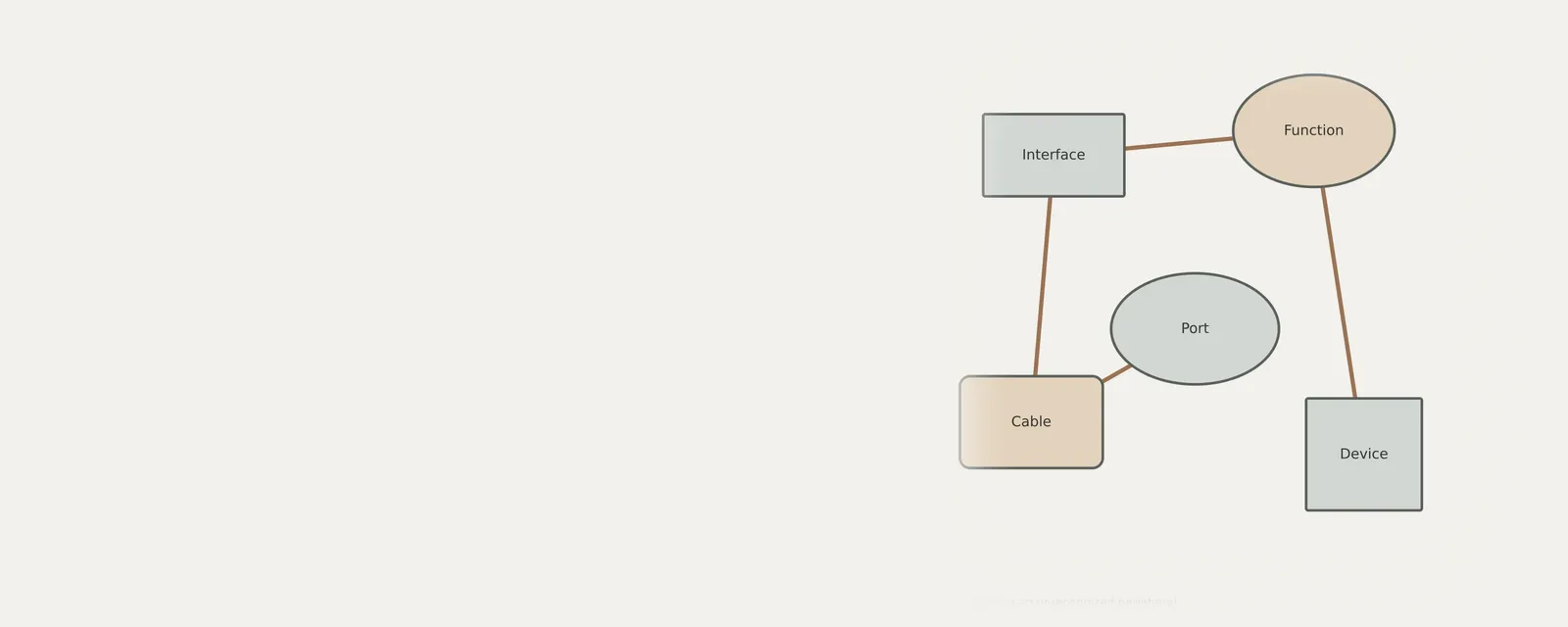
A connected peripheral can receive power without establishing the data connection its function needs. Cable capability, hub power, port behavior and separate functions within one device can all affect what appears in the operating system. Begin with a small, controlled connection comparison and record any device-status message. That message is not a physical-health diagnosis. Avoid interrupting storage writes, and do not uninstall unrelated components simply because a category looks unfamiliar or a peripheral is not immediately visible.
Differentiating charging cables from data cables
A common oversight involves using a charging cable that lacks the necessary data pins to establish a handshake with the host computer. Many mobile devices come with cables designed specifically for power, leaving them completely invisible to operating systems even when the device is receiving energy. This physical limitation means no amount of software configuration will resolve the connection issue if the hardware pathway is incomplete.
To verify cable capability, you should test the peripheral with a known functioning cable, such as one used for a smartphone that successfully transfers files to a workstation. If the device is detected immediately after switching cables, the original cord is likely power-only or damaged. This observation saves time by narrowing the investigation to the physical link before moving on to deeper interface settings.
Evaluating port functionality and power hubs
External hubs often complicate troubleshooting by introducing an additional point of failure. These hubs may provide insufficient power to sustain both the controller and the device, leading to erratic behavior or complete failure to initialize. A direct port removes one intermediary from the comparison, but cannot prove that its power, data connection or cable is functioning correctly.
If a direct connection resolves the recognition error, the hub is likely struggling with power draw or signal interference. Observing how the device reacts across different ports on the same machine helps determine if the issue is isolated to a single output or a systemic problem with the local controller. Always prioritize testing on rear-facing ports for desktop machines, as front-panel ports often rely on internal extension cables that degrade signal quality.
Interpreting device manager status logs
The interface within the operating system provides records of hardware events that reflect the communication state between the device and the host. When an entry appears with a yellow alert symbol, it signifies that the system has detected a physical presence but failed to initialize a functioning driver relationship. This status message is a diagnostic indicator rather than a final conclusion, pointing to a mismatch in requirements.
Checking these logs reveals whether the system sees a specific hardware ID or simply records an unknown device. If the logs remain blank upon insertion, the issue is almost certainly upstream, involving either the cable or the port's physical connectivity. A lack of entry suggests the host machine never registers the electrical trigger required to wake the system bus for a new peripheral.
Resolving peripheral composite function conflicts
Many modern peripherals act as composite devices, carrying multiple functions such as audio, storage, and control interfaces on a single connection. Occasionally, the operating system struggles to map these individual functions simultaneously, causing the entire device to appear unresponsive. By identifying if specific parts of the device are active while others fail, you can isolate which function is creating the underlying resource conflict.
Manually managing these functions through the interface requires clear observation of which component labels appear in the hardware tree. If the device shows up partially, you may need to re-initialize the connection while ensuring no other intensive tasks are competing for the system bus. Compare the separate functions of a composite device; one visible function does not establish that the others are available.
- Disconnect the peripheral from the host machine to clear the current bus state.
- Open the hardware management utility to monitor real-time changes.
- Plug the device into a primary port directly on the machine casing.
- Observe the hardware tree for new category entries or refreshed IDs.
- In Windows Device Manager, open the affected entry’s Properties > General and record the exact Device status text. Do not uninstall an entry merely because it displays a warning.
- Re-insert the device to force a fresh handshaking process with the host.
Preventing data corruption during disconnection
The integrity of a peripheral depends heavily on how it is released from the operating system. Removing a storage device while it is actively writing or reading data can trigger a state where the file system becomes locked or the controller hangs in a protective mode. This prevents the host from recognizing the device upon future re-connection, as the hardware remains stuck in a transient error state until power is fully cycled.
By ensuring that all software processes that might access the hardware are closed before removal, you avoid abrupt electrical drops during sensitive operations. If a device has stopped responding, a total cold boot of the peripheral often restores its responsiveness. Use the operating system’s safe removal procedure where applicable; an activity light alone does not prove that storage writes have finished.
USB & Peripherals
Note these before you change anything
Useful facts to have to hand while reading about investigating an unrecognized peripheral.
- Which port the device was in, and whether a hub is involved
- The device's name and status in Device Manager
- Power management settings on USB root hubs
- Any companion software the device relies on
USB & Peripherals: Input from a device (output devices run the other way)
- Devicekeyboard, mouse or pad
- Port or hubphysical connection
- Host controllermanages the bus
- Class driverfor example HID
- Applicationreceives the input
Frequently asked questions
Why does my device show a notification but not open?
The host machine acknowledges the electrical signal of the connection, but the peripheral is likely failing the subsequent software handshake. This is often caused by a faulty data cable or a misconfigured composite device driver that prevents the operating system from mounting the specific functions of the peripheral correctly.
Can a hub cause intermittent recognition issues?
Yes, hubs often fail to provide consistent power to attached peripherals, especially those requiring higher current draws. If a hub has too many devices attached, the host may drop the connection to the peripheral to protect the integrity of the main system bus, leading to intermittent or complete non-recognition.
What happens if I unplug a device during use?
Unplugging an active device can trap the hardware controller in a permanent error state. The operating system may view the hardware as logically locked, preventing re-recognition. Cycling the power to the device or restarting the host machine often clears this state, allowing the hardware to renegotiate the connection properly.
Are all USB cables functionally identical for data?
No. Some cables carry power without the data connection a peripheral needs. Others have bandwidth or compatibility limits. Compare a known-good data-capable cable that matches the device and port requirements. Charging or a lit indicator alone does not establish a usable data path.