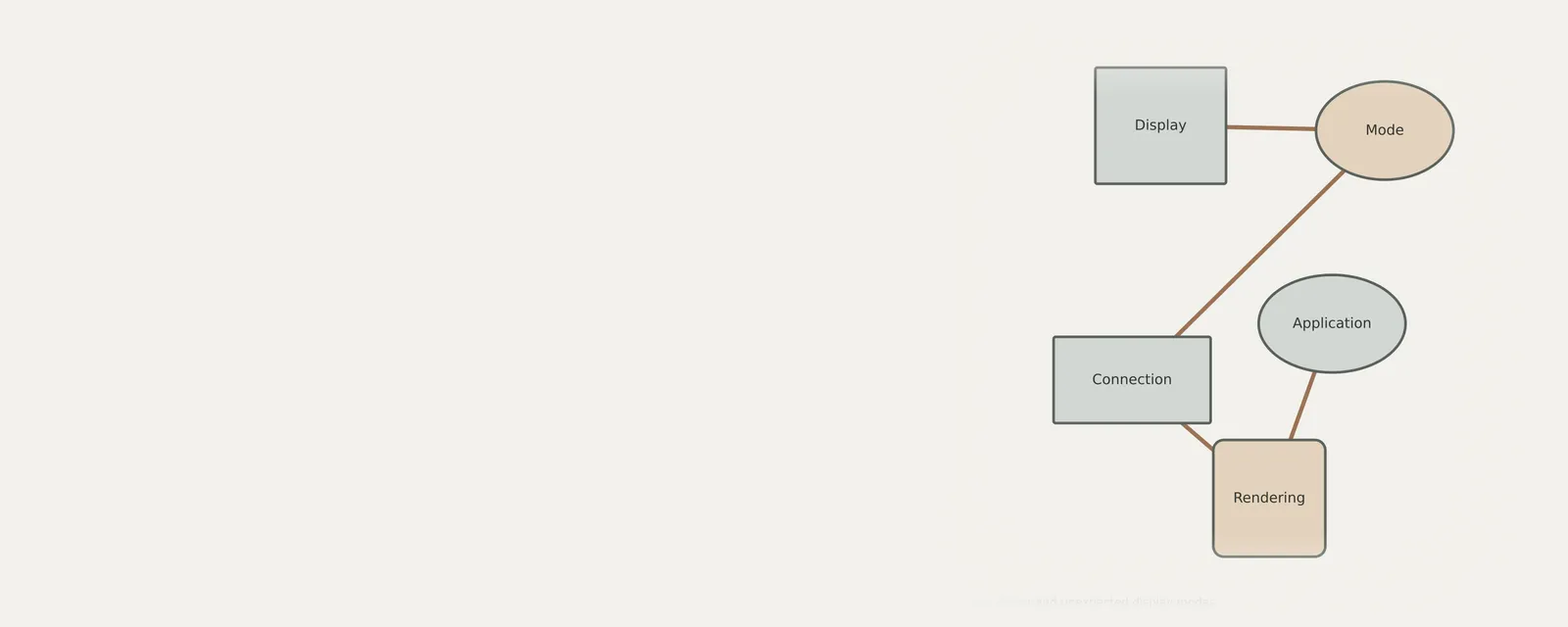
Resolution, scaling and refresh rate describe different parts of a display configuration. A sharp-looking image, readable text and a stable signal do not always require the same adjustment. Select the actual display you are examining and record its current settings before comparing a mode. The monitor, cable, dock and host can each limit the available choices. This guide explains common controls and reversible comparisons without assuming a missing mode or a flicker must be caused by the graphics driver.
Identifying Display Output Mismatches
Visual flickering usually originates from a refresh rate mismatch where the monitor cannot keep up with the frequency sent by the computer. When the desktop environment is configured for a rate exceeding the monitor specification, the display may pulse or lose synchronization. This manifests as horizontal lines or a persistent stuttering effect that disrupts standard viewing.
Incorrect resolutions often result from display scaling settings conflicting with the native pixel density of the panel. If the resolution is manually forced to a value outside the monitor's intended range, images appear stretched or pixelated. Identifying these discrepancies requires checking if the resolution matches the aspect ratio of the physical display hardware.
- Open display settings from the system control interface.
- Locate the active display monitor selection in the configuration panel.
- Check the current resolution to confirm it matches the native recommendation.
- Review the refresh rate setting against the monitor specifications.
- Adjust the scale percentage to ensure text clarity matches viewing preference.
Managing Refresh Rate and Resolution Settings
Refresh rate settings dictate how many times per second the screen redraws the image. Selecting a higher rate improves fluidity, yet it increases the bandwidth required from the cable and graphics output. If the monitor encounters an incompatible signal, flickering occurs as it fails to process the input packets fast enough for a stable image.
Resolution adjustments affect how much desktop space is available for software interfaces. Setting a resolution that does not align with the panel hardware can cause fuzzy text due to interpolation. Native resolution describes the panel’s physical grid; scaling and application rendering can still map logical elements to multiple pixels.
- Navigate to the advanced display settings menu.
- Select the display adapter properties for the target screen.
- Click the monitor tab to view available frequency modes.
- Choose a lower refresh rate if flickering persists during operation.
- Apply changes and verify the flicker has ceased before confirming.
Verifying Physical Connection Paths and Cables
Physical connectivity is a common source of display distortion that mimics software configuration errors. Loose HDMI or DisplayPort cables can induce significant signal degradation, appearing as periodic blackouts or color shifts. The physical integrity of the cable shielding is critical, as electromagnetic interference can disrupt the high-speed data transmission required for modern resolutions.
Docks and adapters frequently act as bottlenecks for display signals. If a monitor is connected through an intermediate device, the bandwidth capacity of that dock may be insufficient for high refresh rates. Testing a direct connection between the computer and the monitor helps isolate whether the issue lies within the primary transmission cable or the peripheral hub.
- Disconnect all cables between the computer and the display.
- Inspect the port pins for signs of debris or physical damage.
- Reconnect the video cable firmly to the primary port.
- Swap the current cable with a known working spare.
- Connect the monitor directly to the computer to bypass docks.
Configuring Per Monitor Scaling and Layout
Modern systems allow for independent scaling on multi-monitor setups to account for different screen sizes and distances. When screens have varying pixel densities, scaling must be tuned individually to prevent applications from appearing disproportionate. If a window drags from one screen to another and changes size abruptly, this indicates that the system scaling factors are inconsistent across the workspace.
Arranging the monitor layout in the software environment is necessary to align the virtual coordinate space with the physical desk setup. Misaligned layouts cause the cursor to jump or get stuck at edges, which is often misinterpreted as a software lag. Check the selected display and its available modes; a setting being offered does not establish that every cable or dock path behaves correctly.
- Open the display layout configuration window.
- Drag monitor icons to represent their actual physical positions.
- Apply changes to ensure the cursor moves fluidly across screens.
- Select each monitor individually to set unique scaling percentages.
- Test window movement across screens to verify consistent behavior.
Executing Reversible Changes for Visual Stability
Making changes to visual settings can sometimes result in a blank screen if the monitor fails to synchronize with the new parameters. Reversible changes are those that the system automatically reverts if the user does not confirm them within a set timeframe. This safety mechanism prevents a user from being locked out of their system due to an unsupported display mode selection.
Testing configurations requires patience when cycling through different resolutions and refresh rates. After one reversible change, compare the same task and a relevant workload. A short period without flicker is evidence from that comparison, not proof that the cause has been removed. If stability is not achieved, immediately revert to the previous configuration to maintain basic output functionality.
- Select a new resolution or refresh rate from the menu.
- Apply the setting and await the verification prompt.
- Observe the screen for artifacts or flickering for one minute.
- Click revert if the screen becomes distorted or goes blank.
- Confirm the selection only if the visual output remains stable.
Display & Graphics
Note these before you change anything
Useful facts to have to hand while reading about checking flicker and unexpected display modes.
- Current driver version and date from the adapter's Driver tab
- Resolution, refresh rate and scaling for each monitor
- Which port and cable each display uses
- Any per-application graphics settings you changed
Display & Graphics: Drawing a frame (output)
- Applicationrequests drawing
- Graphics APIfor example DirectX or Vulkan
- Display driveruser and kernel parts
- GPUrenders the frame
- Monitorover the display cable
Frequently asked questions
Why does my screen flicker only during high resolution use?
Flicker at high resolutions often means your cable lacks the bandwidth to carry that much data reliably. Electrical interference or a degraded connection path limits signal throughput. Try using a shorter or higher-rated cable to see if the visual stability improves at your native resolution.
Does scaling affect the native resolution of my monitor?
Scaling changes the zoom factor of text and apps, but it does not alter the underlying pixel resolution. If your desktop looks blurry, it is likely because the scaling factor is not optimized for your screen size, or you are using a non-native resolution setting.
How do I know if my monitor supports a specific refresh rate?
You can check the monitor settings menu provided by the system display interface. It typically lists the frequencies that the hardware identifies as compatible. Do not force rates higher than those listed, as this can result in a loss of signal or permanent visual distortion.
Should I change settings for every monitor in a dual setup?
Yes, each display acts as an independent output and requires its own configuration. Compare settings for each display individually; different panels and connection paths may need different choices.