An offline printer message can describe a queue, connection or device state rather than a driver failure. Check the destination you selected, the printer’s own indicators and whether the problem affects one job or every job. A network printer, shared queue and directly connected printer can use different paths. Printing and scanning may also be separate functions. This guide keeps those paths distinct and limits job removal to an appropriate comparison instead of treating deletion or package replacement as an automatic remedy.
Evaluating Physical Connectivity and Network Paths
The first step in addressing an unresponsive printer involves inspecting the physical link between the computer and the peripheral. A device appearing as offline often signals that the transmission path is interrupted, which is common with network-attached printers. Cables might become loose, or a router might have cycled, causing the assigned IP address to change. Checking the physical cable status or verifying the printer's current network configuration on its integrated display is essential to isolate hardware accessibility.
When dealing with networked hardware, the connection path relies on the printer remaining reachable via a stable gateway. If the printer enters a power-saving mode, the computer might lose its handshake, triggering the offline status. Instead of checking software settings first, look at the printer control panel to confirm it shows an active network connection. This distinction is critical because software modifications will remain ineffective if the hardware cannot communicate across the physical or local area network boundary.
- Inspect all ethernet or USB cables to ensure they are firmly connected to both the peripheral and the host or router.
- Restart the printer by switching it off and disconnecting the power lead for thirty seconds to clear temporary cache states.
- Check the printer display panel to verify that it is connected to the correct wireless network signal.
- Print a network configuration page directly from the printer to find its current local IP address.
- Use a simple ping command from the workstation to confirm the hardware responds to requests over the network.
Interpreting Printer Queue States and Shared Job Ownership
A printer queue can enter a paused state or contain a stalled job that blocks all subsequent tasks. When a single print job originates from a user account with limited permissions or encounters a file size error, the entire queue may freeze, creating an artificial offline indicator. This scenario differs significantly from a driver failure because the hardware is likely ready to operate, but the spooler service is held back by the current pending job list in the buffer.
Managing the print queue requires looking at specific job ownership and status flags within the printing environment. If you notice a job stuck in the queue, it may be waiting for a specific status update from the peripheral, such as paper tray availability or ink levels. Addressing these specific line items one at a time is far safer than clearing the entire print spooler, which could prematurely discard unrelated documents that are actually ready to process.
- Open the print queue window to observe the status of all current pending documents.
- Right-click on any document showing a paused status and select the option to resume processing.
- Cancel only the individual print job that appears to be stuck or shows an error state.
- Check if the job belongs to another user account which might require administrative oversight to remove.
- Ensure the printer is not set to Use Printer Offline mode within the queue viewing menu.
Distinguishing Between Print and Scan Functional Paths
Multifunction units often share a chassis, but the internal pathways for printing and scanning are distinct. A device can be perfectly capable of scanning documents to a folder while failing to print, as these functions rely on separate protocols. Printing typically involves a unidirectional or bidirectional spooler service, whereas scanning often uses its own specific imaging interface. Confusion arises when users assume that because the scanner works, the printing software must be functioning correctly.
When troubleshooting, identifying which protocol is failing helps isolate the logic fault. If scanning functions properly, the physical connection and network reachability are confirmed. This realization narrows the scope strictly to the print spooler and associated print job handling. Avoiding the temptation to perform bulk software reinstallation is vital here, as the imaging components are already verified and working, proving the hardware link is sound.
- Attempt to initiate a scan to verify the primary communication link is established.
- Check if the imaging software can detect the device even when the printer queue appears stalled.
- Test printing a plain text document to isolate the issue from complex file format incompatibilities.
- Verify that the print service is running in the system management console.
- Examine the port settings in the printer properties to ensure the correct network path is mapped.
Verifying Device Hardware and Consumable Status
Often, a printer reports as offline simply because it lacks physical resources, such as paper, toner, or ink. Many modern printers will hold the print queue in a paused status when they detect an empty tray, effectively signaling an offline state to the operating system. This is a deliberate hardware communication feature meant to prevent damage or failed print attempts. Checking the physical status of the hardware is more useful than examining software settings in these specific instances.
Observers often overlook the simplest indicators on the printer console itself. A blinking light or a specific error code on the machine screen provides the most accurate status report available. Understanding that the device is self-reporting its lack of resources helps you focus on physical maintenance. Replacing consumables or clearing a paper jam resolves the hardware-level stall, which subsequently signals the computer to resume its communication with the printer automatically.
- Examine the physical printer control panel for any amber or flashing warning lights.
- Open the document tray to verify there is sufficient paper loaded and properly aligned.
- Check the physical level of ink cartridges or toner to ensure they are not empty.
- If the printer reports a jam, stop and read its model-specific clearing and safety procedure, including power and hot-part precautions. Do not reach into rollers or dismantle the printer using generic instructions.
- Clear any hardware error messages by pressing the stop or clear button on the printer panel.
Managing Printer Port Configurations and Network Protocols
Printers connected via network ports occasionally lose their mapping if the device's IP address changes unexpectedly. If the port configuration points to an outdated IP address, the system will mark the printer as offline because it cannot reach the specific destination port. This is a configuration mismatch rather than a driver defect. By remapping the printer to the current correct IP, you restore the communication pathway without affecting any other system settings.
When configuring network ports, you should ensure that the printer identity matches its assigned protocol, such as WSD or standard TCP/IP. Choosing the wrong protocol can lead to intermittent connectivity or persistent offline reports. Observing the port configuration in the printer settings window and confirming it matches the printer's current network status is a highly effective way to stabilize the connection. Proper port management remains the cornerstone of maintaining reliable printer accessibility.
- Access the printer properties and navigate to the Ports tab to view current settings.
- Compare the printer IP address listed there with the one displayed on the printer configuration report.
- Add a new TCP/IP port if the current one does not match the printer's active IP address.
- Select the printer port that corresponds to the correct network protocol the device uses.
- Apply the settings changes and test the connection by sending a small test print job.
Printers & Scanners
Note these before you change anything
Useful facts to have to hand while reading about separating printer status from driver issues.
- Printer queue name and the port it uses
- Driver name: a built-in class driver or the maker's
- Whether the printer is reached by USB, IP address or name
- Default paper size and tray
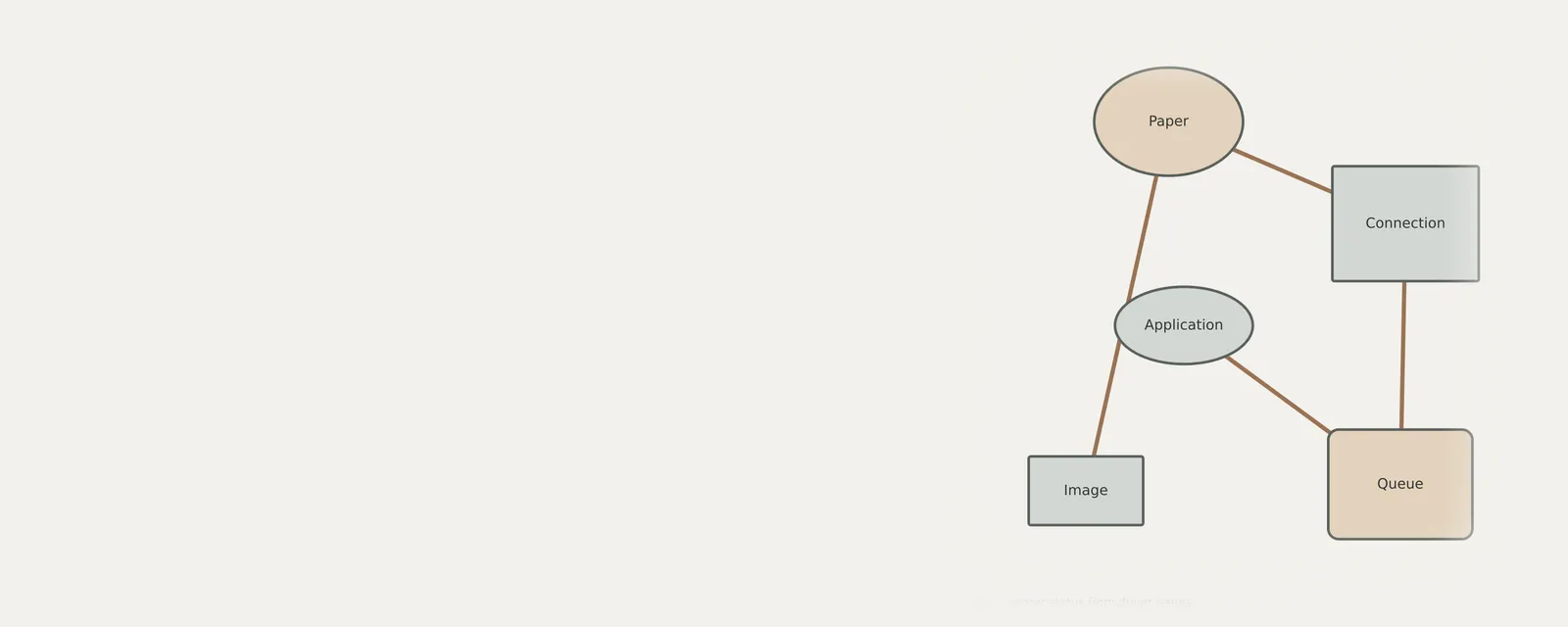
Printers & Scanners: One common printing path (scanning runs the other way)
- Applicationsends a print job
- Print systemqueues and renders
- Printer driverbuilt-in class or vendor
- ConnectionUSB or network
- Printerproduces the page
Frequently asked questions
Why does my printer show as offline when cables are plugged in?
An offline status often indicates that the printer is in a power-saving mode or has lost its network handshake. Check if the device is turned on and properly connected to your local network. A simple restart of the printer can often resolve the communication lag causing this status.
Should I remove the driver when a printer queue is stalled?
Removing the driver is rarely necessary for a stalled queue. Stalled jobs are usually caused by specific file errors or paper issues. It is more effective to clear the individual stuck job from the queue window and ensure the printer has enough paper and ink to process the task.
Can a scanner working mean the printer is fine?
Not necessarily. Scanners and printers use separate communication paths and protocols within the same hardware unit. If the scanner is working, your physical network connection is sound, but the print spooler service may still require attention. Focus your troubleshooting efforts specifically on the print queue and port settings.
How do I know if my printer port is configured correctly?
A correctly configured port must point to the exact current IP address of your printer. If the IP address changed due to a network refresh, the computer will report the device as offline. Verify the address in the printer properties tab and update the port path to match.