What this section covers
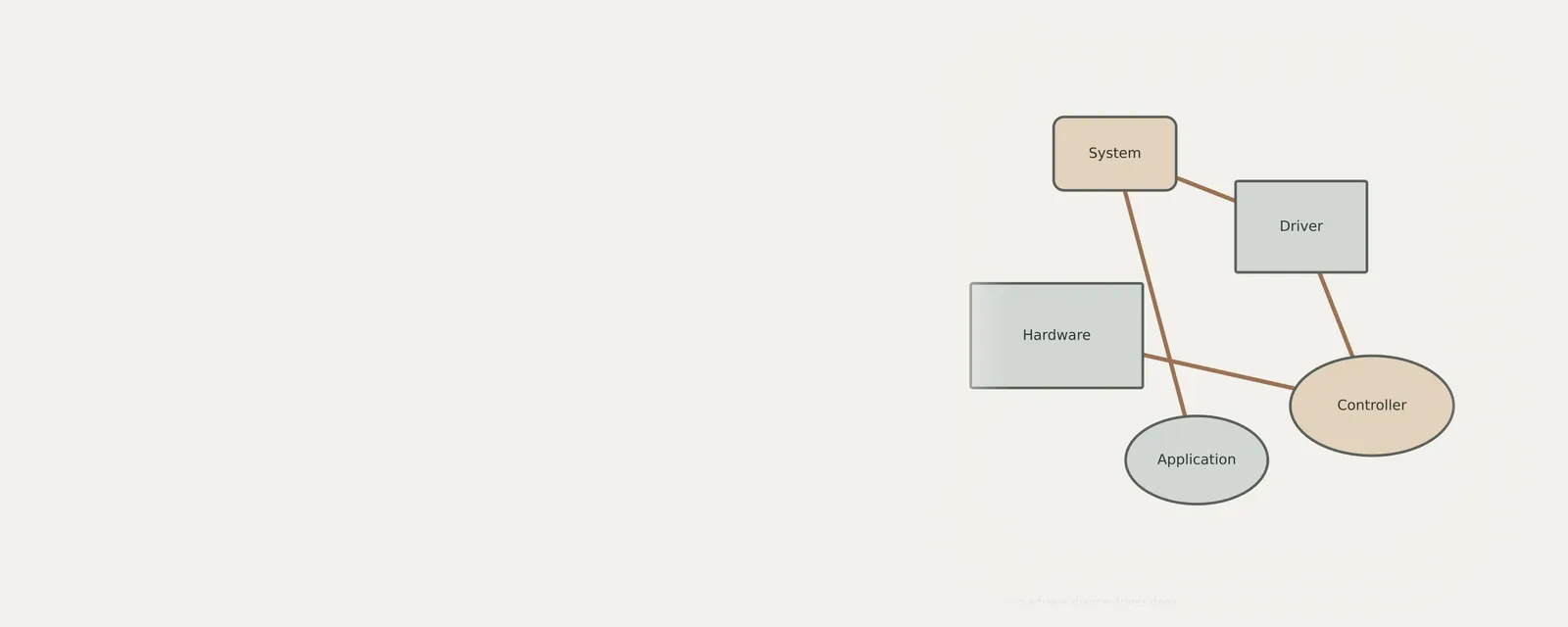
A device driver provides a software interface for requests involving a device or another component. An application usually uses operating-system interfaces rather than controlling every hardware detail directly. Some drivers describe physical devices; others provide virtual or software functions. This guide introduces those roles and a simple read-only inspection exercise without turning a definition into an update recommendation. A driver being present, a device being listed or a status saying it works does not establish every feature or its physical health.
How drivers translate operating system requests
Drivers serve as intermediaries that accept commands from the kernel and convert them into binary signals recognizable by specific hardware silicon. When an application initiates a print command, the driver packages that request into a data structure the printer hardware interprets. Driver interfaces let applications request device functions through defined contracts; they do not guarantee that every hardware combination operates correctly.
The OS identifies these components by their specific hardware IDs. If a driver is missing, the OS remains aware that a device exists but lacks the language to send meaningful input or receive output. This gap prevents features from functioning, as the system does not know how to handle the data flow for that specific peripheral or internal controller.
Recognizing virtual versus physical device roles
A driver does not always control a physical component. Some drivers provide interfaces for virtual devices, such as a software-backed disk or a virtual network interface. The operating system can use these interfaces without a corresponding removable piece of hardware. Their presence does not establish that an unfamiliar physical accessory is connected.
When examining device lists, you might encounter virtual controllers that facilitate inter-process communication. These entities follow the same lifecycle as physical drivers, loading into the system memory to maintain state. Recognizing the distinction between virtual instances and physical components helps in understanding why some items appear in system lists despite lacking an associated hardware part.
Conducting a manual local device check
You can view the current state of devices directly through the interface to see how the system classifies each component. This observation provides a snapshot of which drivers are loaded and whether they report standard operational status. By navigating the management console, you can see the hierarchical structure of devices and their connection types without initiating any automated network requests.
Reviewing these properties reveals the manufacturer-provided information regarding individual hardware parts. This data helps establish what kind of device is installed and what software module is currently controlling it. It is a fundamental practice for anyone needing to verify the current configuration or determine which specific software module is assigned to a physical component.
- Right-click the primary start menu button to reveal the quick task list.
- Select the device management console from the available menu options.
- Expand the categories to display the individual hardware components installed on the machine.
- Right-click a specific hardware item and select properties to view its status.
- Navigate to the details tab to view the unique hardware ID associated with that device.
Interpreting device reports and function status
When a device fails, the driver often provides a status code explaining the nature of the issue. These codes can indicate configuration conflicts, missing files, or resource limitations. Reading these messages is critical because they describe exactly what prevented the driver from initializing properly, helping you distinguish between a software issue and a hardware failure.
Some drivers operate as filters, meaning they sit between the standard driver and the OS to modify data or add specialized functionality. These filter drivers are often present in storage or class-specific configurations. Understanding that a device might have multiple layers of software interaction explains why some components exhibit complex behavior when problems arise or why certain hardware behaves differently after configuration changes.
Managing system state after driver modifications
Any change to a driver, such as rolling back to a previous version or removing it, immediately alters the system state. Since the driver is responsible for hardware communication, its removal can render a peripheral entirely unresponsive. Maintaining a consistent system state is vital to ensure that the operating system remains capable of performing basic tasks after such a modification is made.
If you must change a driver configuration, ensure the OS is stable and that you have a path to return to the prior state if hardware stops responding. Changes to driver files directly affect how the system boot process initializes hardware, making it necessary to consider how these shifts impact the environment. Always monitor how hardware responds immediately following a change to ensure it remains correctly recognized.
Computer & System
Note these before you change anything
Useful facts to have to hand while reading about understanding what a device driver does.
- Motherboard or computer model and firmware version
- Chipset driver package version
- Any firmware settings changed from defaults
- Unknown devices listed in Device Manager
Computer & System: One selected path: a device on a chipset bus
- Operating systemmanages devices
- Chipset driversidentify buses and power features
- ChipsetPCIe, USB and SATA links
- Firmware (UEFI)initialises hardware at start-up
- Attached deviceson those links
Frequently asked questions
What happens if a driver is removed?
Removing a driver cuts the communication line between the OS and the hardware. The system will no longer know how to send data to or receive input from that device, effectively disabling its functionality. The device may show up as an unknown component in management lists.
Why does a device show an error code?
An error code in the device manager indicates a communication breakdown between the OS and the hardware. It suggests that the driver is either incompatible, missing required files, or encountering a resource conflict. The code provides specific insight into why the driver could not successfully initialize the hardware.
How do filter drivers impact system behavior?
Filter drivers sit atop standard drivers to adjust incoming or outgoing data streams. They often modify how a device performs, such as handling specialized storage protocols. If a filter driver is improperly configured, it can interrupt normal communication, causing the associated hardware to fail even if the base driver functions.