A slow computer does not point to one cause. Workload, storage availability, power settings, temperature, network-dependent tasks and an unfinished operation can all influence how responsive a task feels. Compare a repeatable task and record when the slowdown happens before attributing it to a driver. Avoid broad replacement recommendations or random changes to background components. The following checks focus on useful observations and controlled comparisons, with clear limits on what any one measurement or status display can establish.
Why does high storage utilization impact system responsiveness
Operating systems require substantial free space to move temporary files, manage swap memory, and perform background indexing tasks. When a storage volume reaches capacity, the mechanism for writing new data becomes fragmented and computationally expensive, causing noticeable delays when launching applications or navigating files. It is vital to observe total available space rather than focusing solely on partition sizes, as the entire drive volume contributes to the system ability to cache data effectively during demanding workflows.
When an update concludes, the system often triggers cleanup tasks that reorganize files. If the drive is near its limit, these maintenance operations compete with your active applications for the same physical I/O lanes. This struggle manifests as a perceived system slowdown. Maintaining a healthy margin of free disk space allows the underlying storage controller to perform wear leveling and file organization without blocking your requests, keeping the interface snappy even during heavy background operations following a change in software state.
- Check the total available capacity through your system file management interface
- Inspect storage usage in the system’s storage settings. Review any offered cleanup category and its consequences before deletion; do not remove unfamiliar folders or treat low free space as proof of a driver fault.
- Monitor disk activity metrics while performing standard daily tasks to identify bottlenecks
- Move large media files to an external storage drive to reduce internal volume pressure
- Clear browser caches to reclaim additional space used by transient web content
How do thermal thresholds influence processing speeds
Modern hardware utilizes internal sensors to protect physical components from excessive heat. When an update concludes, the processor may remain at a high clock speed for an extended duration to finalize background tasks like indexing search databases or compressing logs. If the cooling solution cannot dissipate this energy rapidly, the system will intentionally lower its clock frequency to reduce heat generation, resulting in a measurable decline in performance that users might incorrectly interpret as a software conflict.
Environmental factors like restricted airflow around the chassis or blocked ventilation ports significantly exacerbate these thermal throttling events. Observing if your machine becomes loud or warm to the touch during periods of perceived slowdown helps determine if the issue is power management related. Ensuring that cooling surfaces remain unobstructed allows the hardware to maintain higher performance states for longer periods without hitting the thermal walls that force the system into a lower, slower power state.
- Listen for audible signs of increased fan activity during heavy load periods
- Verify that your computer ventilation ports are not blocked by debris or fabric
- Ensure the device is placed on a hard and flat surface to promote airflow
- Measure the duration of high fan speed to see if it correlates with slowness
- Clean external dust from intake grilles using a soft brush or pressurized air
What network influences delay interface interactions
Many software components communicate with remote servers to verify certificates, sync preferences, or pull telemetry data immediately after an installation. A slow or unstable network connection can cause applications to hang while they wait for timeouts or attempt to re-establish dropped sessions. If your system is struggling to reach external resources, the entire user interface may pause frequently, creating the impression of a slow system when the underlying OS is actually waiting on a sluggish network response.
Observing the relationship between network activity and performance helps identify if the delay is local to the device or external to the gateway. High latency or packet loss during these handshake processes can force background threads into a blocked state. Network-dependent tasks can pause for several reasons; a reliable connection may help, but does not guarantee responsiveness or completion time.
- Check your current network latency using a consistent ping to a local resource
- Observe if performance improves when the device is disconnected from the network
- Identify applications that show high data usage in the network monitoring panel
- Verify that your connection environment has sufficient signal strength for operations
- Wait for all background synchronization tasks to complete before initiating heavy workloads
How to interpret system workload and time comparisons
Distinguishing between a permanent performance degradation and a transient post-update workload is essential. It is normal for a system to be busy for several minutes or even an hour following a significant change. By comparing the system state immediately after a startup versus thirty minutes later, you can determine if the behavior is a baseline change or simply the result of temporary background indexing that will naturally subside once the tasks finish.
Relying on direct observation rather than guessing allows for more precise troubleshooting. If the responsiveness returns to normal after a brief period of inactivity, you can confidently conclude that the system was working as intended. Monitoring the system idle time is a reliable metric for understanding these phases. When the background operations settle, the processor load decreases significantly, signaling that the optimization phase is complete and the machine is ready for your primary applications again.
- Track the time elapsed between power on and the stabilization of system load
- Compare interface responsiveness at startup versus after one hour of idle time
- Document specific applications that exhibit latency during post-update periods
- Use performance monitoring tools to see which processes utilize most processor resources
- Note if the sluggish behavior consistently happens at the same time after boot
Why background tasks remain active after changes
Background tasks are not random annoyances; they serve critical functions like security scanning, file metadata indexing, and resource management. When these tasks are interrupted by sudden shutdowns or reboots, they must restart their work from the beginning. Allowing these processes to complete undisturbed is the most efficient way to regain full system speed, as the OS needs to establish a new baseline of file indices that are compatible with the latest changes made to the system environment.
Forcing these processes to close often creates a cycle where the work never finishes, causing the system to constantly prioritize rebuilding the state. By observing when these tasks are active, you can adapt your workflow to allow for completion. Allow an identified normal operation to finish, but do not interpret an unexplained pause as proof that an update is progressing. Once the heavy lifting is finished, the background threads consume minimal cycles, leaving the full capability of the hardware available for your immediate, foreground tasks and overall productivity.
- Observe the task monitor for sustained high usage by system background processes
- Keep the computer powered on and awake to allow maintenance tasks to finish
- Avoid running multiple memory-intensive applications while background threads are active
- Check for notifications that indicate system maintenance or file indexing is ongoing
- Maintain a steady power source to prevent process interruption during heavy work
Storage
Note these before you change anything
Useful facts to have to hand while reading about investigating slow behavior after an update.
- A current backup before any change
- Controller mode in firmware: AHCI, RAID or NVMe
- Storage controller driver name and version
- Drive health shown by the maker's own diagnostics
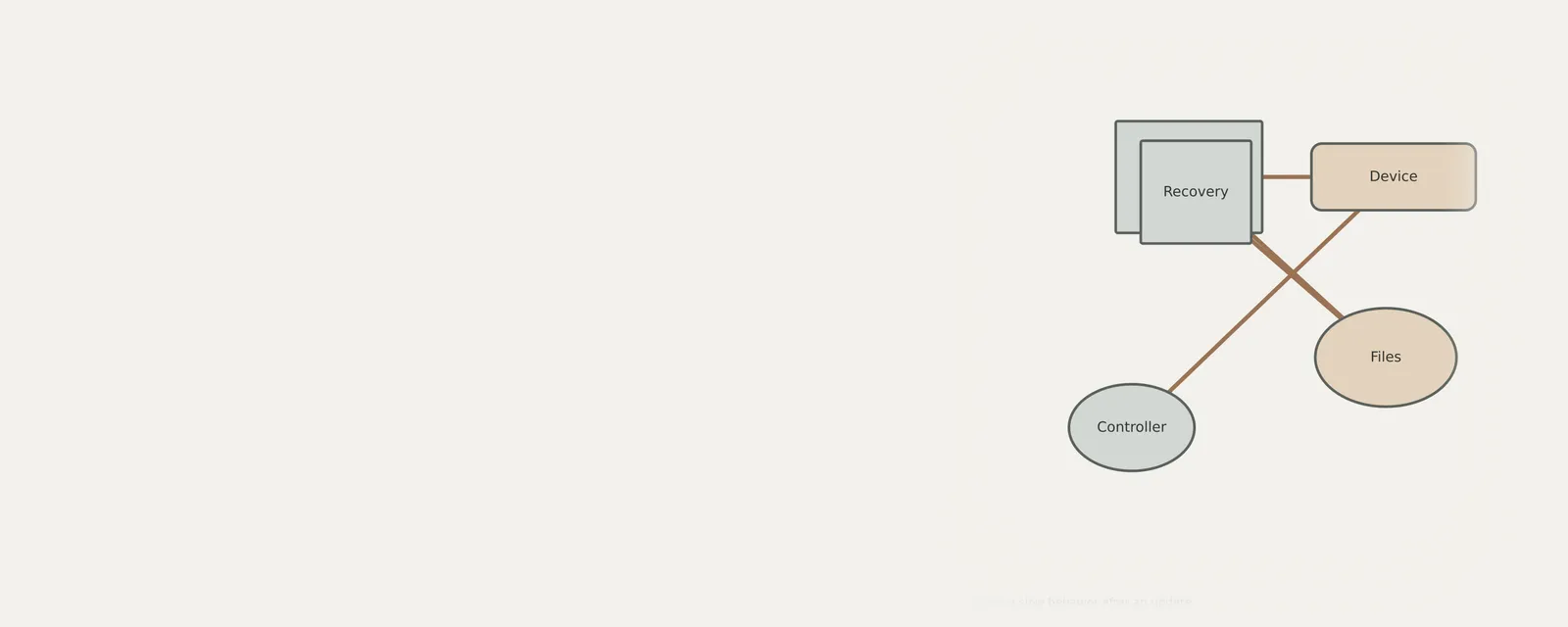
Storage: Reading and writing data
- File systemfiles and folders
- Storage stackvolumes and partitions
- Controller driverNVMe, AHCI or RAID
- Controlleron the board or a card
- DriveSSD or HDD
Frequently asked questions
Is it normal for a system to feel sluggish immediately after an update?
Yes, it is common. The system often performs background optimization, re-indexing of files, and metadata rebuilding after changes. This transient activity consumes processor and disk resources, which may lead to temporary unresponsiveness. These tasks typically complete within a short window, restoring the device to its normal speed.
Should I force a shutdown if the system is slow?
Avoid forcing a shutdown. Interrupted background tasks must restart their work upon reboot, which can cause further delays. Allowing the computer to remain idle and powered on for a sufficient duration is the most effective way to let the operating system finish its necessary cleanup and maintenance operations.
Does the amount of free storage space affect system speed?
High storage utilization significantly impacts performance. Operating systems require free space for temporary file management and virtual memory operations. When a drive is near capacity, the system struggles to move data efficiently, resulting in noticeable latency across the interface and during the launch of various applications.
Can high internal temperatures cause a system to slow down?
Yes, hardware components utilize thermal throttling to prevent damage. If intense post-update tasks cause temperatures to rise above safe thresholds, the system will lower its processing clock speed. Ensuring proper airflow and clean ventilation ports helps the machine maintain optimal performance levels without triggering these safety-based speed reductions.