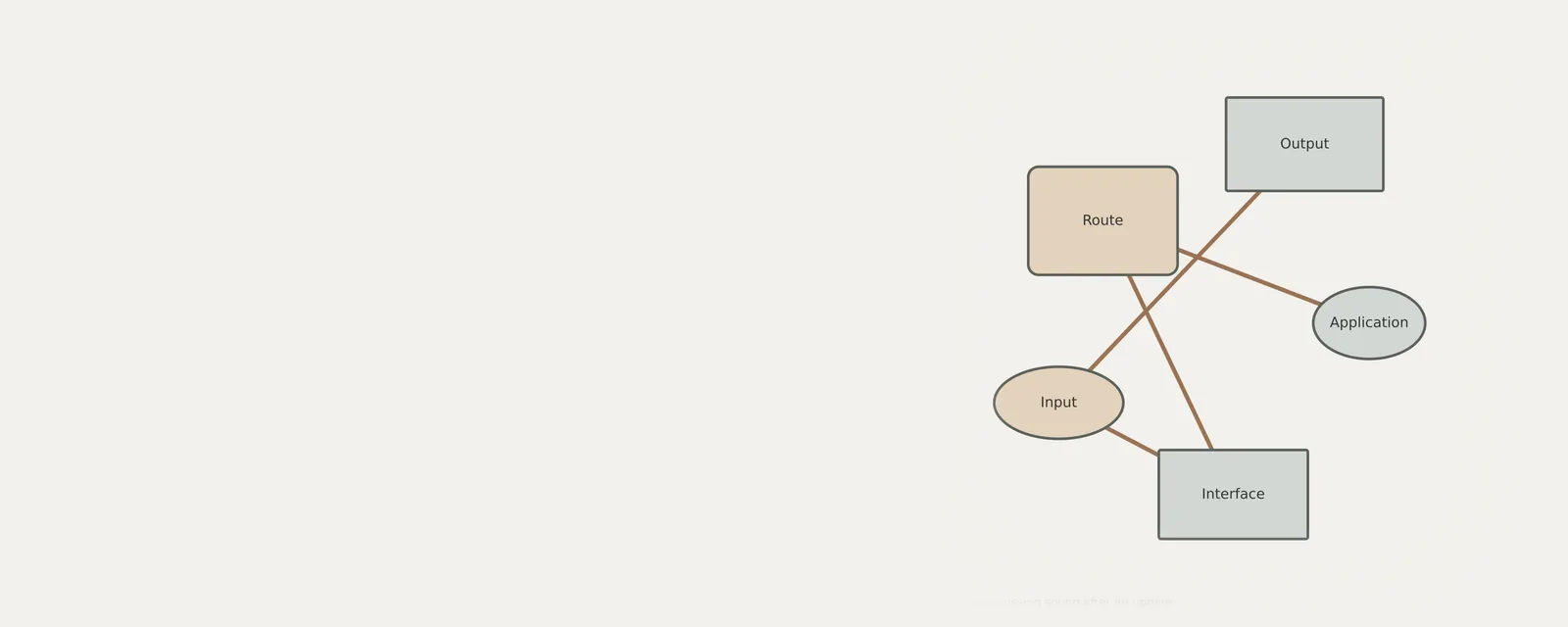
Missing sound can begin with the selected output, an application setting, a physical connection or a device that is not available. Start with the route the sound is supposed to take rather than replacing a driver immediately. A headset, monitor and internal speaker can be separate outputs, while microphone input has its own selection. These checks compare one application with the wider system and one output with another, helping you record what changes without promising a diagnosis or a repair.
Verifying System Sound Output Settings
The first step involves checking the default output device in your operating system settings. Updates can occasionally reset the active audio destination to a secondary device, like a monitor that does not have integrated speakers, effectively silencing your audio. Navigate to the sound control panel or system preferences to ensure your intended speakers or headphones are selected as the primary output. It is common for high-definition multimedia interface connections to become the default target, which can override your standard audio jacks.
Observation of the volume mixer is equally critical when troubleshooting silence. If the system output is set correctly, check that the main volume slider is not at zero. You might find that the master volume is active but individual application sliders have been dragged to the bottom. Distinguishing between a hardware communication failure and a basic volume slider misconfiguration prevents wasted effort on complex reconfigurations when a simple adjustment within the software interface is all that is required.
- Open your sound settings menu through the system configuration interface.
- Check the drop-down menu for output devices to confirm the correct hardware is selected.
- Verify that the main volume slider is set above zero and not in a muted state.
- Launch the volume mixer to inspect levels for individual applications currently in use.
- Test audio playback after toggling the output device away from the current selection and back again.
Identifying Application Versus System Silence
Distinguishing between application-level silence and global system failure is a crucial diagnostic step. If one specific media player remains silent while system notification sounds or another browser window plays audio correctly, the issue is restricted to the software application itself. Check the mute buttons within the interface of the silent program. Many modern browsers and video players include their own volume control that operates independently of the main system volume mixer.
When no audio emits from any source, the issue is likely deeper within the system path. Observe if the audio indicator bars fluctuate when media plays. If these bars move but no sound occurs, the data is reaching the output layer but failing to traverse the physical bridge to your speakers. Conversely, if the bars remain static during playback, the signal is not exiting the application, suggesting a process conflict or a locked audio stream within the operating system playback environment.
- Play a system alert sound or test tone to confirm if any sound functions.
- Attempt to play media across two different software platforms simultaneously.
- Check individual application menus for internal mute or audio output settings.
- Restart the specific application if it shows activity but provides no audible output.
- Verify if any background software is actively capturing the audio device for exclusive usage.
Evaluating Physical Audio Connections
Physical connectivity remains a frequent point of failure even after digital system changes. Cables may become partially dislodged during computer movement or vibration, leading to poor electrical contact. Inspect the jack inputs on the back or front of your machine to ensure the plugs are pushed in fully. If you are using digital interfaces, verify that the cable is firmly seated on both the computer side and the peripheral side to maintain a stable handshake.
If you utilize external displays with integrated speakers, these devices often require distinct routing instructions. Check if the connection cable is capable of carrying audio data, as some legacy adapters omit this functionality. Swapping your cables or testing the peripherals on a different device helps determine if the hardware itself has failed or if the issue remains rooted in the configuration of your current setup. Do not assume a connection is active simply because the cable is plugged in.
- Unplug the audio cable from the port and reinsert it firmly to ensure a solid connection.
- Inspect the port for debris or dust that might prevent proper contact.
- Try a different physical port if your machine provides multiple audio output locations.
- Confirm that your external speakers are powered on and the indicator light is active.
- Test the cable on an alternative device to rule out physical breakage in the wire.
Adjusting Multimedia Interface Routes
Modern systems often route audio through display cables when multiple devices are linked. When you connect a screen via high-definition multimedia interface, the computer might automatically redirect audio to the monitor speakers. If your monitor lacks speakers, this results in an invisible routing error where the operating system sends signals to a device that cannot reproduce sound. Redirecting this path back to your analog output is necessary to restore your intended audio environment.
Be aware that these display routes can be volatile. Disconnecting and reconnecting the display cable may cause the system to revert to its default behavior of choosing the digital interface. By locking the preferred output device in your settings, you can prevent this automatic switching from occurring during future system sessions. If you frequently disconnect your machine from docks or monitors, check these routing paths as a standard part of your setup process to avoid confusion.
- Open system sound settings to view all available output paths.
- Select your preferred analog output from the list if it is currently bypassed.
- Disconnect the monitor cable temporarily to see if audio returns to the local speakers.
- Identify the device associated with your display hardware in the sound menu.
- Set your preferred speakers as the default device to stabilize the output path.
Managing Audio Stream Conflicts
Audio stream conflicts occur when multiple applications attempt to take exclusive control of the output hardware. If a program is configured to prioritize its own stream, it may block all other sounds from processing, which appears as a silent system. Viewing the properties of your playback device allows you to disable the allowance for applications to take exclusive control, which often resolves conflicts between competitive media programs and background processes.
Sometimes the sound engine itself needs a refresh after a system change. Closing all applications that access audio and restarting the background processes involved in output management can release locked streams. This action forces the operating system to re-initialize the connection between your software and the physical output hardware. Keeping your environment clean of multiple conflicting audio apps will drastically reduce the frequency of these stream-locking incidents in your daily computing.
- Navigate to the advanced properties of your active playback device.
- Locate the setting allowing applications to take exclusive control.
- Uncheck the exclusive mode options to prevent individual programs from locking the output.
- Save the changes and restart the active media application.
- Check if other system sounds function while your primary media is playing.
Audio
Note these before you change anything
Useful facts to have to hand while reading about checking missing sound after an update.
- The default playback and recording devices
- Sample rate and bit depth in the device properties
- Enabled enhancements or spatial sound
- Driver name and version, and whether it is a built-in class driver or a vendor one
Audio: Playback (output); recording runs the other way
- Applicationplays a stream
- Audio enginemixes and resamples
- Audio driverbuilt-in class or vendor
- Codec or DACconverts digital to analogue
- Speakers or headphonesanalogue or USB
Frequently asked questions
Why does my sound stop after I connect a monitor?
The system often automatically redirects audio to the monitor via the display cable. If the monitor lacks speakers, you will lose sound. You must manually change your output device back to your preferred speakers in the system sound settings to resolve this redirection issue.
Can a browser mute specific tabs while the system works?
Yes, many browsers have independent mute controls for individual tabs. If you hear sound in one program but not another, check the tab interface for a speaker icon indicating the site is muted. The system volume slider will not affect these specific application-level mute states.
Is it normal for physical cables to cause sound loss?
Physical connections can easily become loose or damaged. Even if a plug looks inserted, it may lack a proper electrical connection. A seated or exchanged cable narrows the comparison but cannot rule out every physical fault.
Should I reinstall my hardware to restore sound?
Avoid complex reinstallations until you check your settings. Sound issues are usually configuration errors related to output routing or volume levels. Reinstalling is often unnecessary and can complicate your setup. Stick to verifying your output destination and checking for application-level mute states before taking further steps.